

Stock
Waste, damage and out-of-date stock (back office and till)
Record stock you can't sell, so your stock and reports stay right: damaged, out of date, stolen, used in the shop or given away. This guide records a split bottle of Domestos Thick Bleach Original 750ml at Green Street Grocer.
For: Owners, Admins, Shop managers, Supervisors and Stock staff6 min read
Needs itsPOS Till 0.5.35 or later.
The Waste page and the till's Waste job are on every plan.
Before you start
- In the back office: Owners, Admins and Shop managers record, approve and cancel waste. Stock staff record waste; it waits for approval when it is over the limit.
- On the till: Owners, Admins, Shop managers, Supervisors and Stock staff use Stock › Waste. A Cashier needs a manager's approval.
- Going back to the supplier for a credit? Make a supplier return instead.
Record waste in the back office
Go to Stock › Waste and press Record waste.
Choose the Shop, for example Green Street Grocer.
Choose the Reason, for example Damaged. Your own reasons are listed too (see Waste reasons).
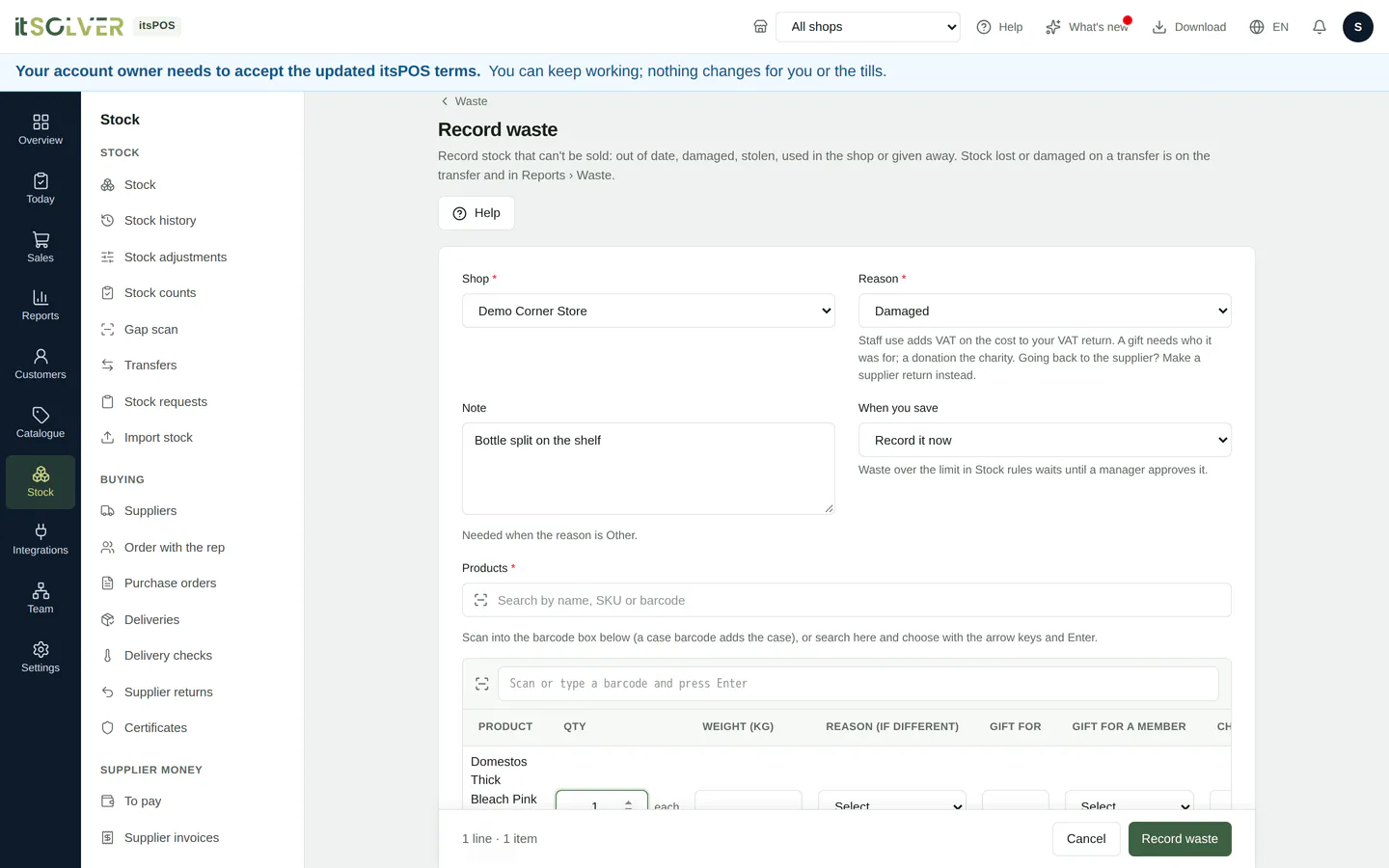
Record waste Optional: a Note, for example "Bottle split on the shelf". The note is needed when the reason is Other.
Scan the item or search for it, and type the quantity.
- Weight (kg) is for food: what was thrown away, for the food waste report.
- Reason (if different) gives one line its own reason.
- Gift for or Gift for a member for a gift, Charity for a donation.
- Batch for products with batches: leave it empty to take the batch that expires first.
When you save: Record it now, or Save as a draft to finish later.
Press Record waste. You see "Saved WST-2026-00001." and the stock goes down.
Which reason?
| Reason | Use it for | What else happens |
|---|---|---|
| Out of date (use by) | Food past its use-by date | It can't be sold or donated |
| Out of date (best before) | Food past best before you throw away | Could have been sold cheaply or donated |
| Damaged, Expired, Recalled | Broken, spoiled, expired or recalled stock | Reports › Waste |
| "Stolen (seen)" | Theft you saw | Counts as theft in reports |
| Staff use | Milk for the tea room, cleaning products used in the shop | VAT on the cost goes on your VAT return |
| Gift or sample | Free samples, gifts to a rep | Needs who it was for; see Gifts and samples |
| "Donated to charity" | Food given to a food bank | Needs the charity; usually no VAT |
| "Single-use vape (can't be sold)", "Unstamped vape (from 1 Apr 2027)" | Vapes you can't sell by law | See Vapes |
Record waste on the till
- Tap Stock, then Waste.
- Under Why is it being wasted?, tap the reason, for example Damaged. Every item you scan next gets it.
- Scan each item, or search for it in Scan or search for a product. Use − and + for how many; weighed food goes on the scale. Change the reason gives one item another reason, and Remove takes it off.
- For a gift, a donation or Other, tap Add who it was for, Add the charity or Add a note on the item.
- Tap Record waste. "Done. Sent to itsPOS."
- Waste over the limit in Stock rules waits for approval in the back office.
- To have it approved straight away, tap A manager approves now instead: a manager approves with their PIN or badge, within their own limit.
Offline, the till keeps it and says "Saved on this till. It's sent when the till is back online."
Waste over the limit: approval
Stock rules › Approvals sets Waste above this amount needs approval (at cost) or All waste needs approval. Leave the amount empty if waste never needs approval.
Waste recorded by someone who may approve it, within their limit, is completed straight away.
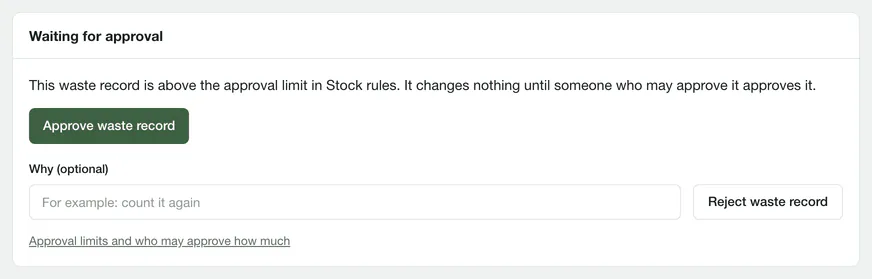
Otherwise it shows Waiting for approval and changes nothing yet. For example, Stan (Stock) records 2 boxes of Persil Capsules worth £6.10 with a limit of £5.
To decide, open it from Stock › Waste (the tile Waiting for approval counts them). Press "Approve waste record", or type Why (optional) and press "Reject waste record": "Waste record rejected. Stock is unchanged."
Limits for each role are in Who approves stock changes.
Undo a waste record
Open the record and press "Cancel waste record", then confirm. "The stock is back as it was." The record stays, marked Cancelled.
Food waste
Turn on Ask where food waste went in Stock rules › Waste, and each waste record asks Where it went: General waste, Food waste collection, Donated or Animal feed. On the till: Where did the food waste go?
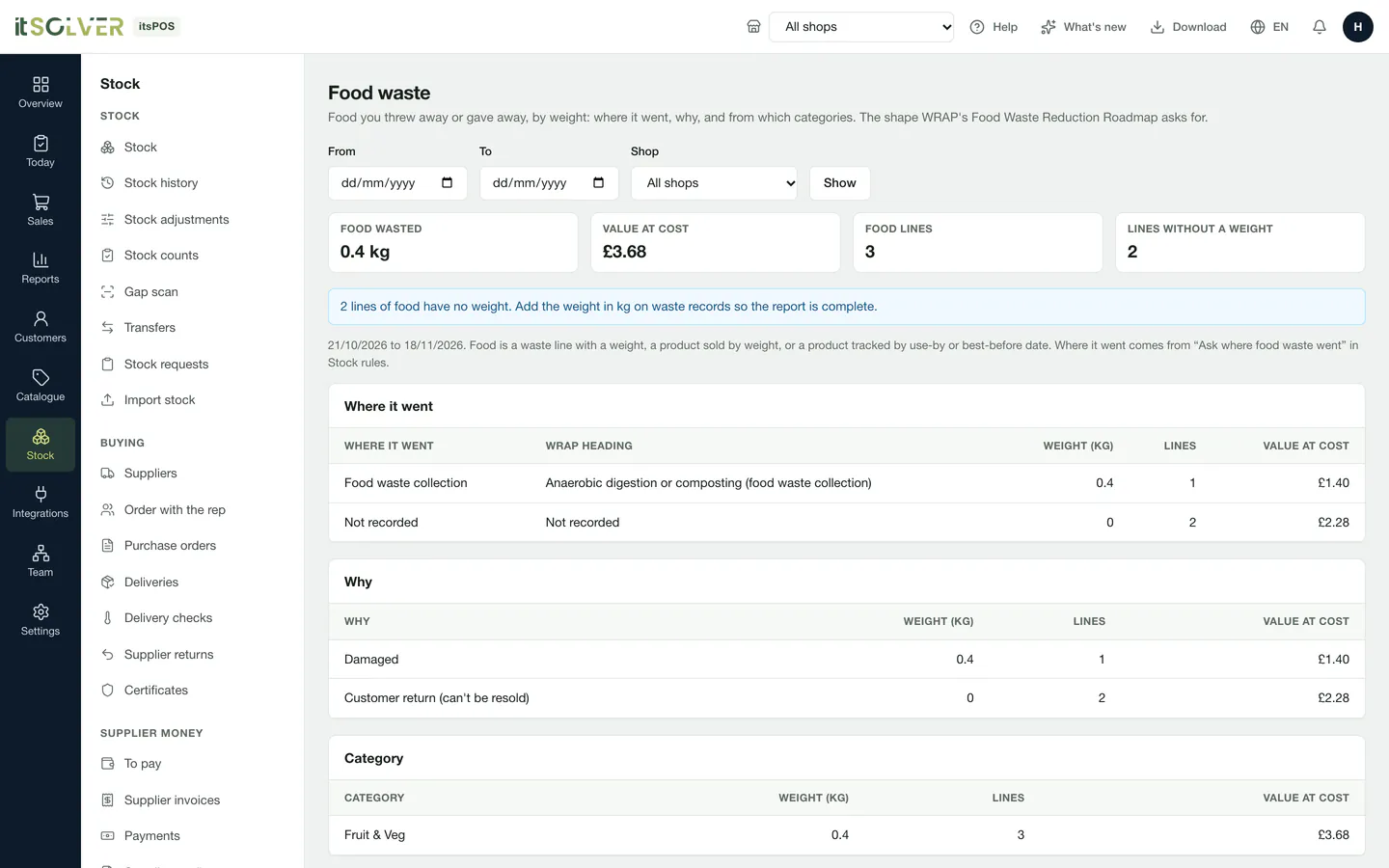
Reports › Stock reports › Food waste adds up food you threw away or gave away, by weight: Where it went, Why and Category, in the shape WRAP's Food Waste Reduction Roadmap asks for. Food is a line with a weight, a product sold by weight, or a product with use-by or best-before dates.
What happens next
- The stock goes down at that shop, and Stock history shows "Wasted" with the reason.
- Reports › Waste shows waste by reason, product and shop, with stock lost on transfers ("Lost in transit").
- Staff use adds VAT on the cost to your VAT return; gifts add up on Gifts by recipient.
Scenarios
- Out-of-date sandwiches at close: record them with Out of date (use by), and the food waste report counts the weight.
- Staff took milk for the tea room: record 1 Arla Uht Milk with Staff use and a note.
If something goes wrong
- The stock adjustment wouldn't take damaged stock: with Losses must go through Waste on (Stock rules), losses are recorded here so they are approved and reported.
- Waste recorded on the till isn't in the back office: the till is offline; it sends it when it is back online.
Still stuck?
The itsPOS support team is here 08:00 to 20:00 every day except Christmas Day.
- Call or WhatsApp: +44 7488 880320
- Email: support@itspos.io
- In the back office: Help › Contact support, or go to app.itspos.io/help/contact after you sign in
- On our website: itspos.io/contact
Tell us your shop's name and what you were trying to do. A screenshot of the screen helps.