

Stock
Supplier deals, rebates and supplier performance
Suppliers give you better prices for a time (deals) and money back after the event (rebates, like 2% of what you spend each quarter). itsPOS uses deal prices on your orders and works out what each rebate should bring in, so you can claim it. Supplier performance tells you how well each supplier delivers. This guide adds a Quarterly drinks rebate of 2% for Demo Drinks Wholesale Ltd.
For: Owners, Admins, Shop managers and Accountants3 min read
Add a rebate
Go to Stock › Suppliers, open the supplier and go to its Rebates tab.
Press Add a rebate and give it a Name.
Under What it's worth, choose how it is worked out:
- % of spend: a percentage of what you're invoiced in the period, before VAT (type the Percentage of spend);
- Per unit or case bought: an amount for every unit or case delivered;
- Per unit sold: an amount for every unit you sell, in every shop;
- Fixed amount: the same each period, like a listing fee.
Choose How often (Each quarter, Each month, Each year or Once), when it Starts and, if it ends, Ends (optional). Leave Only these products empty for everything from them.
Press Save rebate. You see "Quarterly drinks rebate saved: 2% of quarterly spend."
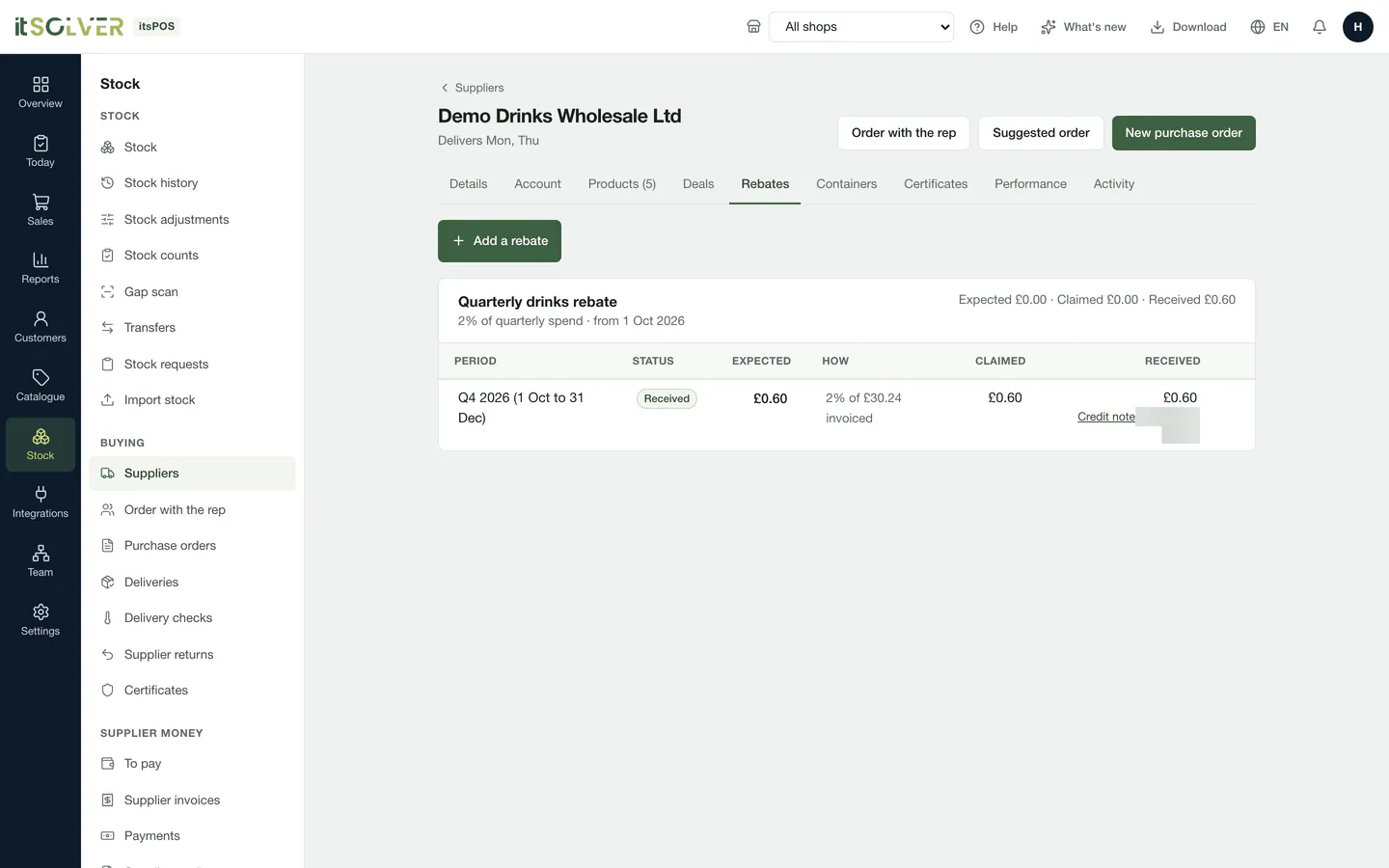
Demo Drinks Wholesale Ltd's Rebates tab
Claim it and record the money
Each period has a row with what is expected so far and how it was worked out ("2% of £30.24 invoiced"). When the period ends:
- Press Claim, check the Amount you claim (it starts from what itsPOS expects) and press Mark as claimed. The period shows Claimed.
- When the supplier pays it, press Received. Type the Amount received (with any VAT) (and VAT on their document (if any)), and choose How it came: A credit note (used on their invoices like any credit) or Money into the bank (their balance doesn't change). Add the Date and Their reference (optional), and press Record it. Our £0.60 came as credit note VCN-2026-00001.
The Supplier rebates page (press See rebates on a supplier's Account tab) lists every supplier's rebates by period with Expected, Claimed and Received totals. Rebates are income when received; they never change your stock values or costs.
Add a deal
On the supplier's Deals tab, press Add a deal: the products and their deal cost, the First day and Last day. While a deal is on, orders to the supplier, suggested orders and the rep screen use its price, and a delivery at the deal price leaves the supplier's normal cost alone. It ends by itself. Cancel deal stops it early.
Supplier performance
The supplier's Performance tab (and the Supplier performance page for every supplier) shows, for the dates you choose:
| Figure | What it means |
|---|---|
| On-time deliveries | Deliveries from purchase orders that came by the expected date. Late means more than the days in Stock rules past the expected date. |
| Fill rate | How much of what was ordered for those dates was delivered. |
| Short and damaged | Delivery lines that came short or damaged. |
| Price changes | Cost rises and falls, and the average change. |
| Average lead time | From sending the order to the delivery. |
| Credits outstanding | Supplier returns not settled yet. |
Read it before the rep's visit: for example "Short and damaged 50.0%, 2 of 4 lines; Problems: Damaged 1 · Short 1" is worth talking about.
Still stuck?
The itsPOS support team is here 08:00 to 20:00 every day except Christmas Day.
- Call or WhatsApp: +44 7488 880320
- Email: support@itspos.io
- In the back office: Help › Contact support, or go to app.itspos.io/help/contact after you sign in
- On our website: itspos.io/contact
Tell us your shop's name and what you were trying to do. A screenshot of the screen helps.