

Stock
Order with the rep
When the supplier's rep visits, sit down with a tablet or the back office and go through their products together: what you have, what is coming, what sells, and what itsPOS suggests. The order becomes a purchase order. This guide uses Demo Cash & Carry Ltd, whose rep Dev Rep visits Green Street Grocer on Tuesdays.
For: Owners, Admins and Shop managers3 min read
Before you start
- Owners, Admins and Shop managers.
- Products need the supplier on their Suppliers card (code, cost, case size) to show here. See Add and manage your suppliers.
Take the order
Go to Stock › Order with the rep (or press Order with the rep on the supplier's page).
Choose the Shop, then the supplier: tap one of your Recent suppliers (each shows its rep, how many products and the next delivery, for example "Rep: Dev Rep · Next delivery Tue 24 Nov"), tap See all for every supplier from A to Z, or tap Supplier and type part of its name, code or your account number with them.
The list shows every product from them with Stock, Coming, Sold/week and Rank (how well it sells in your shop). A big supplier's list shows 60 products at a time and more as you scroll; the search box and the filters look through all of them. Tap Why? to see why itsPOS suggests a quantity.
If the list doesn't load, tap Try again. You can also choose another supplier, or make a normal purchase order to the same supplier.
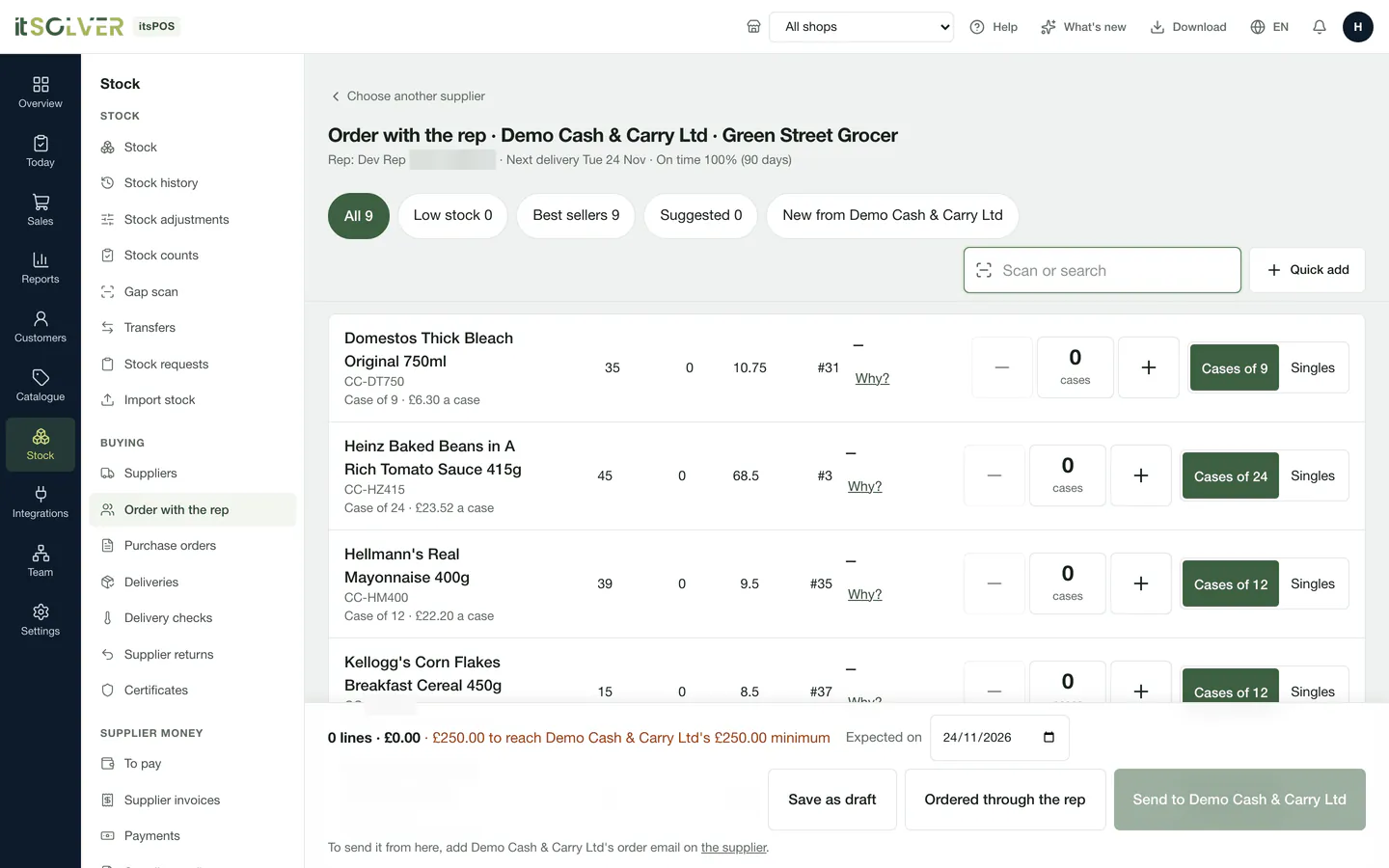
Order with the rep for Demo Cash & Carry Ltd at Green Street Grocer Under each product, Cheaper at shows when another supplier's latest cost is lower, for example "Cheaper at Booker: £1.10, 12 Nov". Tap Compare suppliers to see every supplier of the product with their latest cost (from their last delivery, else their price list) and when they last delivered. Only people who see cost prices see the costs.
Use the filters at the top: All, Low stock, Best sellers, Suggested, and the rep's new lines (Quick add adds one by their code). On a phone or tablet you can scan a product with Scan with camera. A product you scan or add comes to the top of the list.
Type the number of cases for each product (or switch to Singles). The bottom line shows the lines, the total and how much more you need to reach their minimum order.
Check Expected on, then choose:
- Ordered through the rep: the rep takes the order; it is marked as sent and shows in Still to come;
- the send button ("Send to Demo Cash & Carry Ltd"): emails the order as a PDF to their order email;
- Save as draft: finish it later.
What happens next
The order is a purchase order like any other: see Suggested orders and purchase orders. Its products count as Incoming on Stock › Stock until the delivery comes, and the suggestions on the rep screen take it into account.
Still stuck?
The itsPOS support team is here 08:00 to 20:00 every day except Christmas Day.
- Call or WhatsApp: +44 7488 880320
- Email: support@itspos.io
- In the back office: Help › Contact support, or go to app.itspos.io/help/contact after you sign in
- On our website: itspos.io/contact
Tell us your shop's name and what you were trying to do. A screenshot of the screen helps.