

Stock
Cutting carcasses and repacking bulk
Repacking turns bulk into packs you sell: a whole cheese into 200 g packs, a 25 kg sack of rice into 1 kg bags. Cutting turns a carcass or primal into cuts by weight. Both take the bulk off stock, put the packs or cuts into stock with a fair cost, and print their labels. This guide repacks Aged Gouda (from the counter) into Aged Gouda 200g packs at Leith Larder.
For: Owners, Admins, Shop managers and Stock staffOn some plans4 min read
Cutting and repacking are on Professional and above.
Before you start
- Who: Owners, Admins and Shop managers set up templates. They and Stock staff cut and repack. On the till, Supervisors too; a Cashier needs a manager's approval.
- Add the pack or cut products first in Catalogue › Products, for example Aged Gouda 200g pack at £4.95. A carcass, its cuts and bulk products added as Sold by weight are kept in kg, so cutting and repacking weigh them in kg.
Repack bulk into packs
Make a pack template once:
- Go to Stock › Repacking, open Pack templates and press Add a template.
- Name: Aged Gouda 200g packs.
- Bulk product (what you open): Aged Gouda (from the counter). Pack product (what you sell): Aged Gouda 200g pack.
- Pack size: how much bulk goes in one pack, in the bulk's unit: 0.2 (kg).
- Packaging per pack (£): the bag and label, for example 0.10. Spillage allowed (%): 2. Best before (days after packing): 14.
- Press Save template.
Repack:
On Stock › Repacking, choose the Shop (Leith Larder) and the Template, and press Start.
Packs made: 5. Type how much bulk you used, for example 1.02 kg. itsPOS shows how much went in the packs and the spillage against the allowance.
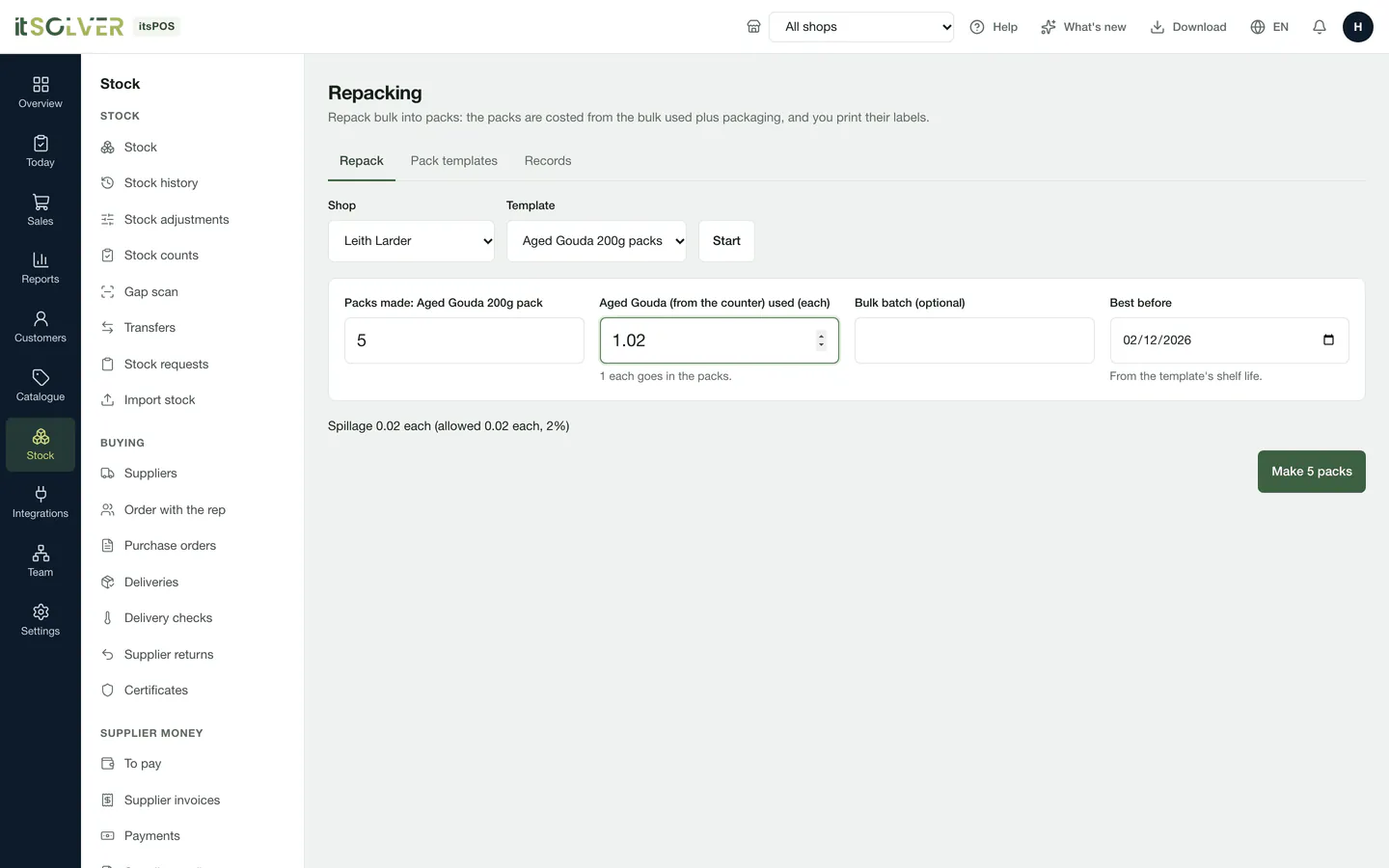
Repacking Optional: the Bulk batch, and check the Best before date (from the template's shelf life).
Press Make 5 packs. "5 packs made. Print the pack labels below."
The record shows What went in (£13.26 of cheese), Packaging (£0.50), What was made (5 packs at £2.75 each) and the spillage, recorded as "Repacking loss": it has no value of its own, its cost stays in the packs. Spillage over the allowance needs a manager.
Cut a carcass
Make a cutting template once:
- Go to Stock › Cutting, open Cutting templates and press Add a template.
- Name, for example Lamb carcass. What is cut: the carcass product.
- Under Cuts and waste, Add a cut for each cut (leg, shoulder, chops, mince) and each kind of waste (bone, fat), with the Expected yield (%) of each. "The expected yields add up to more than 100%." warns you when they don't add up.
- Press Save template.
Cut it:
- On Stock › Cutting, choose the template.
- Weight in (kg): what the carcass weighed. Its batch: the carcass's batch, so its delivery's meat details (origin, slaughterhouse, kill date) go to every cut. Beef reference (if different) when it's beef.
- Type the Actual (kg) of each cut and waste.
- Spread the cost: By selling value (each cut's weight × its price per kg sets its share, so fillet costs more per kg than mince) or By weight (every cut costs the same per kg).
- Press Finish. Weight that went in but isn't a cut or recorded waste is an unaccounted loss: over Unaccounted loss allowed when cutting (2%) a manager checks it.
Stock › Cutting › Yields compares each cut's yield with the template; cuts more than Warn when a cut is this far below its expected yield (3 points) below are flagged.
On the till
Needs itsPOS Till 0.5.15 or later. Tap Stock, then Make and cut, then Repack or the cutting template. For cutting, weigh what goes in first, then each cut on the scale, and tap Finish cutting. For repacking, set the packs made and the bulk used, and tap Record. Labels print from the same screen.
What happens next
- The bulk's stock goes down; the packs or cuts go up at their share of the cost plus packaging.
- Stock › Production › Records lists every cutting and repack; Undo reverses one.
- Cuts carry the carcass's meat details for the Meat intake record and beef labels.
Still stuck?
The itsPOS support team is here 08:00 to 20:00 every day except Christmas Day.
- Call or WhatsApp: +44 7488 880320
- Email: support@itspos.io
- In the back office: Help › Contact support, or go to app.itspos.io/help/contact after you sign in
- On our website: itspos.io/contact
Tell us your shop's name and what you were trying to do. A screenshot of the screen helps.