

Stock
Receive a delivery (back office and till)
When a delivery comes, check it against the supplier's invoice line by line. What arrived goes into stock at its cost; anything short, damaged or not wanted goes on a claim to the supplier, and the invoice is saved for you to pay. This guide receives PO-2026-00007 from Demo Cash & Carry Ltd at Green Street Grocer: the invoice lists a case of 24 Heinz Baked Beans in A Rich Tomato Sauce 415g, but only 18 tins came, and one jar of Hellmann's Real Mayonnaise 400g was broken.
For: Owners, Admins, Shop managers, Supervisors and Stock staff6 min read
Needs itsPOS Till 0.5.33 or later.
Before you start
- In the back office: Owners, Admins, Shop managers and Stock. On the till: Shop managers, Supervisors and Stock (not Cashiers, with the built-in roles).
- Have the supplier's invoice or delivery note in your hand.
Start the delivery
Go to Stock › Deliveries and press Receive a delivery.
Under Where it came from, choose From a purchase order and choose the order (for example "PO-2026-00007 · Demo Cash & Carry Ltd · Sent · due Tue 24 Nov"). No order? Choose No order, then the supplier and the shop.
Under Supplier's invoice or delivery note, type the Number, the Invoice date, Delivered on, and the invoice's Net (without VAT), VAT and Total. Leave Due date (optional) empty to work it out from the supplier's payment terms.
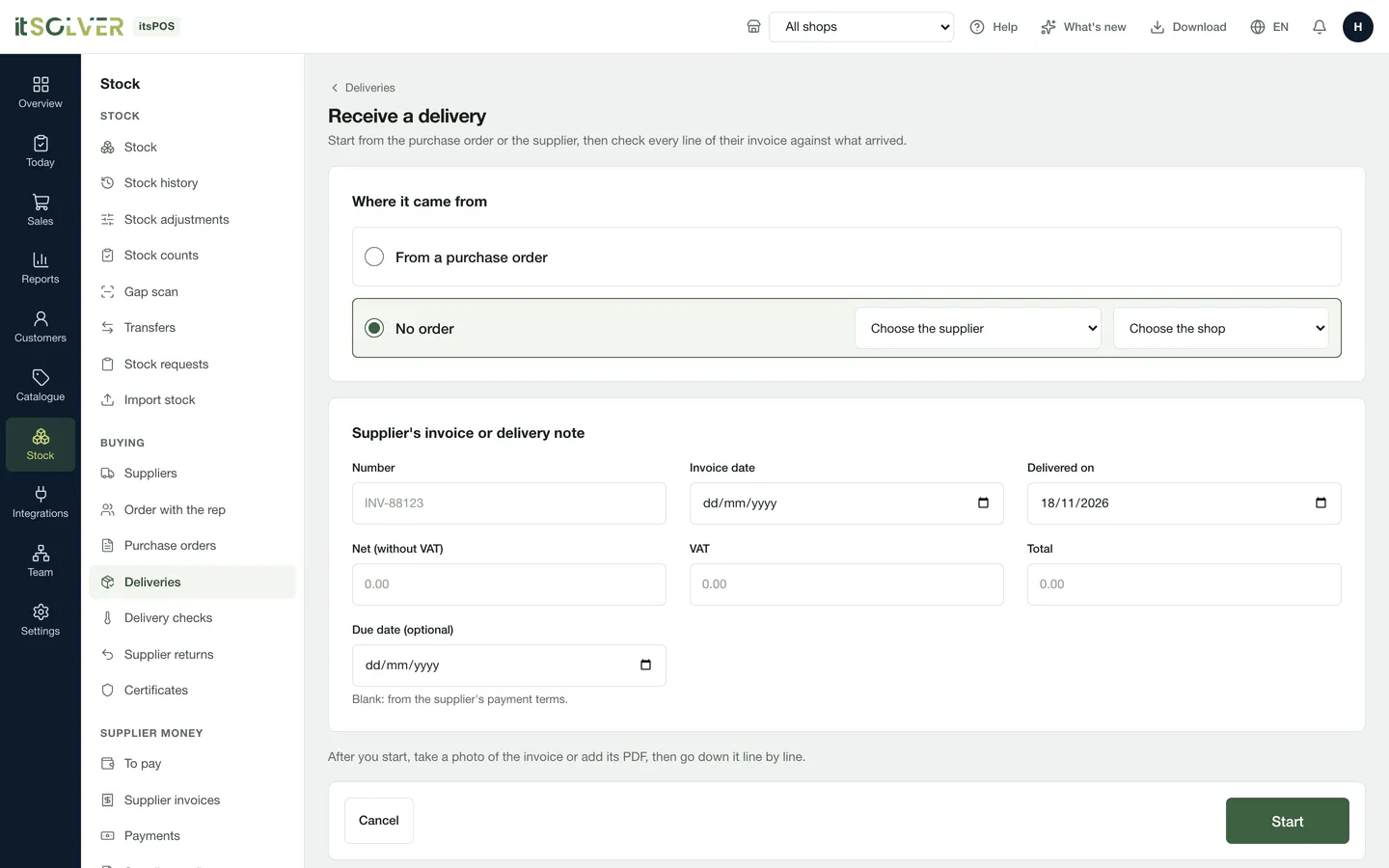
Receive a delivery Press Start. You see "Delivery started. Take a photo of the invoice, then check each line against it." Press Take a photo (or Add a file for a PDF) to keep the invoice with the delivery. With the AI add-on, Read it fills the lines in for you: see Read supplier invoices with AI.
Check each line
From a purchase order the lines are already there. Without one, scan each product or type the supplier's code or the product's name.
Go down the invoice. For each line, check On the invoice and type what really arrived under Arrived, in cases or (tap in singles) single items. Use − and + on a tablet.
When a line matches, tick it. When it doesn't, choose why under Say why: Short, Damaged, Not wanted, Wrong item, Out of date, Too warm on delivery, Short-dated, or Extra for more than the invoice. Our Heinz: 18 arrived, Short, "6 on the claim". Our Hellmann's: 11 arrived, Damaged, "1 on the claim".
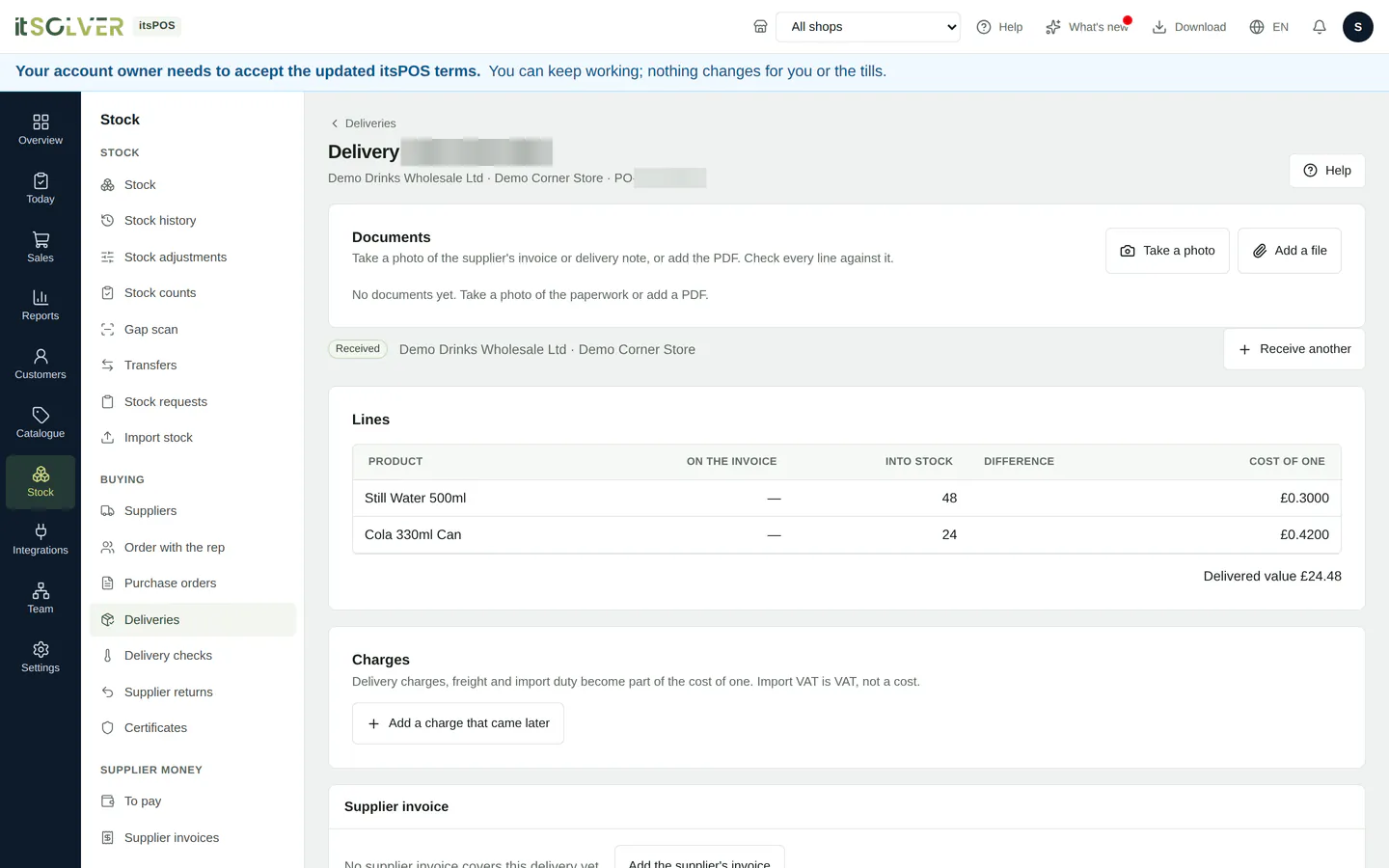
Delivery GRN-2026-00012 received Everything matches? Press Everything arrived: every line takes the invoice's quantity.
Free is for free units the supplier added.
Cheese, meat or produce bought by the kilo (They sell it by weight on the product's supplier) asks for the cases and the actual weight in kg.
Products that keep batches ask for the batch number and date (Premier and above).
Delivered value, On the claim and VAT at the bottom update as you go. Damaged, not wanted, wrong, out-of-date, too warm, short-dated and missing units never go into stock: the claim is a draft supplier return.
Charges and containers
- Add a charge for delivery charges, freight or import duty on the invoice. They become part of the cost of one, spread by value. Import VAT is VAT, not a cost.
- Returnable containers (only for suppliers with container types): type the full crates or kegs that came In and the empties handed back Out. See Crates, kegs and cages.
Finish
Press Review to see cost changes before you finish: "Check the costs and prices before you finish. A new price applies to the stock already on the shelf too."
Press Finish. From a purchase order, itsPOS asks "Is everything from PO-2026-00007 here?":
- All received: the order becomes Delivered;
- Partly received: the rest is still coming: the order stays Partly delivered and its lines show in Still to come;
- Partly received: don't expect the rest: the order is closed.
For our short delivery we chose Partly received: don't expect the rest, because the 6 tins are on the claim.
You see "Received. Stock is up at Green Street Grocer. A claim for 7 items (£7.73) was drafted for Demo Cash & Carry Ltd as a credit. Invoice DCC-55210 is saved as a supplier invoice." View the claim and View the invoice open them.
Not finished yet? Save draft keeps it; Delete draft throws it away.
Receive on the till
- Tap Stock, then Receive, then A delivery. The list shows today's, late and partly delivered purchase orders for this shop. No order? Tap No order: choose the supplier. Under Who delivered it? your recent suppliers are at the top; tap one, or tap the search box and type the supplier's name, code or your account number with them. This works offline too.
- Type the Invoice or delivery note number.
- Scan each item or case: each scan adds one, a case barcode adds the case. Or use − and + on each line. Lines that match the invoice get a big tick.
- For a line with fewer than the invoice, tap Why fewer? and choose the reason.
- For chilled or frozen products, the till asks for the temperature on the keypad. See Temperature checks.
- A barcode nobody knows asks "Which product is …?" and "Is this the barcode on one item, or on the case?". The new barcode goes to the product to check when you finish.
- Tap Finish, then answer Is everything from … here? like in the back office.
The till keeps the delivery if it goes offline and sends it once it is back.
What happens next
- Stock goes up at the shop straight away, on the tills and online too. Stock history shows each line as received.
- Costs: each product's cost of one updates from the delivery (with its share of charges). See How itsPOS values your stock.
- The claim is a draft supplier return for the missing and damaged units. Open it and send it: see Return stock to a supplier and get a credit.
- The supplier invoice is saved and shows in To pay with its due date. If it is more than what was delivered, it says so, for example "£7.73 more than delivered". See Supplier invoices, payments and what you owe.
Still stuck?
The itsPOS support team is here 08:00 to 20:00 every day except Christmas Day.
- Call or WhatsApp: +44 7488 880320
- Email: support@itspos.io
- In the back office: Help › Contact support, or go to app.itspos.io/help/contact after you sign in
- On our website: itspos.io/contact
Tell us your shop's name and what you were trying to do. A screenshot of the screen helps.