

Stock
Gap scan and the fill list
Before opening, walk the shop and scan the shelf label under each empty space. For each gap, say whether there are any in the back: if yes, it goes on the fill list for the stock room; if none are left, itsPOS sets the stock to 0 and the product joins its supplier's next order. This guide scans the gap for Napolina Chopped Tomatoes 400g at Green Street Grocer.
For: Owners, Admins, Shop managers, Supervisors and Stock staff3 min read
Needs itsPOS Till 0.5.33 or later.
Before you start
- On the till: Shop managers, Supervisors and Stock (a Cashier's gap scan needs a manager's approval). In the back office: Owners, Admins, Shop managers and Stock.
- On the till, the Gap scan tab is on when the till profile has Gap scan under Stock jobs on this till.
Scan gaps on the till
- Tap Stock, then Gap scan.
- Scan the shelf label under the empty space (or search for the product).
- The till shows what itsPOS thinks is there, for example "itsPOS thinks: 17 left", and asks Any in the back? Tap Yes, fill the shelf if there are some in the stock room, or No, none left if there aren't.
- Carry on along the aisles. The list shows each gap you scanned.
- Open Fill from the stock room to see what to fetch, in shop order. Tap each product when you have filled it ("Tap when filled").
Scan gaps in the back office (or on a phone)
Go to Stock › Gap scan and choose the Shop.
Scan the shelf label into the box, or type the product's name and press Find. On a phone, tap Scan with camera.
itsPOS shows what it thinks is there, for example "itsPOS thinks: 34 left", and asks Any in the back? Press Yes, fill the shelf or No, none left.
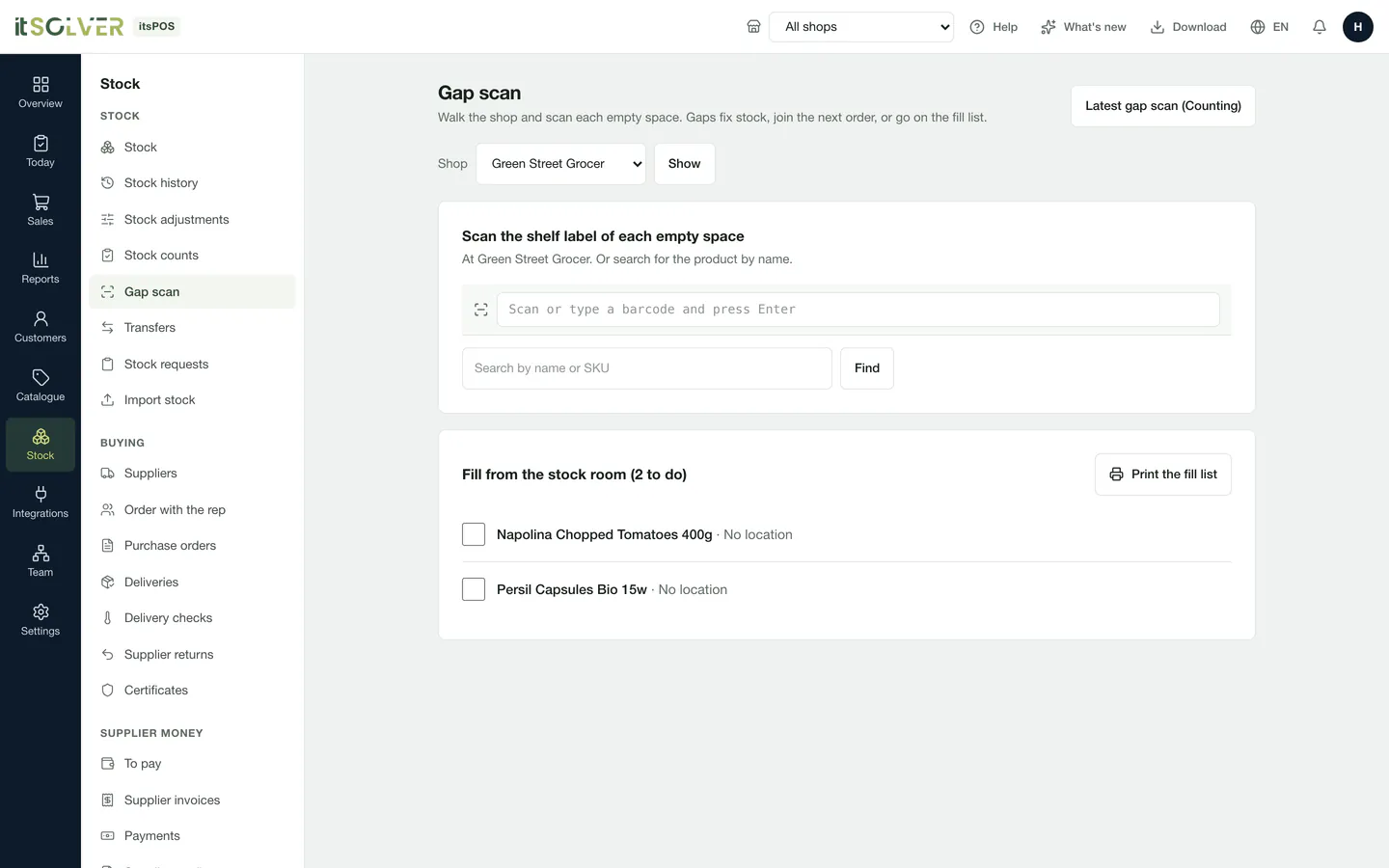
Gap scan at Green Street Grocer Fill from the stock room lists every product you answered "Yes, fill the shelf" for, in shop order (by Location in shop). Press Print the fill list to take it to the stock room.
What happens next
- Yes, fill the shelf: nothing changes in stock; the product is on the fill list until someone fills it.
- No, none left: stock at the shop goes to 0 (on the till, a manager approves it if your rules say so). With Stock rules › Add gaps to the next order on, the product goes on its main supplier's next purchase order for the shop (a draft, made if there is none). See Suggested orders and purchase orders.
- A gap scan is kept like a count, so Stock history shows any change it made.
Still stuck?
The itsPOS support team is here 08:00 to 20:00 every day except Christmas Day.
- Call or WhatsApp: +44 7488 880320
- Email: support@itspos.io
- In the back office: Help › Contact support, or go to app.itspos.io/help/contact after you sign in
- On our website: itspos.io/contact
Tell us your shop's name and what you were trying to do. A screenshot of the screen helps.