

Stock
Move stock between shops
A transfer moves stock from one of your shops or your warehouse to another: the sending shop's stock goes down and the receiving shop's goes up when it arrives. This guide sends 12 Heinz Baked Beans 415g and 6 Tetley Original 80s from Leith Larder to Green Street Grocer.
For: Owners, Admins, Shop managers and Stock staffOn some plans4 min read
Transfers are on Essentials and above. You need a second shop or a warehouse to send to.
Before you start
- Who: Owners, Admins, Shop managers and Stock staff send and receive transfers. On the till, Stock staff, Supervisors and managers receive them; Cashiers don't.
- Stock rules › Transfers and stock requests decides how they work (below).
Send stock
Go to Stock › Transfers and press Send stock.
Choose the From shop, for example Leith Larder, and the To shop, for example Green Street Grocer.
Save as: Send now, or Draft (not sent yet) to print the pick list before the stock leaves.
Scan or search for each product and type the Qty. For products with batches, type the Batch, or leave it empty for the batch that expires first.
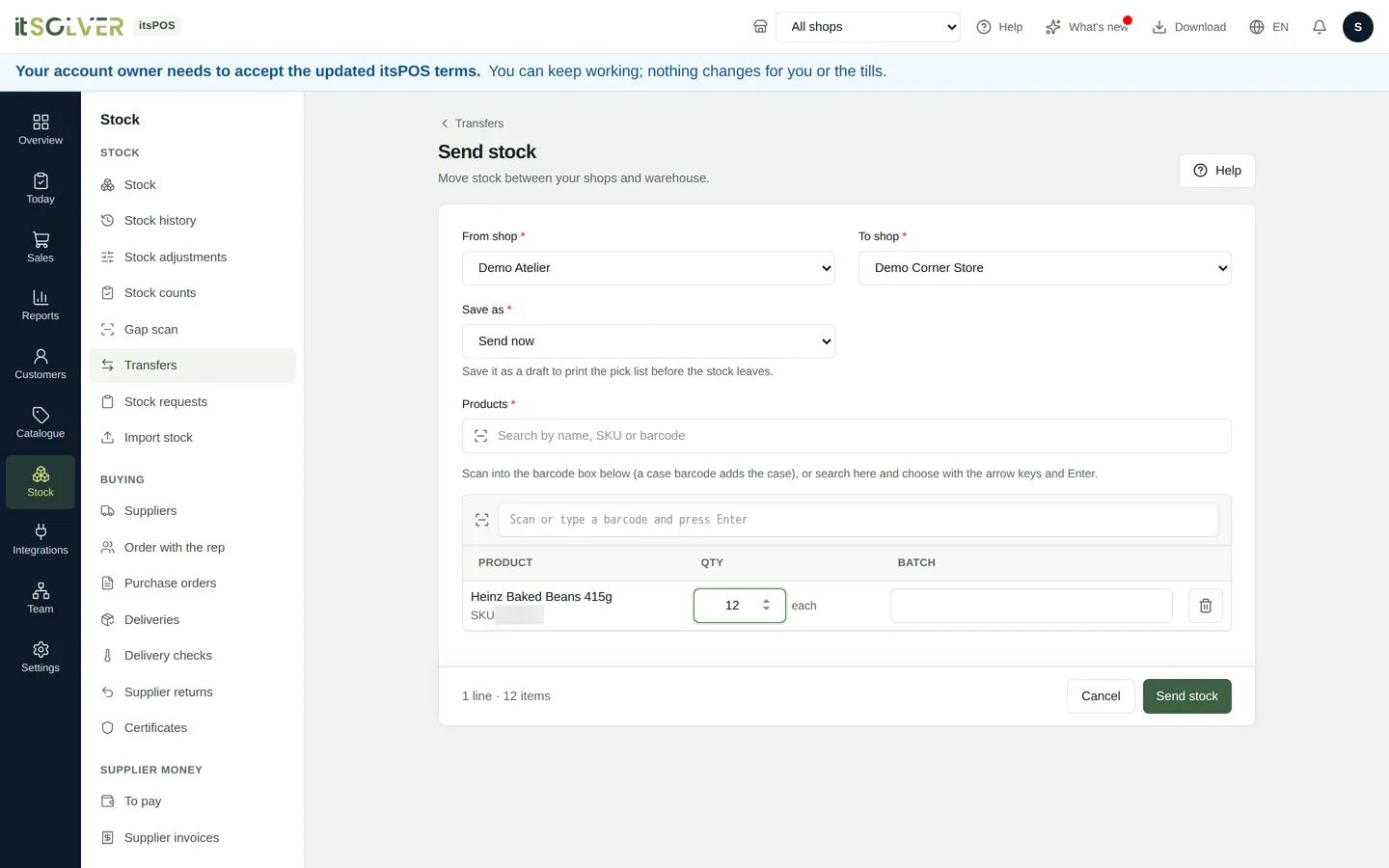
Send stock Press Send stock. You see "Saved TRF-2026-00002." Its status is In transit.
A sent transfer can't be changed. Open a draft to send it later, or delete it.
Print the pick list and packing slip
Open the transfer. In Print, Pick list sorts the products by their Location in shop at the sending shop; Packing slip goes with the stock.
Receive it
With Transfers must be received on (the default), stock arrives at the receiving shop only when someone there checks what came.
In the back office:
- Open the transfer from Stock › Transfers (Show: Coming to my shops).
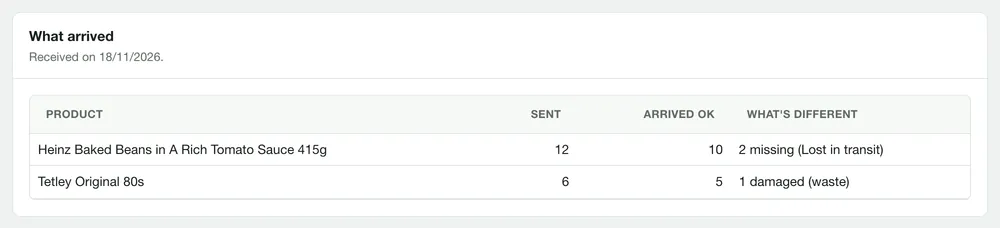
- In Receive this transfer, set for each product how many Arrived OK and how many are Damaged (type it, or use − and + on a phone or tablet). What's different says what doesn't match. All arrived puts every product back to what was sent.
- Press Receive.
On the till (Needs itsPOS Till 0.5.15 or later): tap Stock, then Receive, then A transfer. Choose the transfer and, under Check what arrived, set Arrived OK and Damaged for each product with − and +. Tap Receive.
When it's received:
- Damaged items come into the receiving shop's stock and go straight out as waste "Damaged in transit".
- Missing items wait for the sending shop to check them.
- Extra items are taken off the sending shop's stock and added to the receiving shop's.
Missing items
The transfer shows Missing items to check, for example "Heinz Baked Beans in A Rich Tomato Sauce 415g: 2 didn't arrive at Green Street Grocer."
- Look for them at the sending shop.
- Found them? Press Found them: they go back into the sending shop's stock.
- Not found? Press Confirm missing and confirm: they are recorded as Lost in transit in Reports › Waste.
If nobody checks them within Missing items become a loss after (days) (7 by default), itsPOS records them as Lost in transit.
The settings
In Stock › Stock rules › Transfers and stock requests:
| Setting | Default | What it does |
|---|---|---|
| Transfers must be received | On | Stock arrives when the receiving shop checks it. Off: it arrives as soon as it's sent |
| Missing items become "Lost in transit" | On | Missing items wait for the sending shop. Off: they go straight back into its stock |
| Missing items become a loss after (days) | 7 | 1 to 90 days |
| Make a transfer when a stock request is approved | Off | See Stock requests |
Scenario: two cases went missing on the van
Leith Larder sends 12 tins of beans and 6 boxes of tea to Green Street Grocer. Stan at Green Street Grocer receives 10 tins and 5 boxes, one of them crushed. The transfer shows 2 tins missing for Leith Larder to check and 1 box damaged (recorded as waste). Nobody finds the tins, so Leith Larder's manager presses Confirm missing, and the £1.96 of beans is on the waste report as Lost in transit.
Other ways to start a transfer
- Stock › Stock: Transfer in a product's actions.
- Stock › Range review: Transfer to another shop for a slow seller.
- An approved stock request: Create transfer.
Still stuck?
The itsPOS support team is here 08:00 to 20:00 every day except Christmas Day.
- Call or WhatsApp: +44 7488 880320
- Email: support@itspos.io
- In the back office: Help › Contact support, or go to app.itspos.io/help/contact after you sign in
- On our website: itspos.io/contact
Tell us your shop's name and what you were trying to do. A screenshot of the screen helps.