

Stock
Stock history: why a number changed
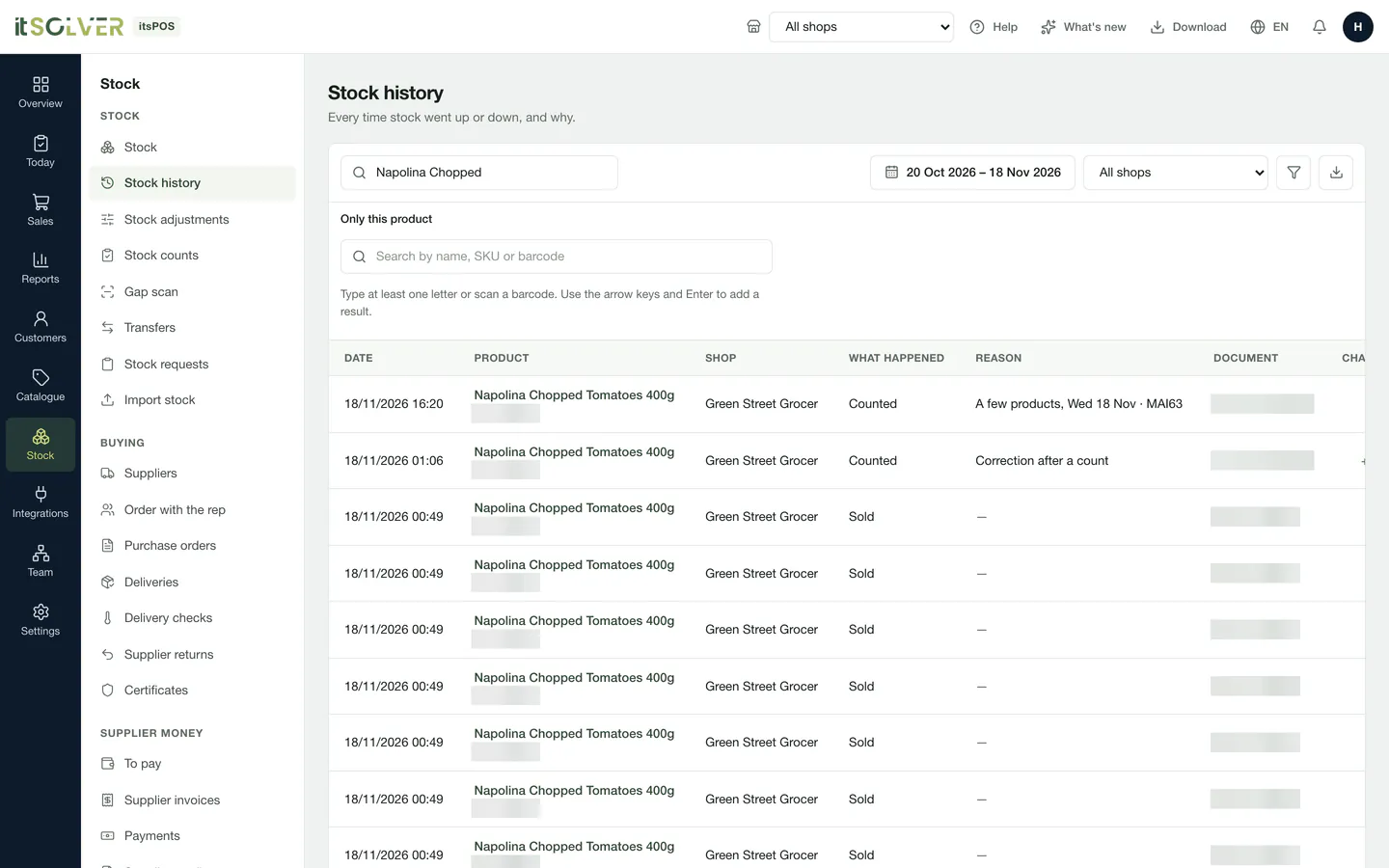
Stock › Stock history lists every time stock went up or down at your shops, and why: each sale, refund, delivery, count, adjustment, waste and transfer. Use it when a number on Stock › Stock surprises you. This guide follows Napolina Chopped Tomatoes 400g at Green Street Grocer, which went from 34 to 33 after a count on a till.
For: Owners, Admins, Shop managers, Stock staff and Accountants2 min read
What you see
Newest first, one row per movement:
| Column | What it shows |
|---|---|
| Date | When it happened. |
| What happened | For example "Sold", "Returned by a customer", "Received", "Counted". |
| Reason | The reason given, for example "Correction after a count" on an adjustment. |
| Document | The receipt, delivery, count or adjustment number. Press it to open the document. |
| Change | How much went up (+) or down (−). |
| Stock after | On hand straight after this movement. |
| Value | What the change was worth at cost (only for people who may see cost prices). |
| By | The person who did it in the back office, or the till ("Till MAI11") for sales, refunds and stock jobs on a till. |
Find what you need
- Choose the dates at the top (the last 30 days to start with) and a Shop.
- Only this product: type a product's name or scan its barcode to see only its history. Show every product goes back to all of them.
- Search by product, SKU or document: type a document number, for example GRN-2026-00012, to see everything one delivery did.
- Export CSV downloads what is listed.
- On a phone, the dates, the shop and the kind of move are under Filters, and Export CSV under ⋯. Each move is a card with what happened, the change, the shop, who did it and when.
You can also open a product's history from its Stock card: View stock history.
Moves older than 13 months
Moves older than 13 months are kept in the archive. The page says "Older moves are in the archive." (on a phone, under the list of moves). Choose the dates and the shop and press Ask for them: a file to download is ready on the same page a few minutes later.
Where it shows up
Every number on Stock › Stock, the till's Stock check and the online store's stock badge comes from these movements. Stock values in reports use their Value. See How itsPOS values your stock.
Still stuck?
The itsPOS support team is here 08:00 to 20:00 every day except Christmas Day.
- Call or WhatsApp: +44 7488 880320
- Email: support@itspos.io
- In the back office: Help › Contact support, or go to app.itspos.io/help/contact after you sign in
- On our website: itspos.io/contact
Tell us your shop's name and what you were trying to do. A screenshot of the screen helps.