

Stock
Reorder rules and low stock
A reorder rule says when a product is running low at a shop and how much to order then. Low stock shows on the Stock list, the Overview, the low-stock email and the till, and suggested orders use the rule. This guide sets rules for six grocery lines at Green Street Grocer, for example Heinz Baked Beans in A Rich Tomato Sauce 415g: reorder at 24.
For: Owners, Admins, Shop managers and Stock staff3 min read
Before you start
- You need to be an Owner, Admin, Shop manager or Stock.
- Products without their own rule follow the shop's defaults in Stock › Stock rules › Reorder rules (How to reorder and Reorder at). A product's own rule always wins.
- Give each product its main supplier and case size first (the product's Suppliers card), so orders round up to whole cases. See Add and manage your suppliers.
The two ways to reorder
- Reorder at a level: when Available falls to Reorder at, order the Order quantity (or, with none, enough to get back above the level).
- Top up to a level: when Available falls to Reorder at, order enough to reach Order up to.
Order quantities are rounded up to the supplier's case size on orders: Heinz Baked Beans come in cases of 24, so 19 left with "reorder at 24" orders one case.
Set rules for many products at once
Go to Stock › Stock, choose the shop (for example Green Street Grocer) and find the products. Search, or use the filter Main supplier to list one supplier's products.
Tick the products and press Edit reorder rules.
For each product, choose How to reorder, then type Reorder at and either Order quantity or Order up to (the other one is greyed out for that method). Leave a cell empty to follow Stock rules. Sold in 28 days, Main supplier and Case size help you choose.
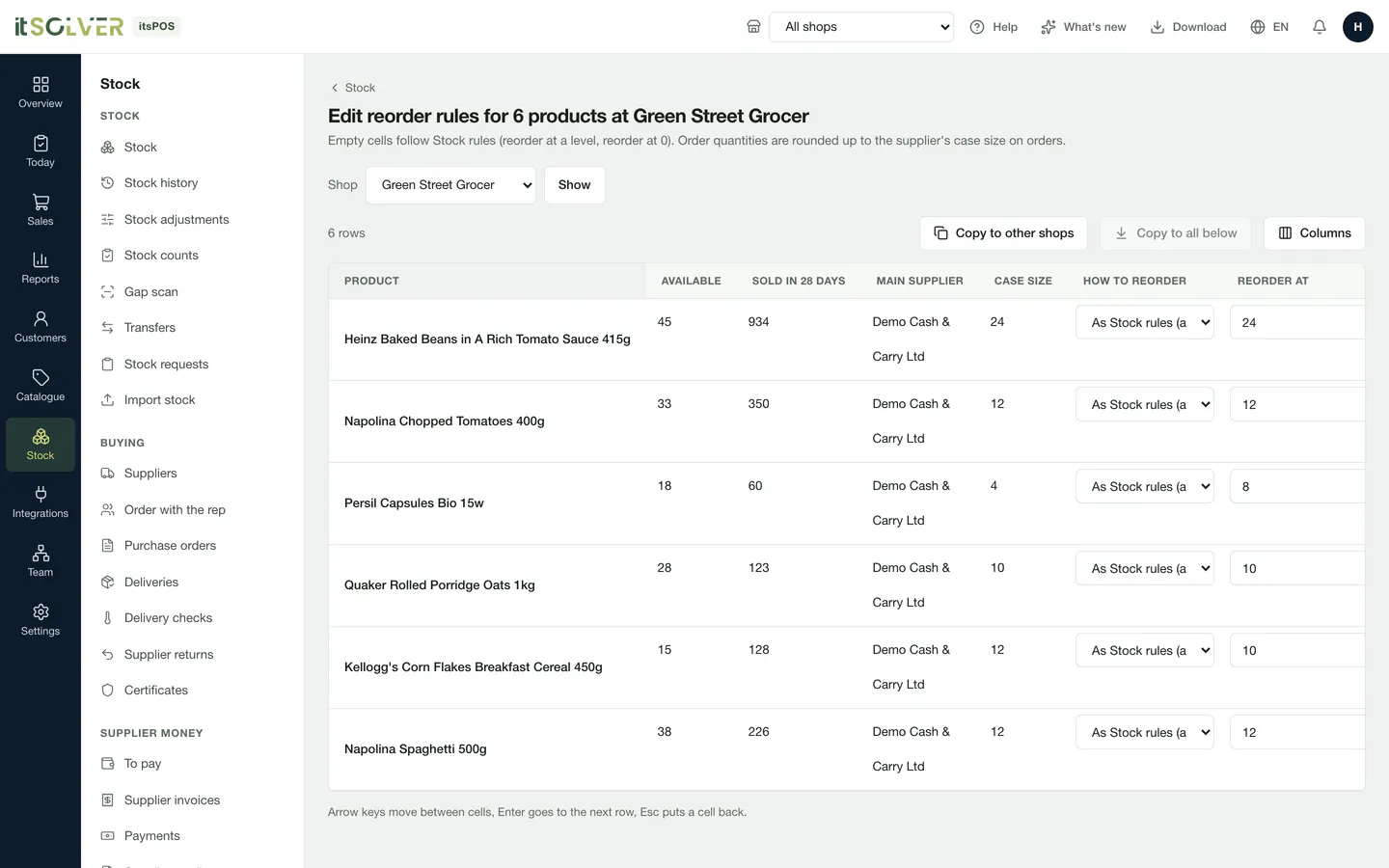
Press Save reorder rules. You see "Saved reorder rules for 6 products at Green Street Grocer."
Use the arrow keys to move between cells, Enter for the next row and Esc to put a cell back.
Copy the rules to your other shops
On the same page, under Copy to other shops, tick the shops under Give these shops the same rules (saved ones) and press the copy button (it says how many rules it copies, for example "Copy 6 rules"). Only saved rules are copied: save first.
One product at a time
Open the product in Catalogue › Products and go to its Stock card. Reorder rules at each shop has the same three choices for every shop. Save the product.
What happens next
- A product at or below Reorder at shows Low stock on Stock › Stock, on the till's Stock check, on the Overview and in the daily low-stock email (if you get it).
- Suggested orders and Order with the rep use the rule to say how much to order. On Premier and above, products without their own rule are ordered from their sales instead (see Suggested orders and purchase orders).
- Stock that is already on a sent purchase order counts towards the level, so the same product isn't suggested twice.
Busy seasons
Before a busy spell (a barbecue weekend, Christmas), raise Reorder at and Order up to for the products that will sell faster, then put them back afterwards. On Premier and above, products ordered from their sales also look at the same time last year.
Still stuck?
The itsPOS support team is here 08:00 to 20:00 every day except Christmas Day.
- Call or WhatsApp: +44 7488 880320
- Email: support@itspos.io
- In the back office: Help › Contact support, or go to app.itspos.io/help/contact after you sign in
- On our website: itspos.io/contact
Tell us your shop's name and what you were trying to do. A screenshot of the screen helps.