

Stock
New product trials and the range review
Two pages help you decide what to keep on your shelves. Trials follows new products for a few weeks and asks you to decide. Range review lists slow sellers at each shop so you can clear them.
For: Owners, Admins and Shop managers3 min read
Put a new product on trial
- Open the product in Catalogue › Products, for example Fruit Pot 250g.
- In the Stock card, tick On trial. Optional: Review on, a date; leave it empty for the trial length in Stock rules (4 weeks) from today.
- Press Save changes.
Products can also go on trial by themselves when they're added on Order with the rep or ordered for the first time: Stock rules › Trials and range › Put new products on trial (Ask, Always or Never). A purchase order only offers products that haven't sold at its shop in the last 90 days: products you already sell are never put on trial.
Decide on a trial
Go to Stock › Trials and choose the shop. Due for review lists products whose review date has come, with how they sold against their category. All on trial lists every product on trial, for example "Fruit Pot 250g · Fruit & Veg · Since 18 Nov · Review in 28 days".
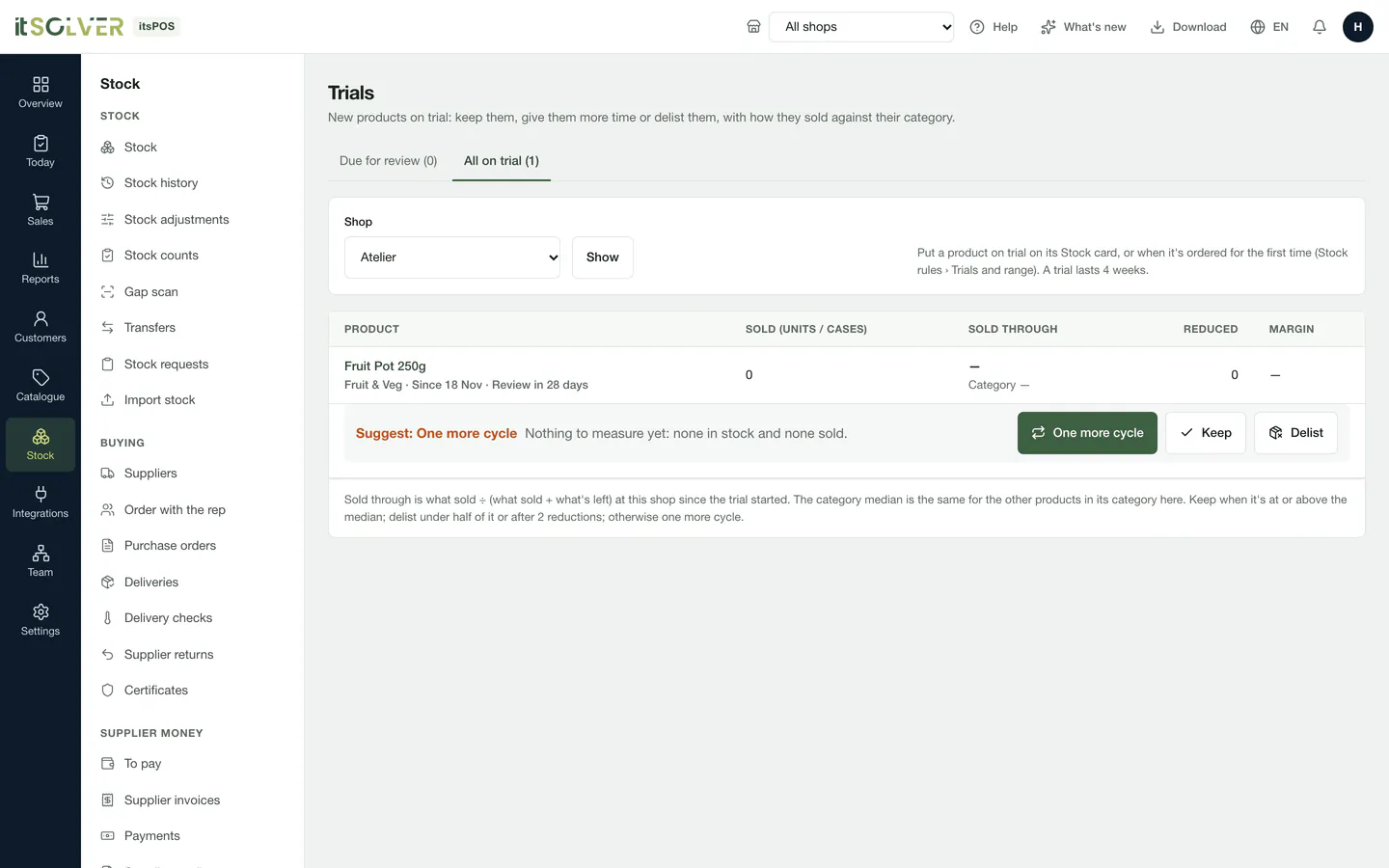
Stock › Trials, All on trial Each product shows what it Sold (units / cases), how it Sold through against its category, how often it was Reduced and its Margin, with itsPOS's suggestion, for example "Suggest: One more cycle. Nothing to measure yet: none in stock and none sold."
Press Keep, One more cycle (the same trial length again) or Delist (it is discontinued; what's left can be reduced to clear or returned).
itsPOS suggests Keep when it sold through at or above the category's median, Delist under half of it or after 2 reductions, and One more cycle otherwise.
Range review: slow sellers
Go to Stock › Range review and choose the Shop, for example Atelier. Filter by Category, search, or tick Include discontinued, then press Show.
Slow sellers lists products with no sale for 60 days (Slow seller after no sale for, Stock rules), or that haven't sold a whole case of the main supplier in 6 months. Seasonal products are compared with the same weeks last year.
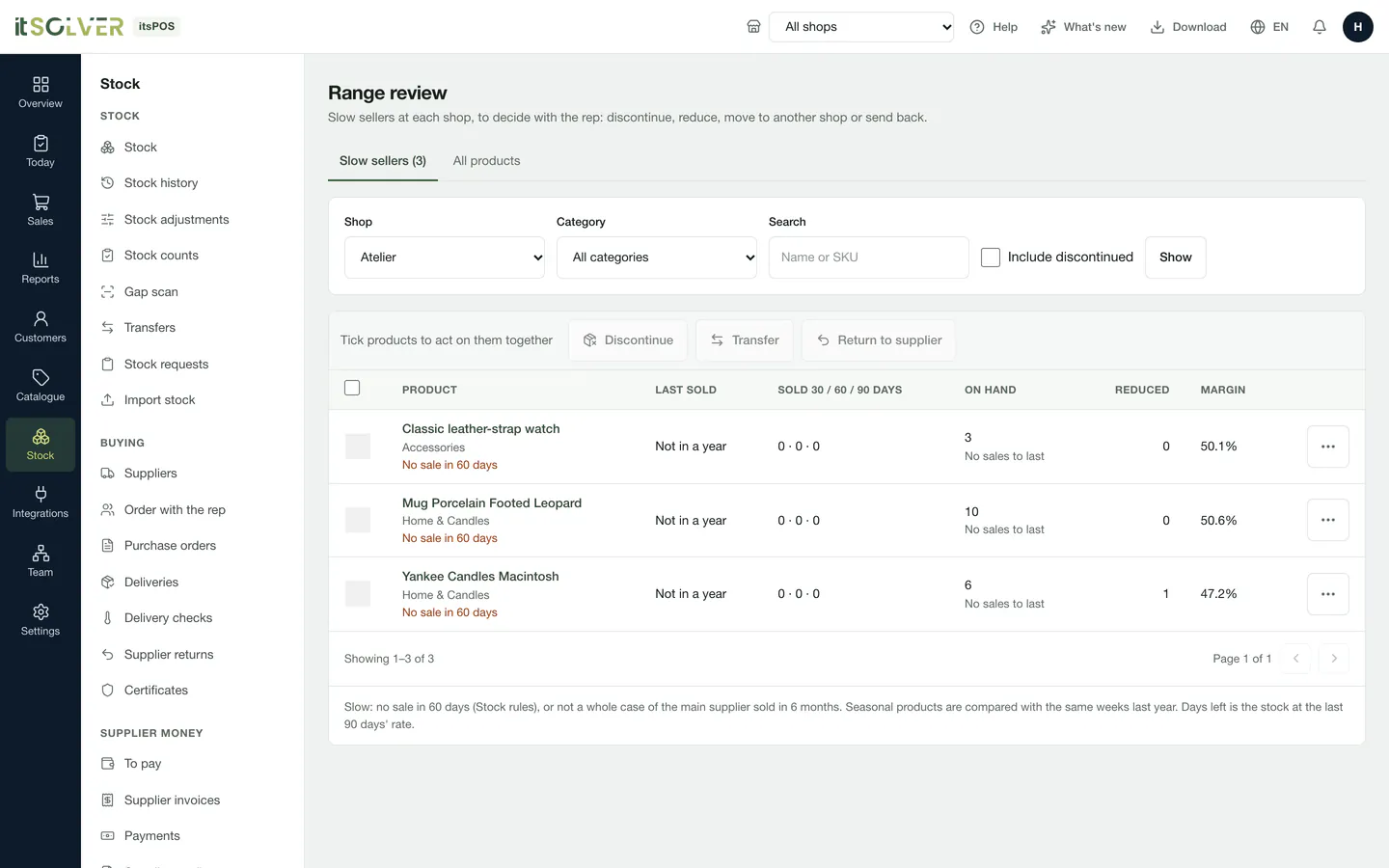
Range review at Atelier Each row shows Last sold, Sold 30 / 60 / 90 days, On hand with how long it would last, Reduced and Margin.
Press a product's actions button and choose:
- Discontinue: it keeps selling until sold out and isn't reordered.
- Reduce to clear: opens Reduce to clear for that product and shop.
- Transfer to another shop: opens Send stock with the product (see Move stock between shops).
- Return to supplier: opens a new supplier return.
Or tick several products and use Discontinue, Transfer or Return to supplier for them together.
All products shows every product, not only the slow ones.
Scenarios
- Is the new oat milk worth keeping? Put it on trial; after 4 weeks Trials shows its sales against Dairy & Eggs. Keep it, or give it one more cycle.
- Clearing slow sellers before Christmas: on Range review, reduce the slow ones to clear.
- Moving slow sellers to the shop where they sell: the Yankee Candles haven't sold at Atelier in 60 days; transfer them to the shop where candles sell.
Still stuck?
The itsPOS support team is here 08:00 to 20:00 every day except Christmas Day.
- Call or WhatsApp: +44 7488 880320
- Email: support@itspos.io
- In the back office: Help › Contact support, or go to app.itspos.io/help/contact after you sign in
- On our website: itspos.io/contact
Tell us your shop's name and what you were trying to do. A screenshot of the screen helps.