

Stock
Temperature checks for chilled and frozen deliveries
When a delivery has chilled or frozen products, take their temperature as they arrive and record it on the delivery. Stock › Delivery checks keeps every reading: your Safer Food Better Business delivery record for inspectors. This guide receives 1 kg of Blue Stilton (from the counter) from Demo Chilled Foods Ltd at 4.2°C.
For: Owners, Admins, Shop managers and Stock staff2 min read
Needs itsPOS Till 0.5.33 or later.
Before you start
- The product's Storage (under Storage and deliveries in the product editor) is Keep chilled or Keep frozen. Blue Stilton is Keep chilled.
- Stock rules › Deliveries has Check temperatures of chilled and frozen deliveries (on to start with), Chilled: accept at or below (°C) (8°C, the legal maximum in England, Wales and Northern Ireland; you can set 5°C), Frozen: accept at or below (°C) (−15°C) and Over the limit: what happens when a delivery is too warm.
Record the temperature
Receive the delivery as usual (see Receive a delivery).
The delivery shows Temperature checks: "Take the temperature of chilled and frozen products as they arrive." Type the reading in Chilled °C (and Frozen °C for frozen lines). Use ± to type a minus on a tablet.
Answer Packaging OK (Yes or No) and Accepted (Yes, No or Some lines).
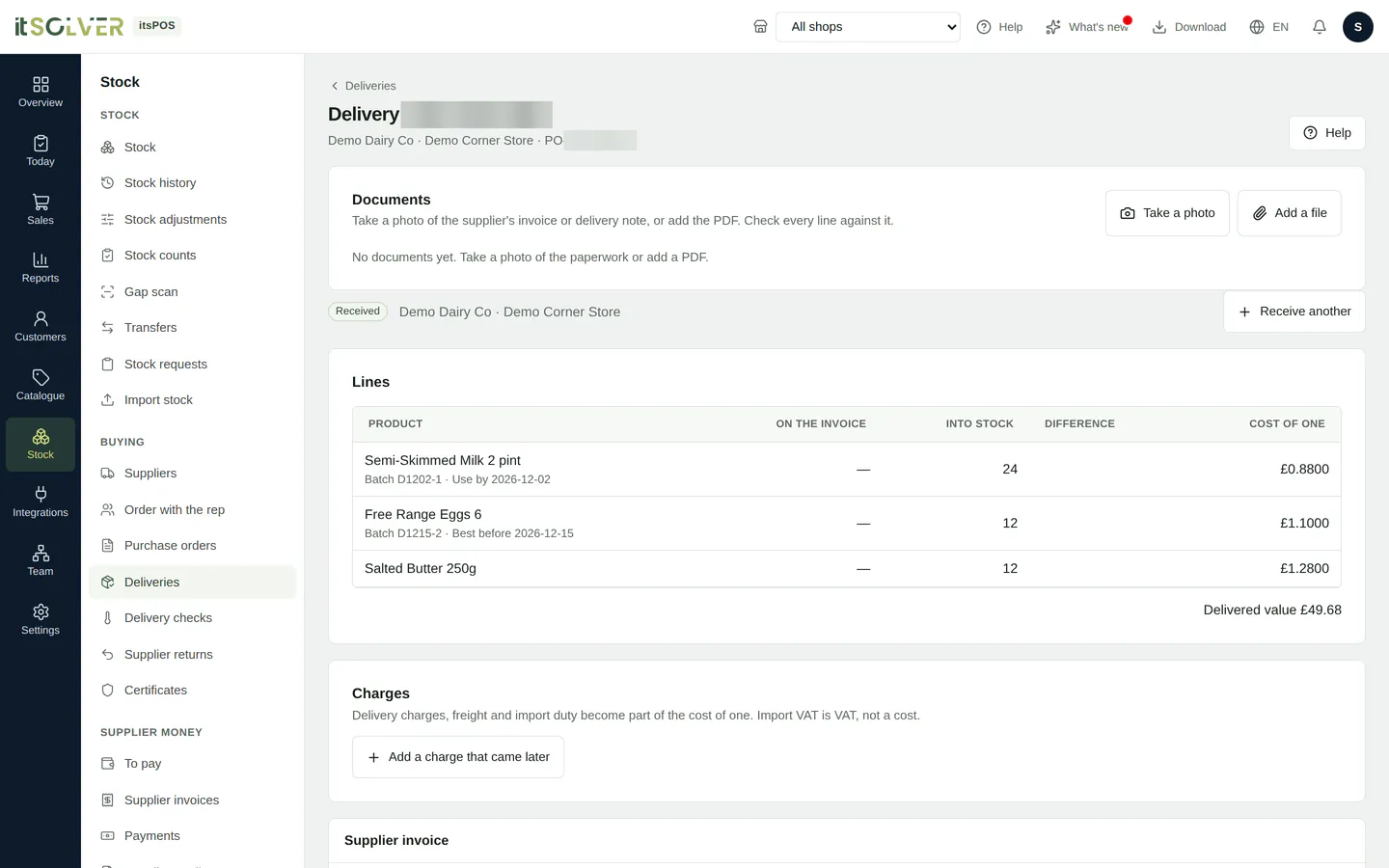
Delivery GRN-2026-00014 from Demo Chilled Foods Ltd Finish the delivery. Its page then shows "Chilled 4.2°C · packaging OK".
On the till, Receive asks for the temperature of the chilled and frozen products on the keypad ("Take the temperature of the chilled products.").
If it is too warm
A reading over your limit shows "The chilled delivery is at 9.5°C, over your 8°C limit. Reject the chilled lines?". Press "Reject the chilled lines": they arrive as 0 with the reason Too warm on delivery and go on the claim to the supplier. If your rules allow it, Keep them accepts them anyway (the reading stays on the record). If your rules say they must be rejected, the delivery says so.
The delivery record
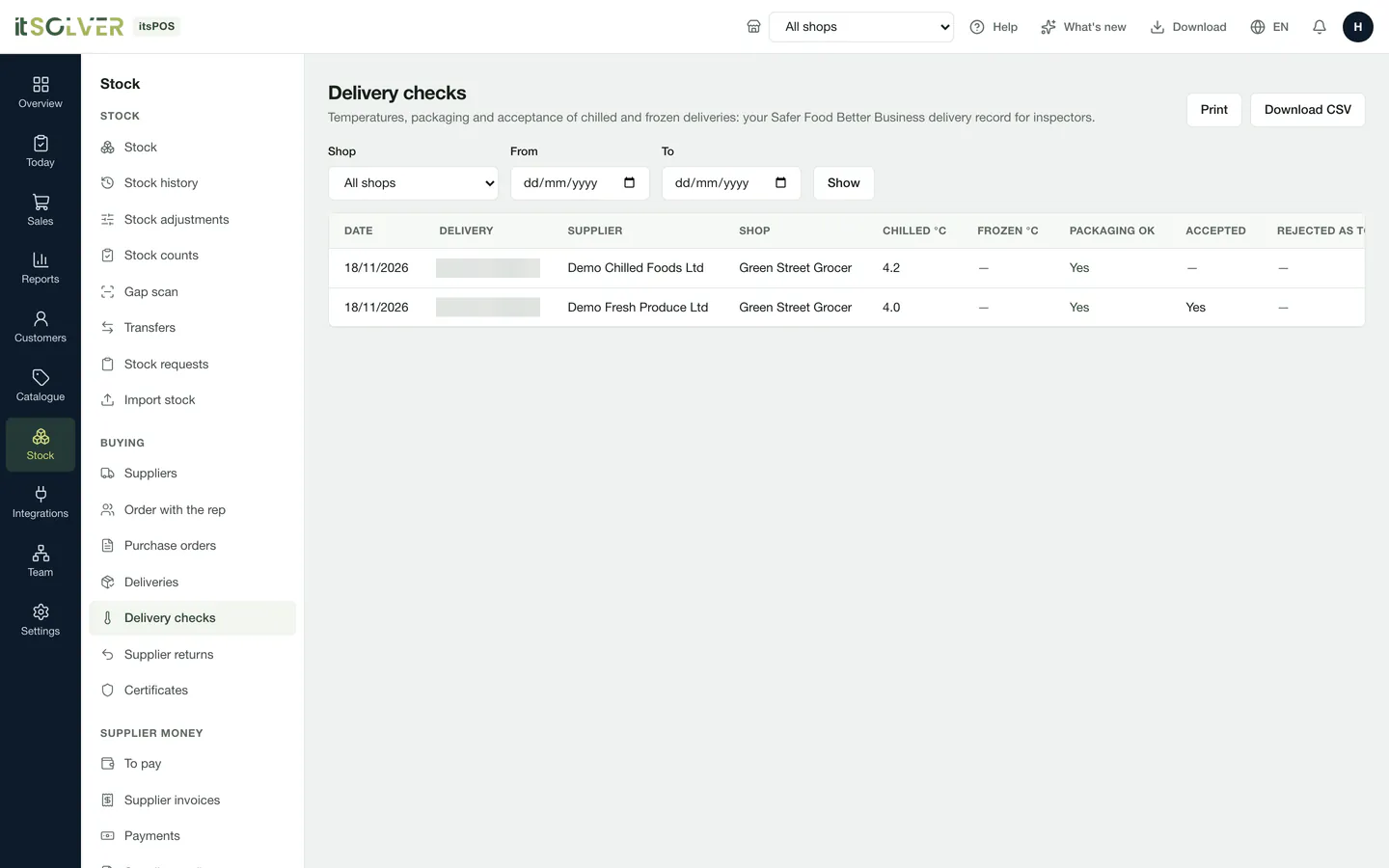
Stock › Delivery checks lists every chilled and frozen delivery with its temperatures, packaging and whether it was accepted. Choose the Shop and the dates (From, To), press Show, then Print for the inspector or Download CSV.
Still stuck?
The itsPOS support team is here 08:00 to 20:00 every day except Christmas Day.
- Call or WhatsApp: +44 7488 880320
- Email: support@itspos.io
- In the back office: Help › Contact support, or go to app.itspos.io/help/contact after you sign in
- On our website: itspos.io/contact
Tell us your shop's name and what you were trying to do. A screenshot of the screen helps.