

Stock
Stock levels: on hand, available, reserved and incoming
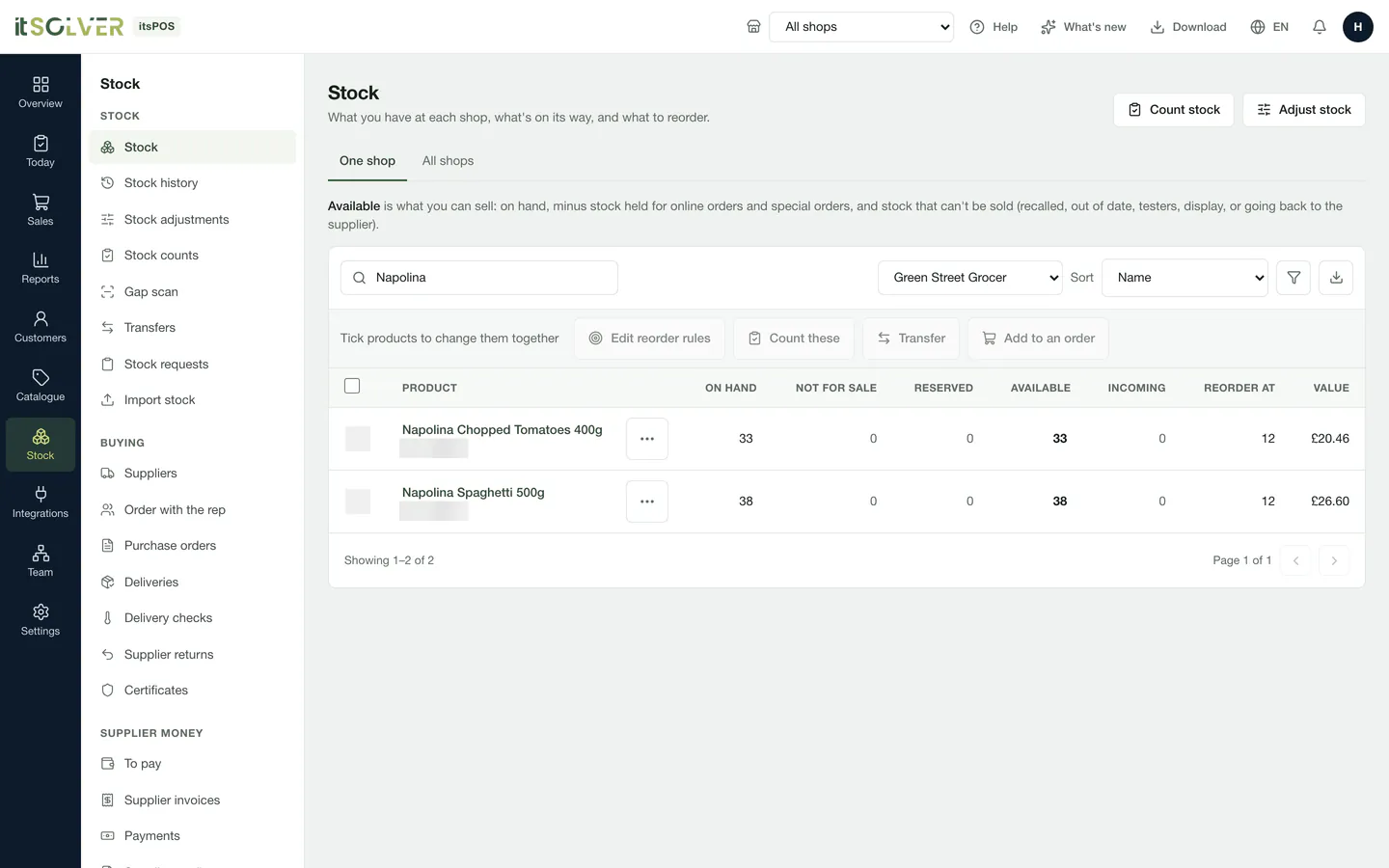
Stock › Stock shows how many of each product you have at each shop, what you can still sell, what is on its way and what to reorder. This guide uses Napolina Chopped Tomatoes 400g at Green Street Grocer, which has 33 on the shelf and a reorder level of 12.
For: Owners, Admins, Shop managers, Stock staff and Accountants5 min read
Needs itsPOS Till 0.5.33 or later.
What this page is for
To answer "how many have we got?" for any product and shop, spot what is running low, and start a count, an adjustment, a transfer or an order for the products you tick.
What each figure means
| Column | What it means |
|---|---|
| On hand | What itsPOS thinks is in the shop now: everything delivered, counted and moved in, less everything sold, wasted and moved out. |
| Not for sale | Stock you have but can't sell: testers, display stock, items going back to the supplier, and recalled or out-of-date batches. Shown when your plan has batch and expiry tracking. |
| Reserved | Held for online orders that haven't been picked yet and for customers' special orders. |
| Available | What you can sell: On hand less Not for sale and Reserved. Low stock, reorders and the online store all use this figure. |
| Incoming | On purchase orders you have sent and on transfers on their way to this shop. Drafts don't count. |
| Reorder at | The product's low-stock level at this shop. At or below it, the product shows as low stock. |
| Value | What the stock on hand cost you (only for people who may see cost prices). See How itsPOS values your stock. |
"No stock yet" under a product means it has never been delivered, counted or moved at that shop.
Find what you need
- One shop shows one shop at a time (choose it in the shop box); All shops shows a product's figures at every shop side by side.
- Type in Search by name, SKU or barcode, or scan a barcode. On a phone or tablet, tap Scan with camera next to the search box and point the camera at the barcode.
- Sort by Available, lowest first to see what is running out, Incoming, most first to see what is on its way, or Counted longest ago to plan your next count.
- The filter button next to Sort narrows the list by Stock (Low stock, Out of stock, Below zero, Has Incoming, In stock), Category, Brand, Tag, Main supplier, Counting (Not counted for 90 days, Never counted) or Discontinued.
- With Low stock chosen, a Suggested orders button appears at the top: it opens what to order for that shop.
- On a phone, the shop, Sort by and the filters are under Filters. Its button says how many products you'll see (for example Show 12 results) before you press it. Export CSV is under ⋯.
Do something with the products you tick
Tick products in the list (on a phone, press Select first; Done hides the tick boxes again), then:
- Edit reorder rules: set when to reorder and how much. See Reorder rules and low stock.
- Count these: plan a count of just these products. See Count your stock.
- Transfer: send them to another shop (Essentials and above).
- Add to an order: put them on a purchase order. See Suggested orders and purchase orders.
Count stock and Adjust stock at the top of the page start a count or an adjustment for the shop you are looking at.
A product's own Stock card
Open a product in Catalogue › Products and go to its Stock card. It shows Stock at each shop (On hand, Reserved, Available, Incoming), the product's Reorder rules at each shop and, if you sell online, Keep back for the shop: how many the online store leaves for customers who walk in, so it doesn't sell the last ones. View stock history at the bottom opens this product's history.
Where these figures show up
- Tills get each change within a minute (and straight away while the till is online). On the till, Stock › Stock check shows This shop with Available, Incoming, Reorder at and Reserved, and, when the till is online, All shops. See Stock jobs on the till.
- Online store: the product shows "In stock", "Low stock" or "Out of stock" from Available less Keep back for the shop. Shoppers never see how many are left.
- Overview in the back office and the low-stock email list the products at or below their reorder level.
If a number looks wrong
If On hand doesn't match the shelf, Stock history shows every movement behind the number, and a count puts it right. Signed in to the back office, the Help panel also has a guide for stock that is below zero.
Still stuck?
The itsPOS support team is here 08:00 to 20:00 every day except Christmas Day.
- Call or WhatsApp: +44 7488 880320
- Email: support@itspos.io
- In the back office: Help › Contact support, or go to app.itspos.io/help/contact after you sign in
- On our website: itspos.io/contact
Tell us your shop's name and what you were trying to do. A screenshot of the screen helps.