

Customers and itsPass
Merge duplicate customers
The same person sometimes ends up with two records: added twice in the back office, imported twice, or saved anyway after the warning "Another customer has this email" (or "mobile number") that itsPOS shows when you add or change a customer. Possible duplicates finds records that share an email address or a mobile number, so you can keep one and merge the other into it.
For: Owners, Admins and Shop managers2 min read
Before you start
- Owners, Admins and Shop managers can merge.
- Only invited customers are merged, into another invited customer or a trade account. itsPass members are never merged: they manage their own itsPass. A second trade account is "Not merged (trade account)".
- Merging can't be undone. Check the records first.
Merge two records
Go to Customers › Customers and open the Possible duplicates tab. Each group says why, for example Same mobile number: Tom Reid and Thomas Reid in our test shop share 07700 900114.
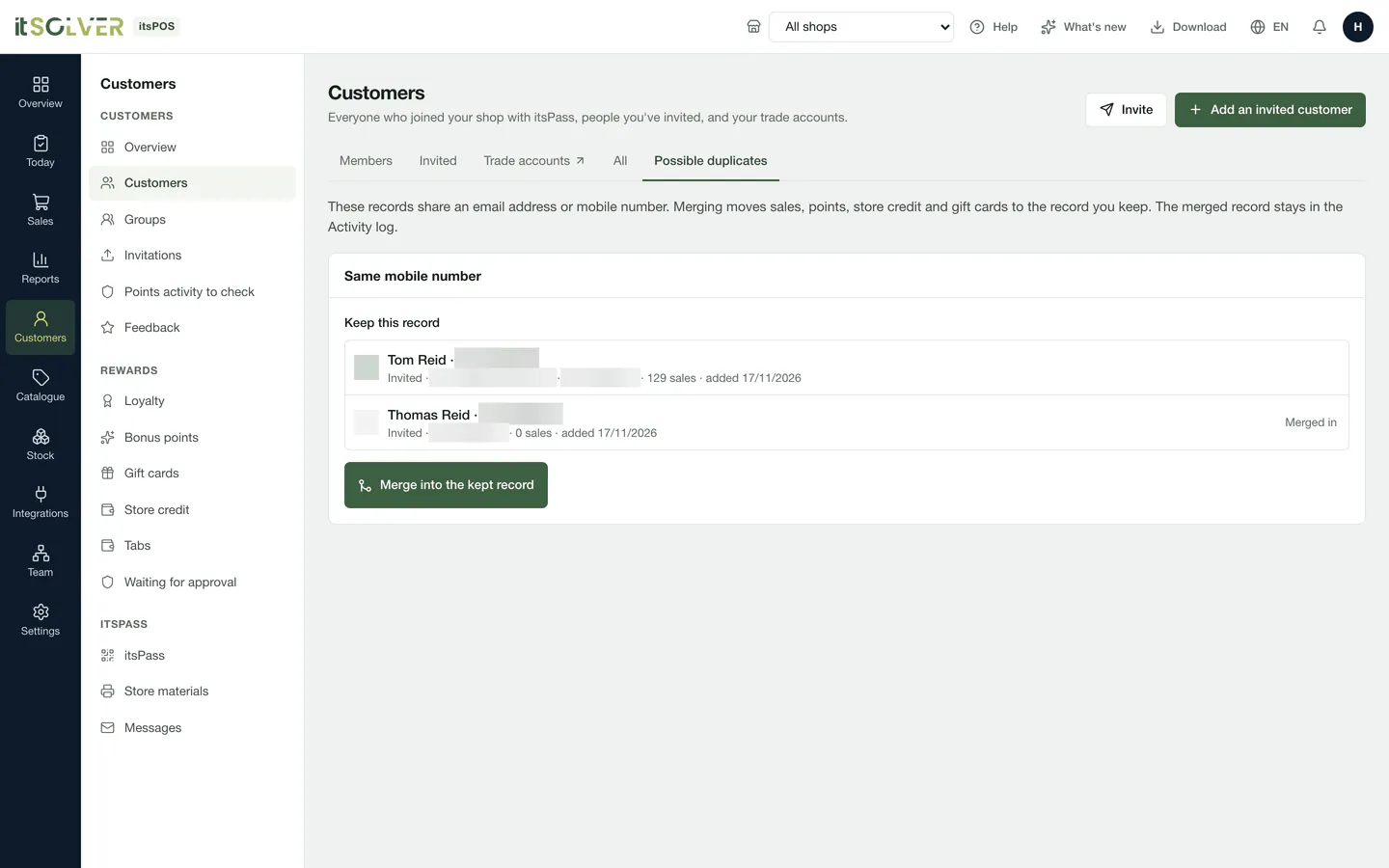
Possible duplicates Under Keep this record, choose the one to keep: usually the one with the sales and the email (Tom Reid, 129 sales). The other says "Merged in".
Press Merge into the kept record and confirm: "Merge these records? This can't be undone."
What happens next
- The kept record gets the other's sales, points, store credit and gift cards, and its Activity says "Merged a duplicate in".
- The merged record stays, with "Merged into another record" in its Activity, so nothing about it is lost; searches find the kept one.
- The pair leaves Possible duplicates.
If something goes wrong
- A pair that isn't the same person: for example a family sharing a phone. Leave them; nothing happens until you merge.
- The wrong record kept: merging can't be undone. Change the kept record's details with Change details instead.
Still stuck?
The itsPOS support team is here 08:00 to 20:00 every day except Christmas Day.
- Call or WhatsApp: +44 7488 880320
- Email: support@itspos.io
- In the back office: Help › Contact support, or go to app.itspos.io/help/contact after you sign in
- On our website: itspos.io/contact
Tell us your shop's name and what you were trying to do. A screenshot of the screen helps.