

Customers and itsPass
Find and filter your customers
Customers › Customers lists everyone your shop knows: itsPass members, people you added or invited, and your trade accounts. Search for one person, filter to a group of people, or put several customers in a group at once.
For: Owners, Admins and Shop managers3 min read
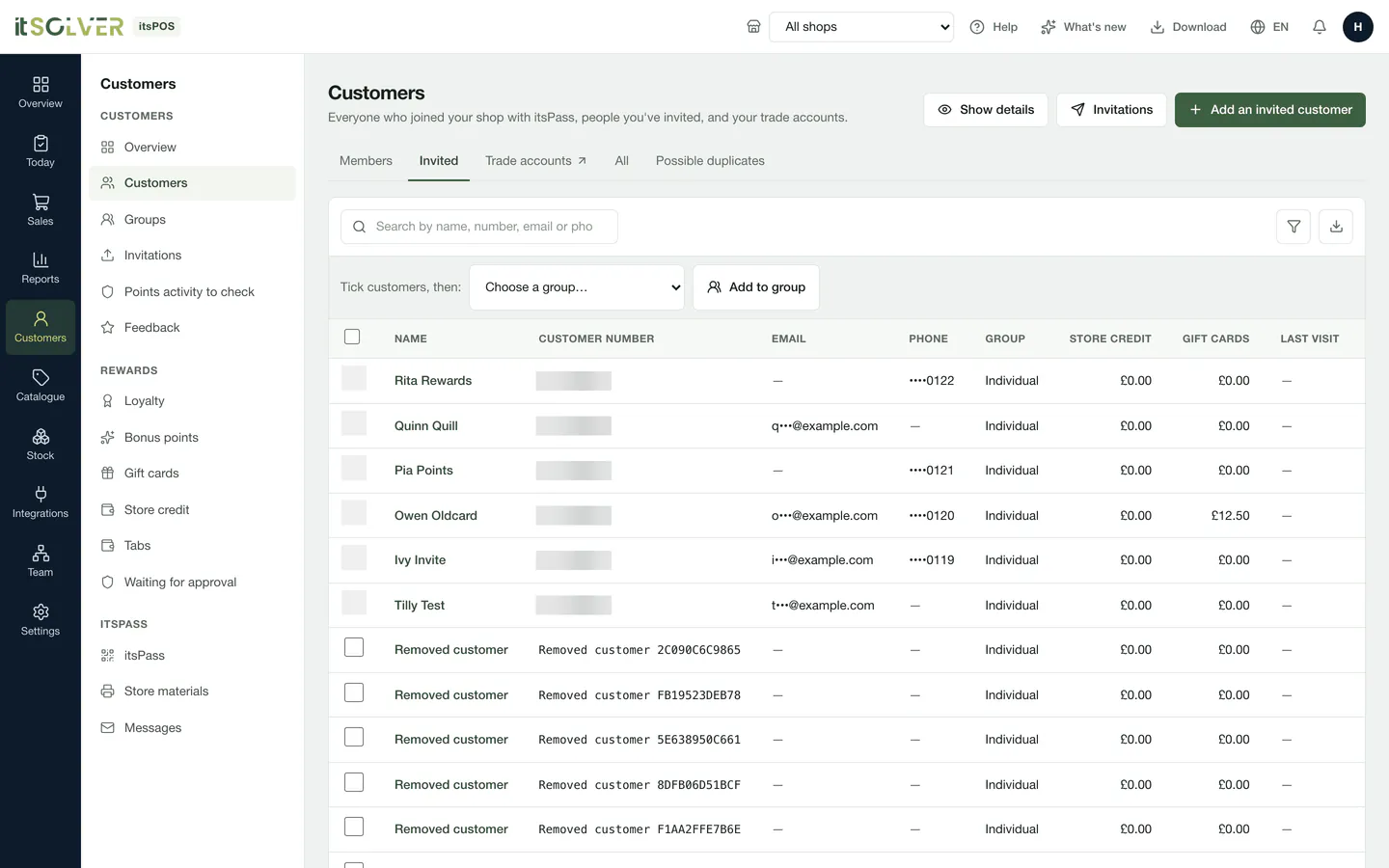
What you see
Five tabs:
- Members: people who joined your shop with itsPass. Columns: Name, Customer number (for example CUS-000026), Joined, How they joined, Shop, Last visit, Spent (12 months), Points, Tier, Store credit, Gift cards, Group, Automatic group, Offers and Status.
- Invited: people you added yourself or invited from your old till, who haven't joined itsPass yet (in our test shop: Mia Hughes, Sam Okafor, Priya Shah and the others).
- Trade accounts: opens Sales › Trade customers, where cafés and businesses you supply on account are kept (Demo Café Ltd in our test shop).
- All: everyone, with a Kind column (Invited, Member or Trade account).
- Possible duplicates: records that share an email address or mobile number (see Merge duplicate customers).
Emails and phone numbers are partly hidden ("m•••@example.com", "••••0111"). Owners, Admins and Shop managers can press Show details to see them in full; press Hide details when you're done.
Search and filter
- Type in Search by name, number, email or phone.
- Press Filters to narrow the list: Shop, Group, Automatic group, Tier, How they joined (for example Counter QR, Till, by phone or Invitation), Last visit (from In the last 30 days to Never), Agreed to offers by, Has store credit, Has a gift card and Status (Active, Left, Deleted).
Put several customers in a group
- On a tab, tick the customers.
- Under Tick customers, then:, choose the group, for example VIP.
- Press Add to group. The page says, for example, "2 customers added to VIP."
To change one person's group, use Change group on their page.
Download the list
Press Export CSV (the download button next to the search box). You get a spreadsheet of the tab you're on with your filters, for example itspos-customers-2026-11-18.csv. Only Owners and Admins can download it, and itsPOS may ask you to type your password again first ("Confirm it's you").
Where it shows up
- On the till, Add customer finds itsPass members and trade accounts, not invited customers (see Add a customer or itsPass member to a sale).
- A customer's group decides their prices on the till and online (see Customer groups, their prices and perks).
Still stuck?
The itsPOS support team is here 08:00 to 20:00 every day except Christmas Day.
- Call or WhatsApp: +44 7488 880320
- Email: support@itspos.io
- In the back office: Help › Contact support, or go to app.itspos.io/help/contact after you sign in
- On our website: itspos.io/contact
Tell us your shop's name and what you were trying to do. A screenshot of the screen helps.