

Customers and itsPass
The shop card: how each setting shows to members
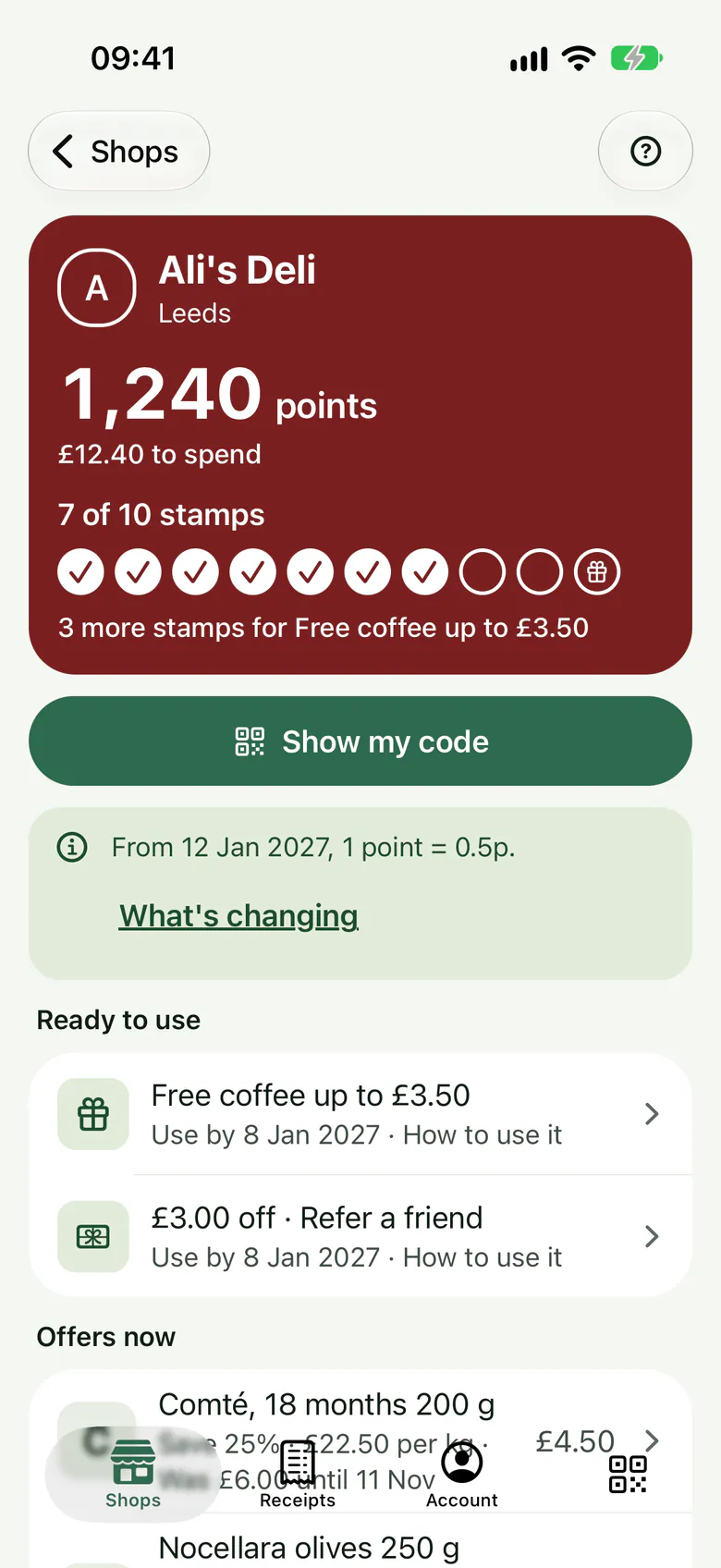
Each shop a member joins has its own page in itsPass, under Shops. This is what they see there, part by part, and the setting in your back office that controls each part. A part with nothing in it doesn't show.
For: Owners, Admins and Shop managers6 min read
Your colours and your words
- Your logo and colour show only in your shop's own header at the top. The rest of the page keeps itsPass's own look, in light and dark mode. Change them in Settings › Business details › Logo and colours: see Your logo and colours.
- Your shop's name, description, offers, rewards and receipt lines show exactly as you wrote them, whatever language the member uses itsPass in. itsPass's own words (buttons, headings) follow the member's language.
- Changes you save in the back office show on the page within a minute or so. A member who is offline sees what was saved last time, with the time it was saved.
The top of the page
| Part | What members see | Where you set it | Also changes |
|---|---|---|---|
| Your shop | Your trading name (with the shop's name when you have several shops), logo and colour | Settings › Business details (with Logo and colours) and Settings › Shops | Receipts, emails, your online store |
| Points | For example "1,240 points = £12.40" and "£12.40 to spend" | Customers › Loyalty: points per £1 and what a point is worth | The till's member panel and the receipt |
| Stamps | For example "6 of 9 stamps" and "3 more stamps for A free loaf", or "A free loaf is ready. Show your code at the till." | Customers › Loyalty, Stamp card. See A stamp card like a paper coffee card | The till's member panel |
| Show my code | Opens their code for your shop | Nothing to set | — |
| What's changing | A note about a change to your programme that's worse for members, before it starts, with the details behind What's changing | Customers › Loyalty, the changes card. See Changing your programme fairly | A message to members behind the bell |
Ready to use
| Part | What members see | Where you set it | Also changes |
|---|---|---|---|
| Ready to use | Each reward they can use now, like "Free coffee up to £3.50", with "Show your code at the till · use by 9 Jan 2027". Tapping it shows How to use it at the till: show your code, say they'd like to use the reward, the till takes it off. | The stamp card's reward, and Refer a friend's vouchers | The till offers Use reward on the member panel. The till must be online to take it off. |
A reward that was used says Already used with See the receipt; one that ran out says This reward has run out.
Offers
| Part | What members see | Where you set it | Also changes |
|---|---|---|---|
| Offers now | Your offers flyer's first offers, with See all for the whole flyer | Catalogue › Promotions › Offers flyer, with Show "Offers now" on your shop in itsPass ticked | Your Offers page on the web. See Offers in itsPass |
| Bonus points | Each bonus points offer, like "Double points on bakery, Saturday mornings", and Coming soon before it starts | Customers › Bonus points. See Bonus points offers | The till adds the points |
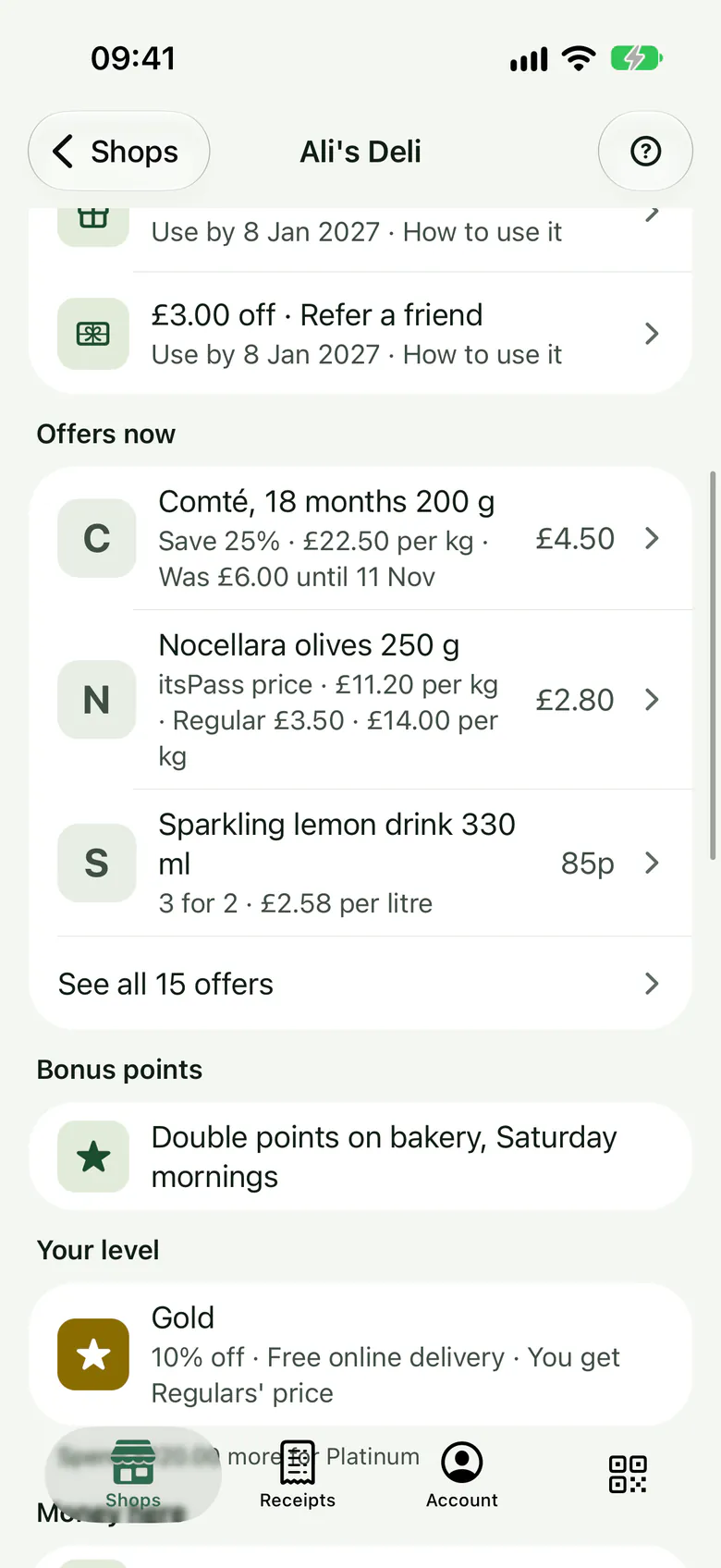
Each offer opens on its own with its status:
| Status | What members see |
|---|---|
| Live | How to get this price (or How to get this offer): pick it up as normal, show your code at the till, the till takes off the difference |
| Not started | Starts on with the date: the till takes it off from then |
| Ended | This offer has ended: the till won't take it off now |
| All used up | All used up: your shop has no more of this offer; the other offers still work |
Your level and members' prices
| Part | What members see | Where you set it | Also changes |
|---|---|---|---|
| Your level | Their tier in its colour and its perks, and "Spend £120.00 more for Platinum"; No level yet before the first one | Customers › Loyalty, Tiers. See Tiers: levels, colours and perks | The till's tier chip and the receipt; free delivery online |
| Your group | Their group's name and the perk line you typed, for example "VIP · Members prices on everything", while the group shows its perk (from the next itsPass app update) | Customers › Groups, Show this group's perk in itsPass. See Customer groups | Nothing else: the group's prices come from its price list |
| A group's price | "You get Regulars' price" under their level, when a price or promotion is for their automatic group | Customers › Groups, Use automatic groups in prices and promotions. See Automatic groups | The till's prices for that member |
Money here
| Part | What members see | Where you set it | Also changes |
|---|---|---|---|
| Store credit | The amount | Customers › Store credit. See Store credit | Spent at the till with My code or their PIN |
| Gift cards | "Gift card ••7731" with its balance and use-by date | Customers › Gift cards. See Gift cards | — |
| Tab | What they owe and what's left, and the date to pay by. Tab offered: up to £50.00 when you offered one; they tap to read the terms and accept. | Customers › Tabs. See Member tabs | The till's Put on tab and Pay off tab |
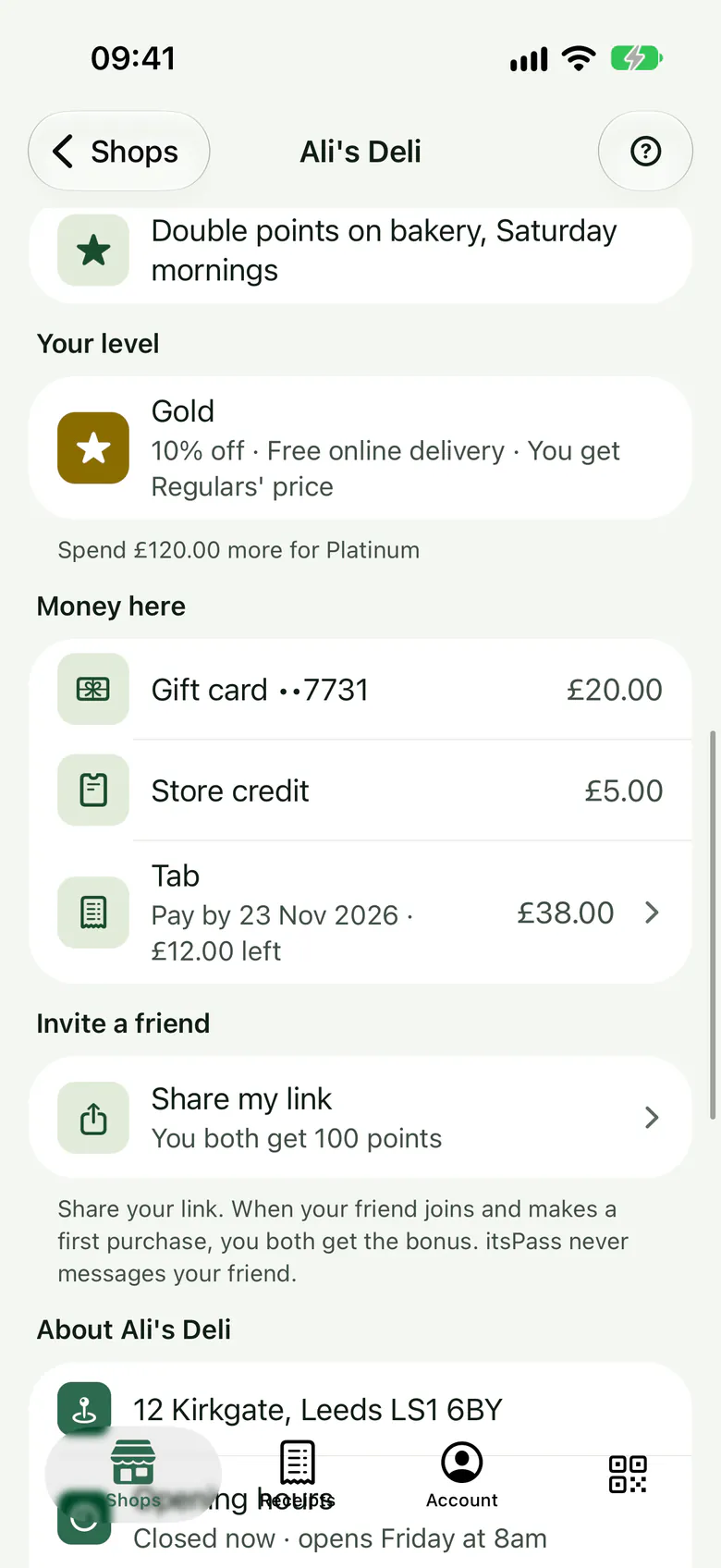
The tab's own page shows what they owe, the statements and How to pay: at your shop by card or cash, early or in part, with no interest and no fees.
Invite a friend
| Part | What members see | Where you set it | Also changes |
|---|---|---|---|
| Invite a friend | How it works and Share my link. itsPass never messages the friend; the member shares the link themselves. | Customers › Loyalty, Refer a friend. See Refer a friend | When it's off: "{your shop} isn't running Refer a friend at the moment." |
About your shop
| Part | What members see | Where you set it |
|---|---|---|
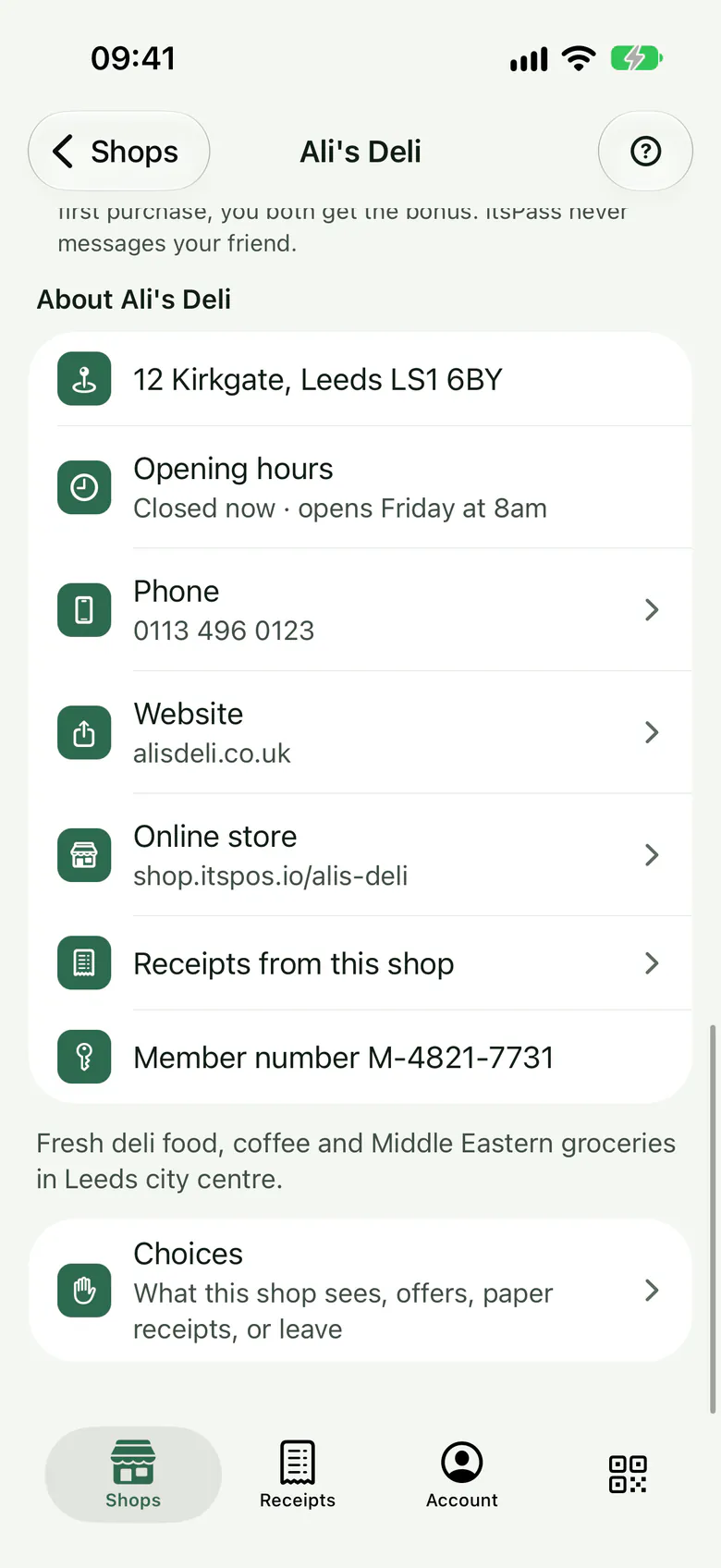
| Description | Your few lines about the shop | Customers › itsPass, the shop's card. See Your shop description and Find shops |
| Address | The shop's address | Settings › Shops |
| Opening hours | "Open now · until 18:00" or "Closed now · opens at 08:00"; tapping it shows the week | Settings › Shops, Opening hours |
| Phone, Website | Tapping calls you or opens your website | Settings › Business details (a shop's own phone in Settings › Shops) |
| Online store | Opens your online store | Shows when your online store is live |
| Receipts from this shop | Their receipts from you | Nothing to set |
| Member number | Their member number with you | Nothing to set |
Choices
Choices, at the bottom of the page, is where the member chooses what your shop sees, whether you may send them offers and how, paper receipts at your shop, and Leave this shop. See What members share with you, leaving and deleting.
Still stuck?
The itsPOS support team is here 08:00 to 20:00 every day except Christmas Day.
- Call or WhatsApp: +44 7488 880320
- Email: support@itspos.io
- In the back office: Help › Contact support, or go to app.itspos.io/help/contact after you sign in
- On our website: itspos.io/contact
Tell us your shop's name and what you were trying to do. A screenshot of the screen helps.