

Customers and itsPass
What your shoppers see in itsPass: a screen-by-screen tour
This is the itsPass app your members use, as they see it from itsPass 1.1. Read it so you can help a shopper at the till: where their code is, how they sign in, where their points and receipts are, and how they join your shop.
For: everyone11 min read
itsPass is free for shoppers aged 16 or over. It's in the App Store and Google Play, and on the web at pass.itspos.io. On iPhone it looks like Apple's own apps and on Android like Google's, so the two look a little different, but every screen has the same words and does the same things. The pictures here are from an iPhone, with a made-up shopper, Sam.
What this page is for
itsPass has four tabs at the bottom: My code, Shops, Receipts and Account. Messages from shops are behind the bell at the top of My code. On a computer, the website shows the same four tabs in the top bar, next to the bell.
The first time: three short pages
The first time someone opens the app, they see the itsPass logo, then three short pages:
Your code works at every itsPOS shop: one code for all the shops they like.
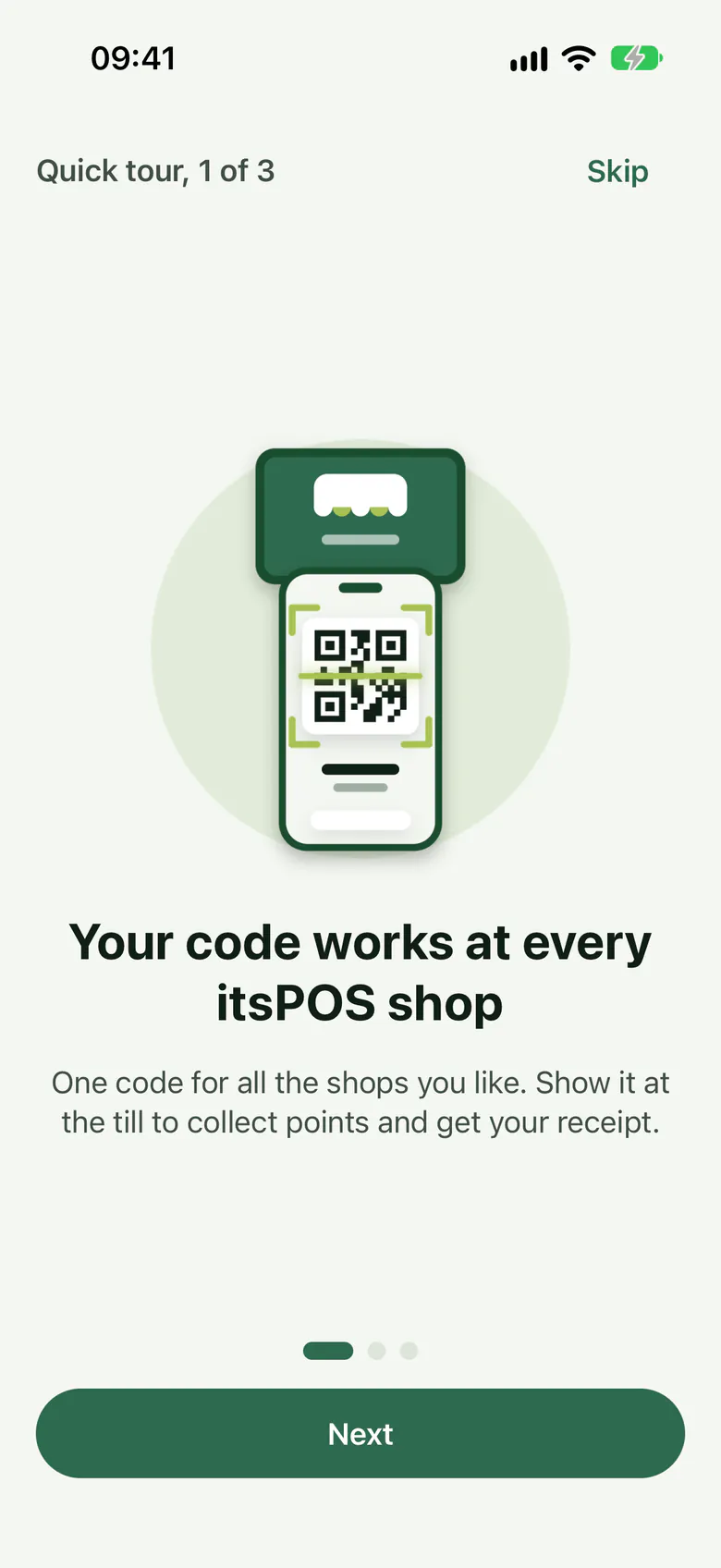
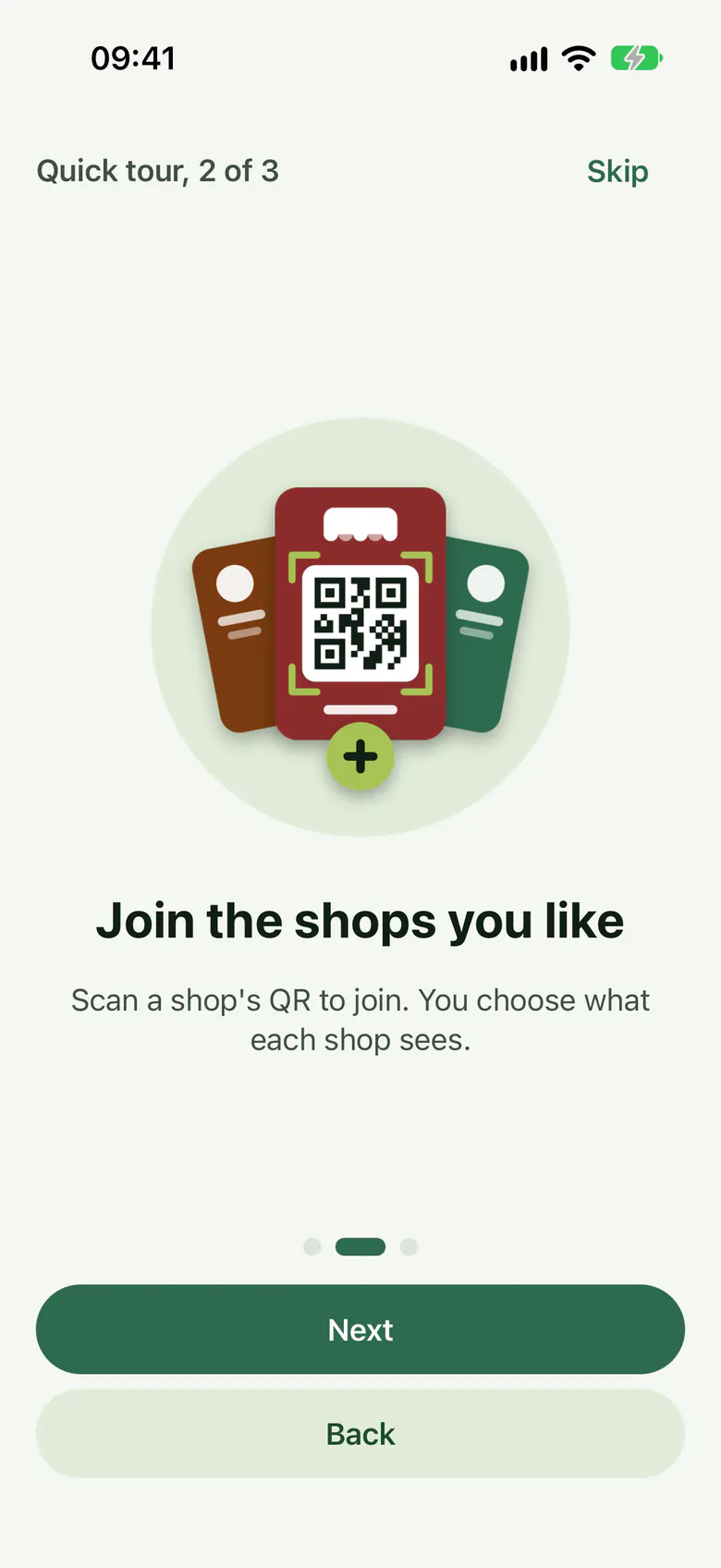
The first intro page in itsPass Join the shops you like: scan a shop's QR to join, and choose what each shop sees.
The second intro page Your receipts in one place: receipts, points and offers from their shops.
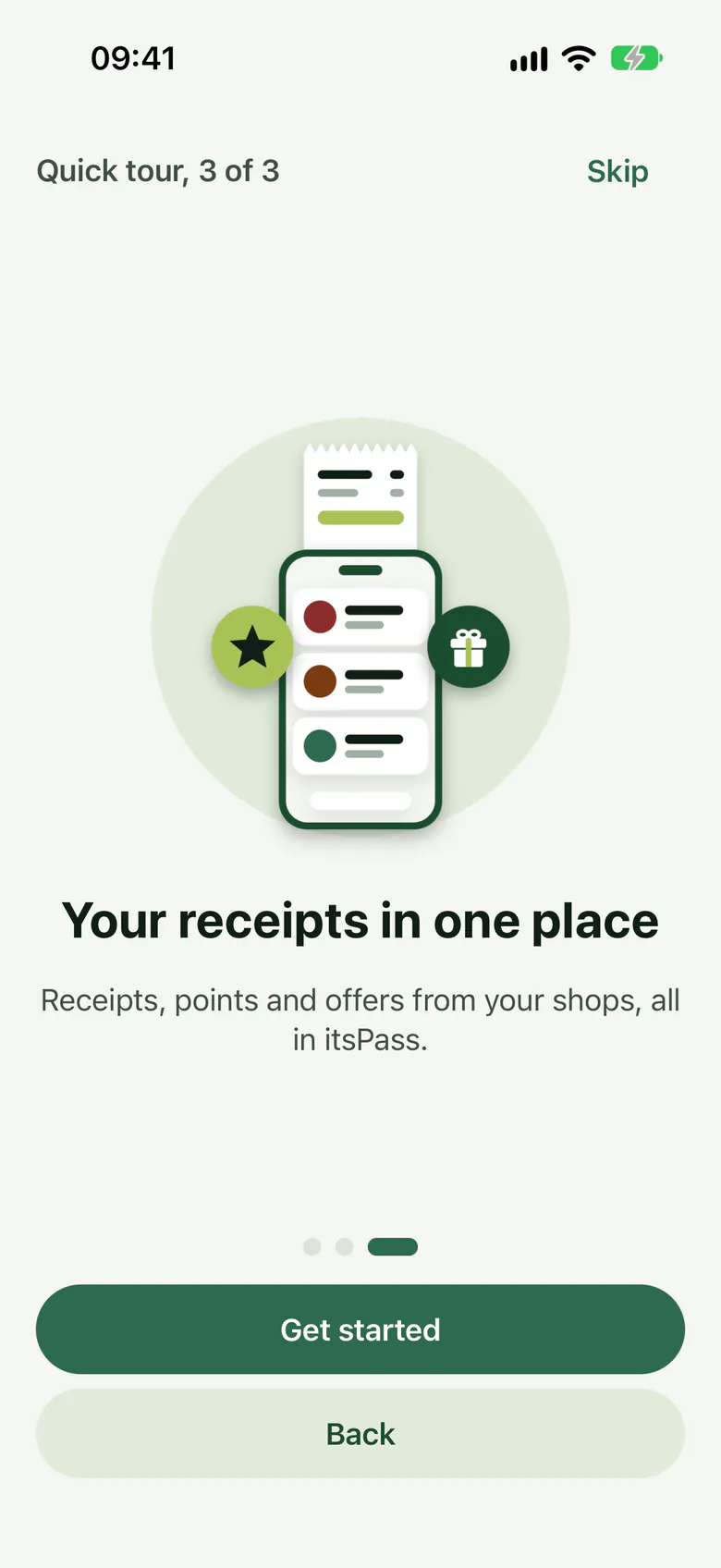
The third intro page
They tap Next, Next, then Get started, or Skip on any page. The pages show once on each phone. They can see them again in Account › Help › See the tour again.
Signing in
Signing in happens inside the app. There's no password: itsPass texts a code to the shopper's mobile. New and returning shoppers use the same steps.
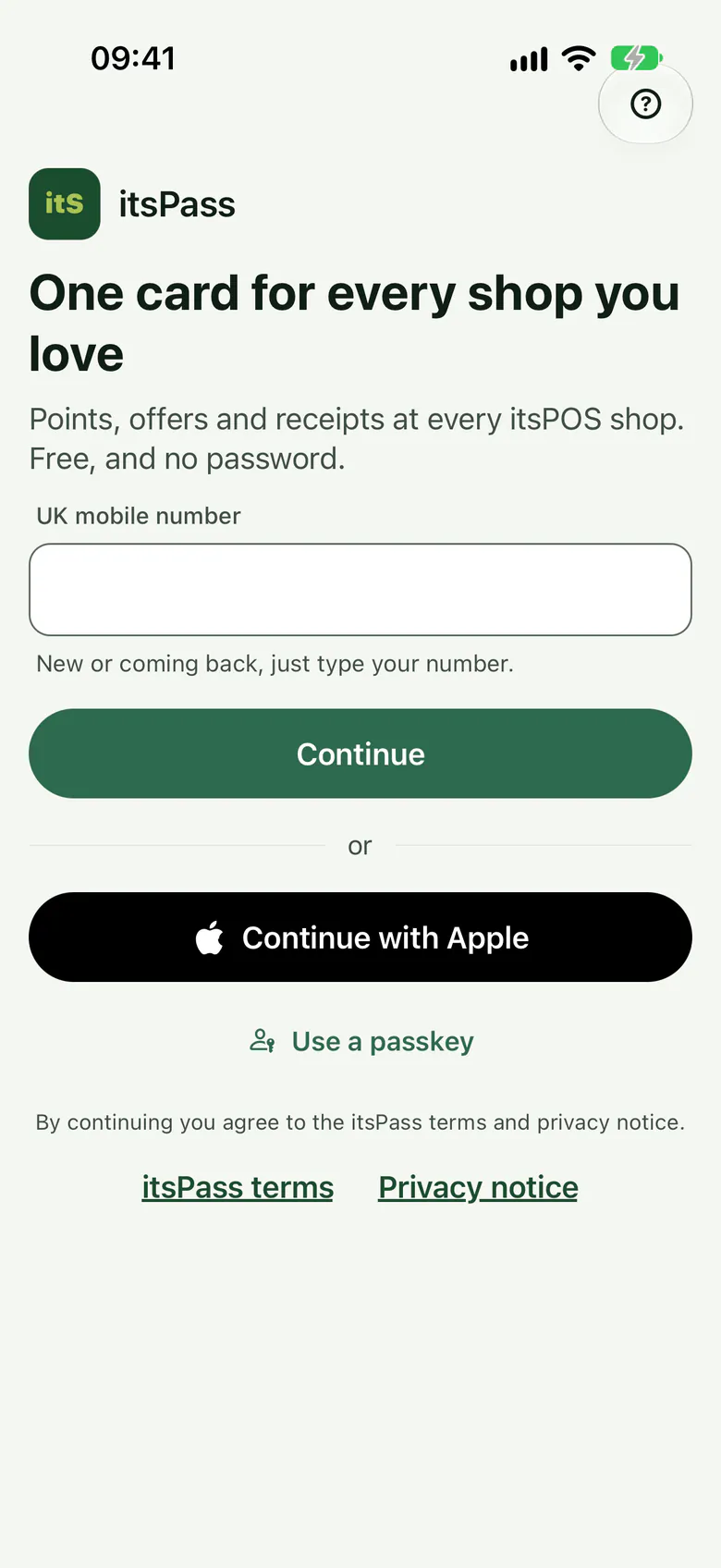
On One card for every shop you love, they type their UK mobile number (starting 07) and tap Continue.
On Type the code we texted you, the code fills itself in on most phones: an iPhone offers it above the keyboard, and Android fills it in by itself. They can also type or paste it. A code works for 10 minutes.
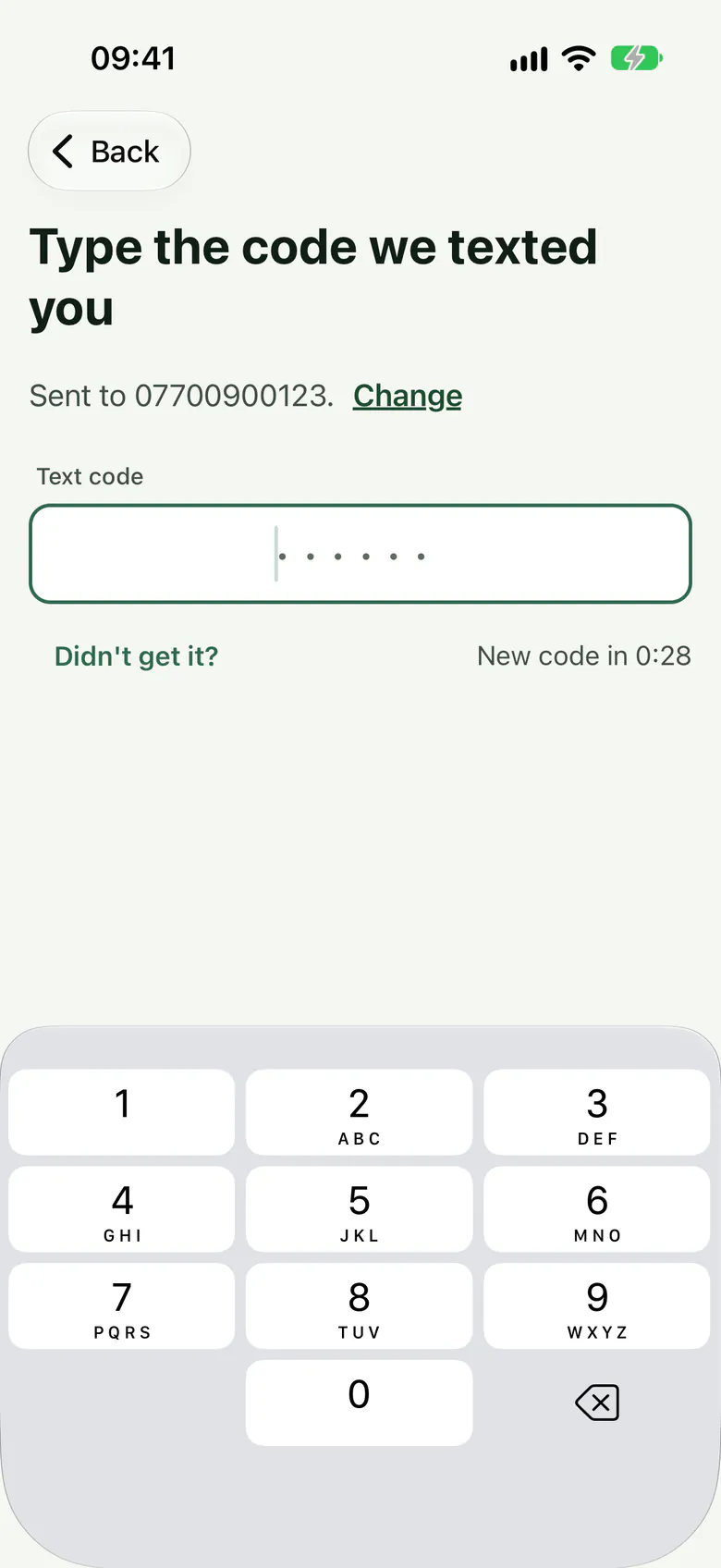
Type the code we texted you A new shopper fills in About you once: their first name, and 16 or 17 or 18 or over. Shops they join see their first name.
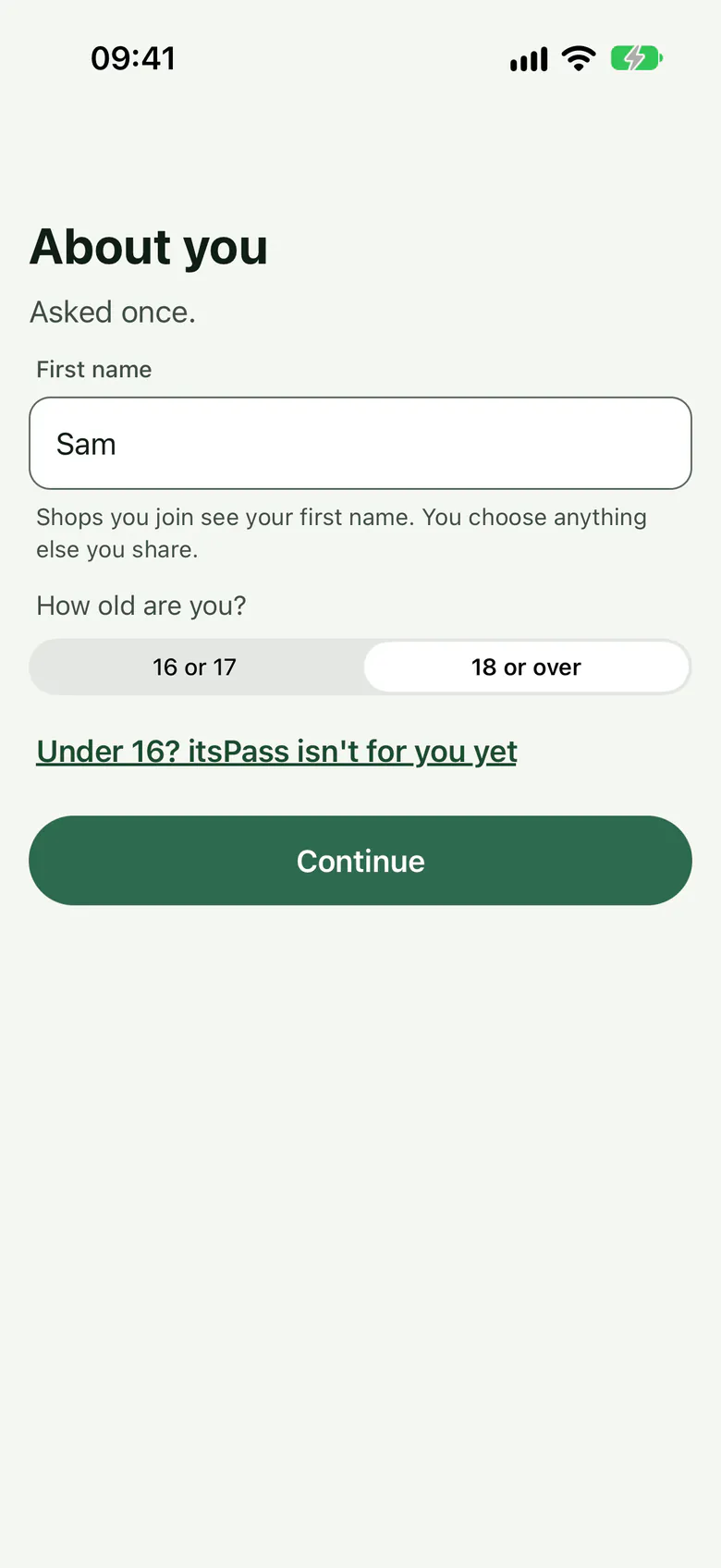
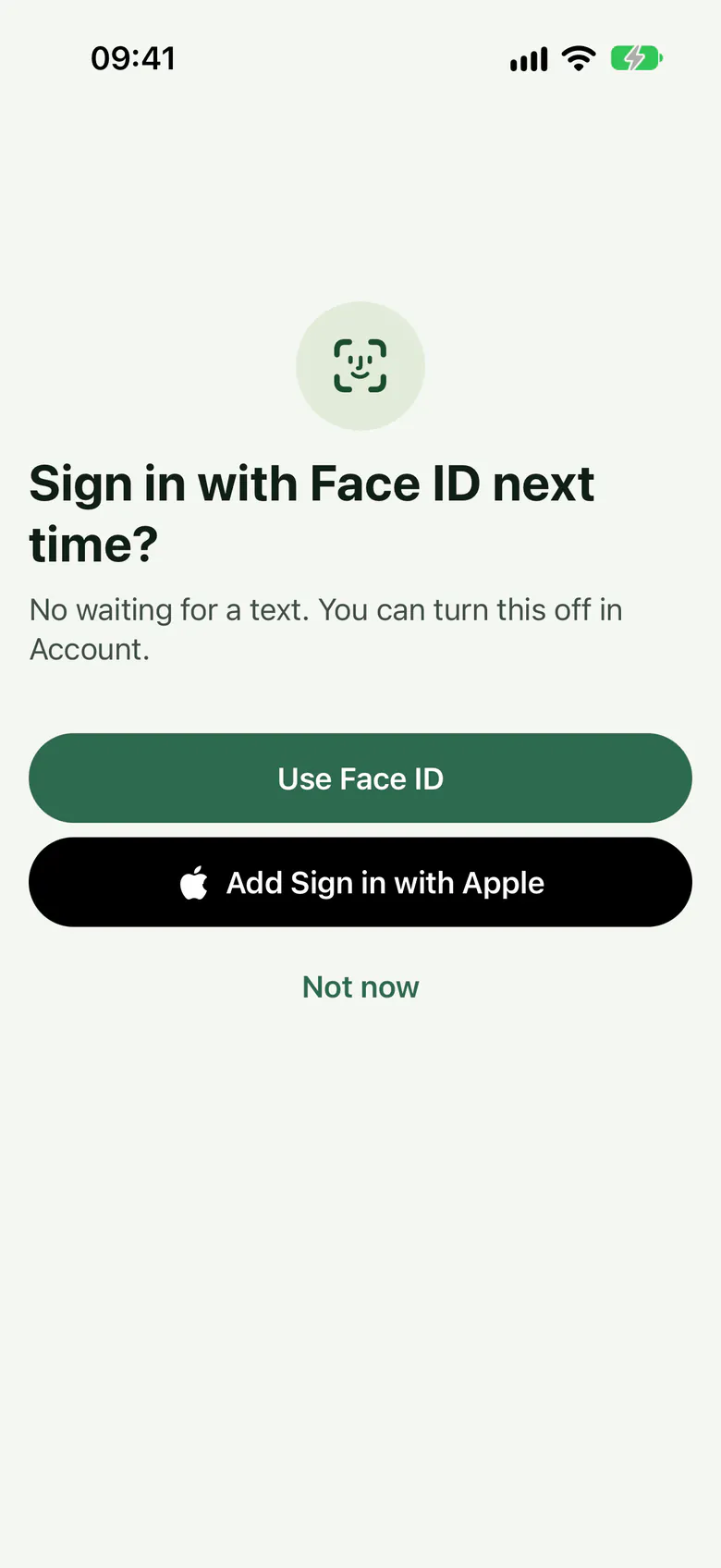
About you itsPass then offers a quicker way for next time: Use Face ID (or Use fingerprint on Android), Add Sign in with Apple or Add Sign in with Google. They can add several, or tap Not now.
They're in: "You're in, Sam. Welcome to itsPass." and My code opens.
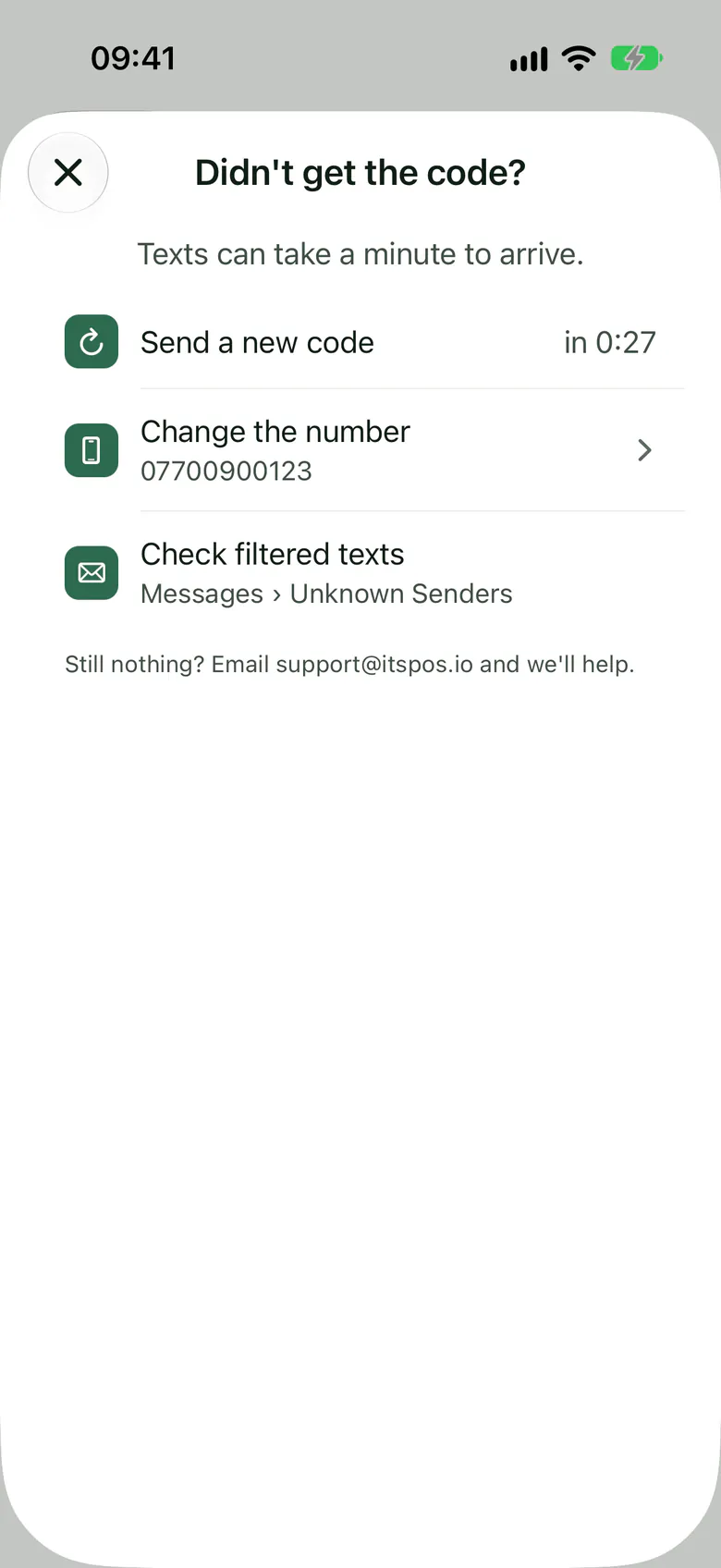
Didn't get the text? Didn't get it? under the code box shows Send a new code (after a short wait), Change the number and where to look for filtered texts (on an iPhone Messages › Unknown Senders, on Android Messages › Spam and blocked).
Other ways in: the welcome also has Continue with Apple (iPhone) or Continue with Google (Android), and Use a passkey for someone who saved one before.
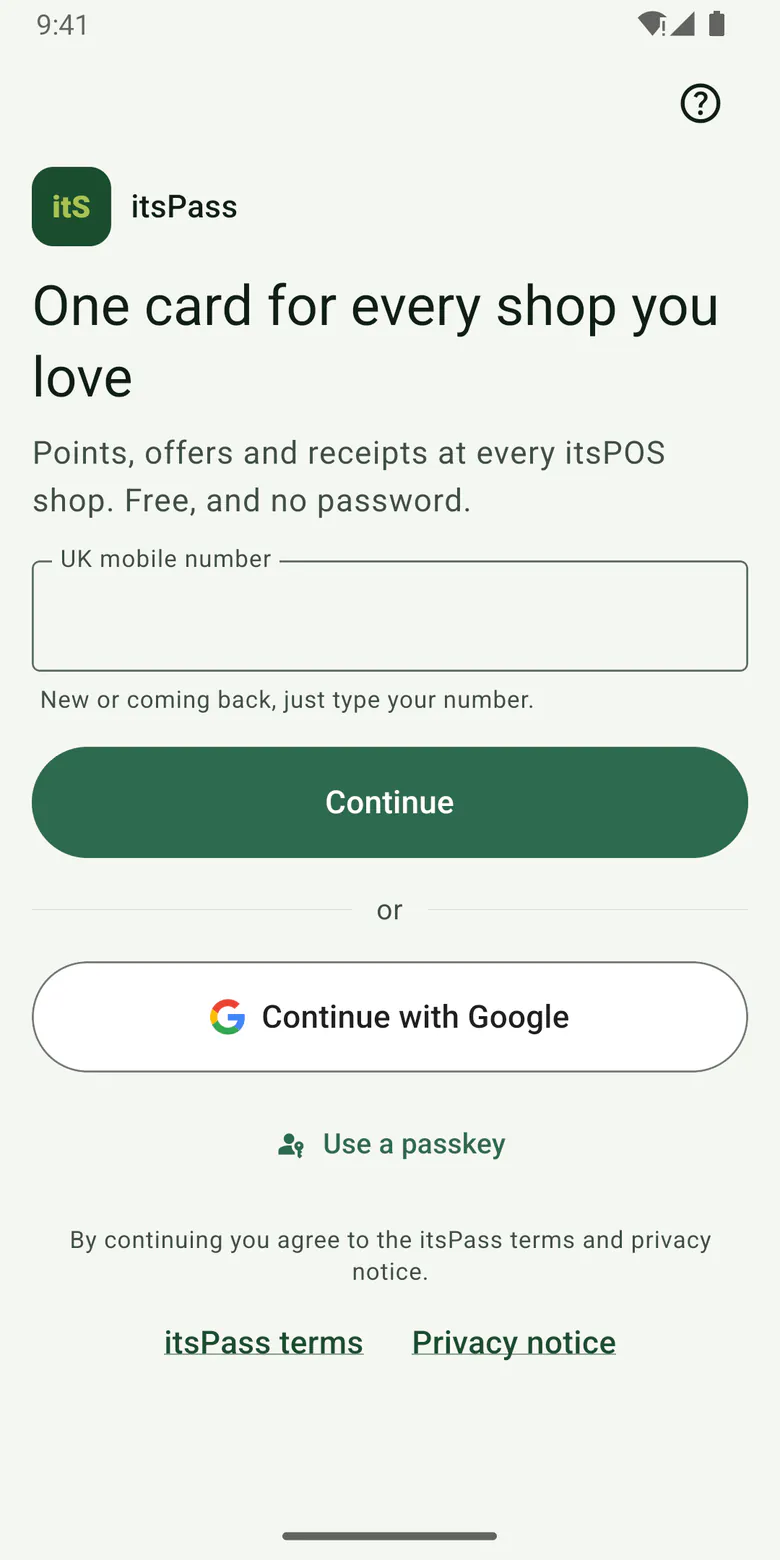
A new shopper who uses Apple or Google is asked for their mobile once (One more thing: your mobile), because shops find members at the till by their number.
Joined at your till by phone? The shopper signs in with the same mobile number, and your shop is already in their list.
What a shopper may tell you:
| They see | What it means |
|---|---|
| Just a quick check | itsPass couldn't confirm it's the official app on that phone, so it asks them to tick a box before texting. One tap, then the code comes. |
| That code has run out | Codes work for 10 minutes. itsPass sends a new one. |
| Too many tries | Wrong codes too often. They wait the time shown and try again. |
| No more codes today | That number has had all its codes for today. They can still collect points: they tell your cashier their mobile number. |
| Your new phone | Signing in on a new phone asks for their 4-number itsPass PIN. Forgotten it? A shop can set a new one at the till if it allows it, or they email support@itspos.io. |
| This itsPass is protected | The account signs in with a passkey, Apple or Google, so a text code alone can't open it. |
| itsPass is for people aged 16 or over | They chose Under 16. Nothing was kept. |
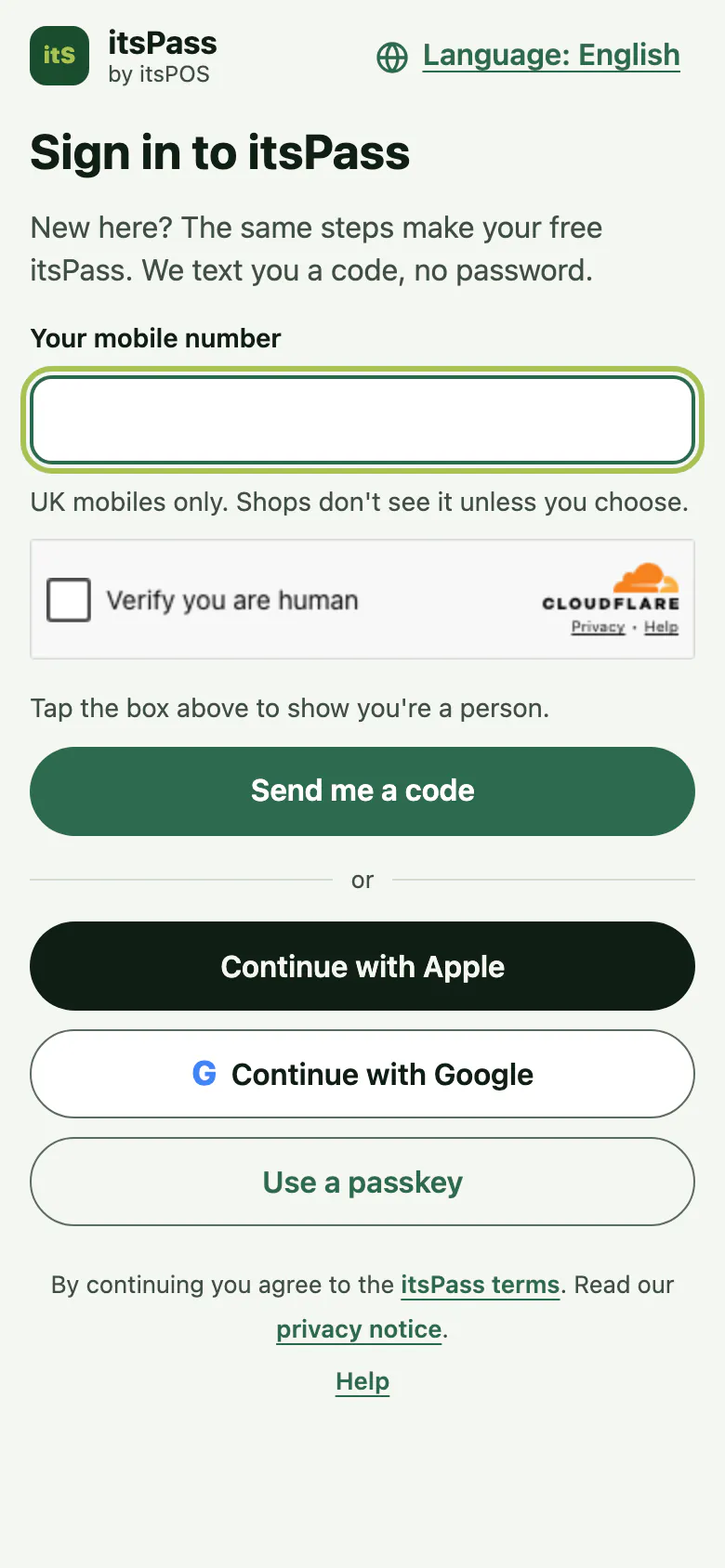
On the website, Sign in or join opens the itsPass sign-in page at id.itspos.io with the same choices: the mobile number with a text code, Apple, Google or a passkey.
My code
My code is what members show at your till. Your cashier scans it like any barcode.
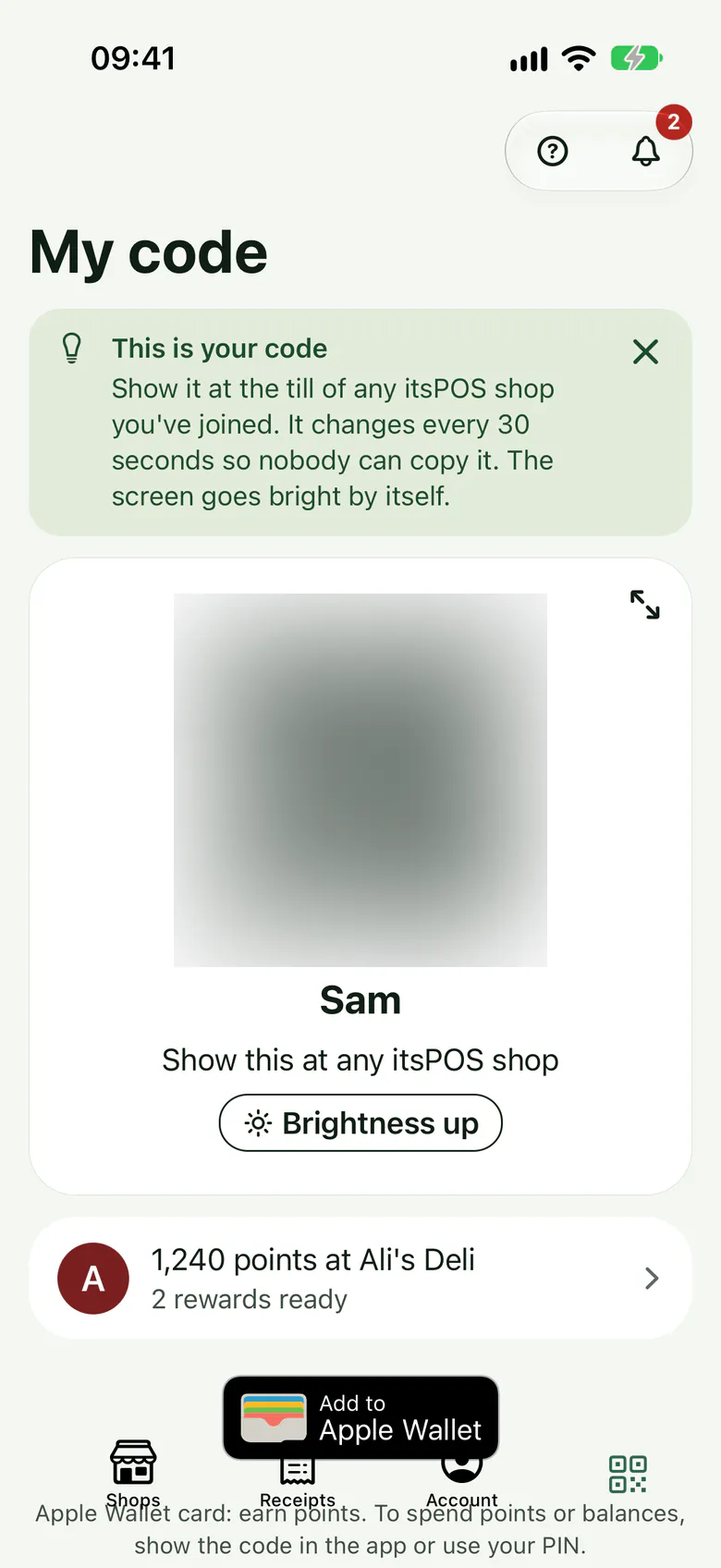
The first time, a tip explains the code: "This is your code". The code changes every 30 seconds so nobody can copy it, and the screen goes bright by itself. Tapping the code makes it bigger.
It works offline for 7 days; the phone needs the internet once a week. When it's offline, the screen says until when the code works. After 7 days offline: Your code needs a refresh, with At the till? Show my number underneath.
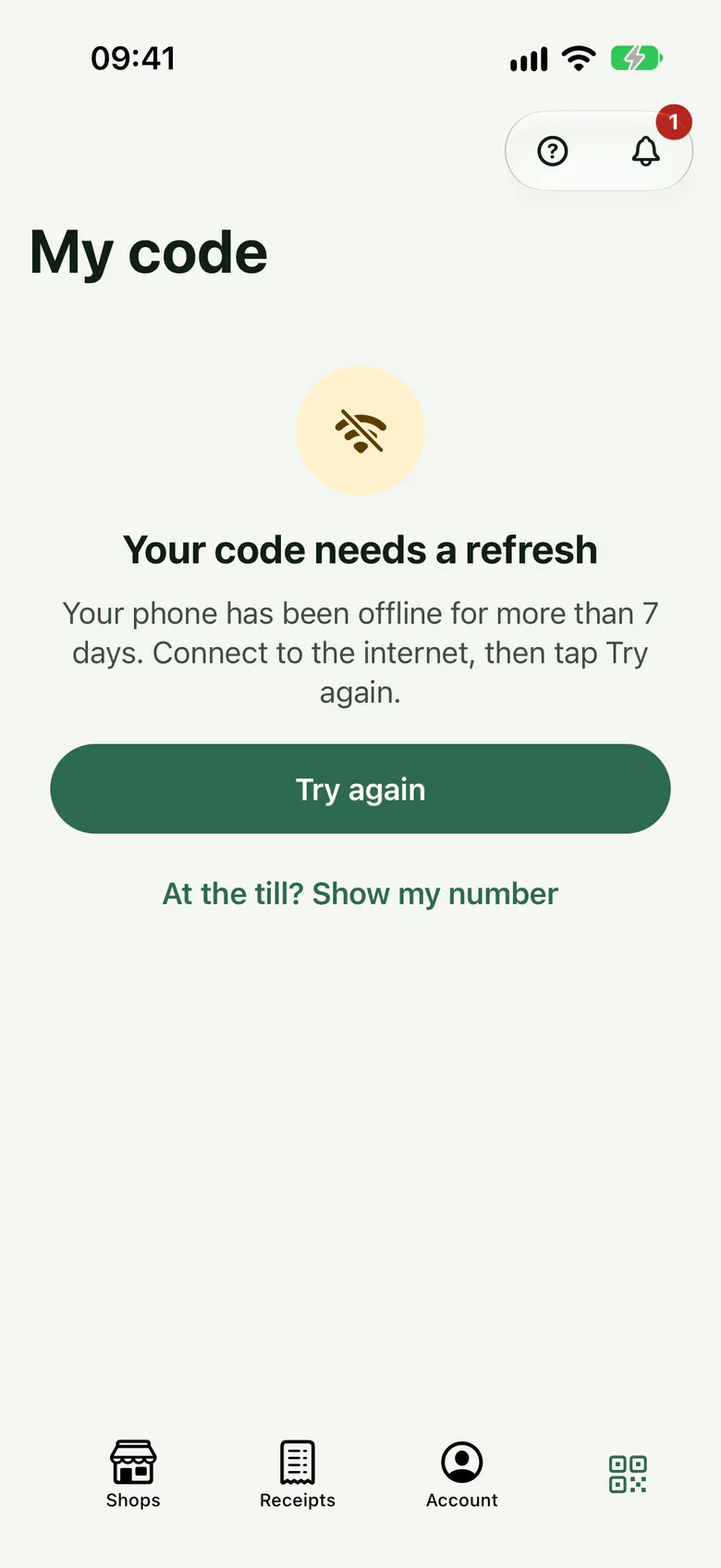
Your code needs a refresh Under the code: the points or stamps at the shop with a reward ready, or else the shop they visited last. Tapping it opens that shop.
Add to Apple Wallet or Add to Google Wallet puts one itsPass card in the phone's wallet. See Shop cards in Apple Wallet and Google Wallet.
At the till? Show my number: when the code can't show, the screen offers this button. It shows their mobile number in large type for your cashier, who finds them by it; points are added as normal. If a code shows but won't scan, they simply tell the cashier their number.
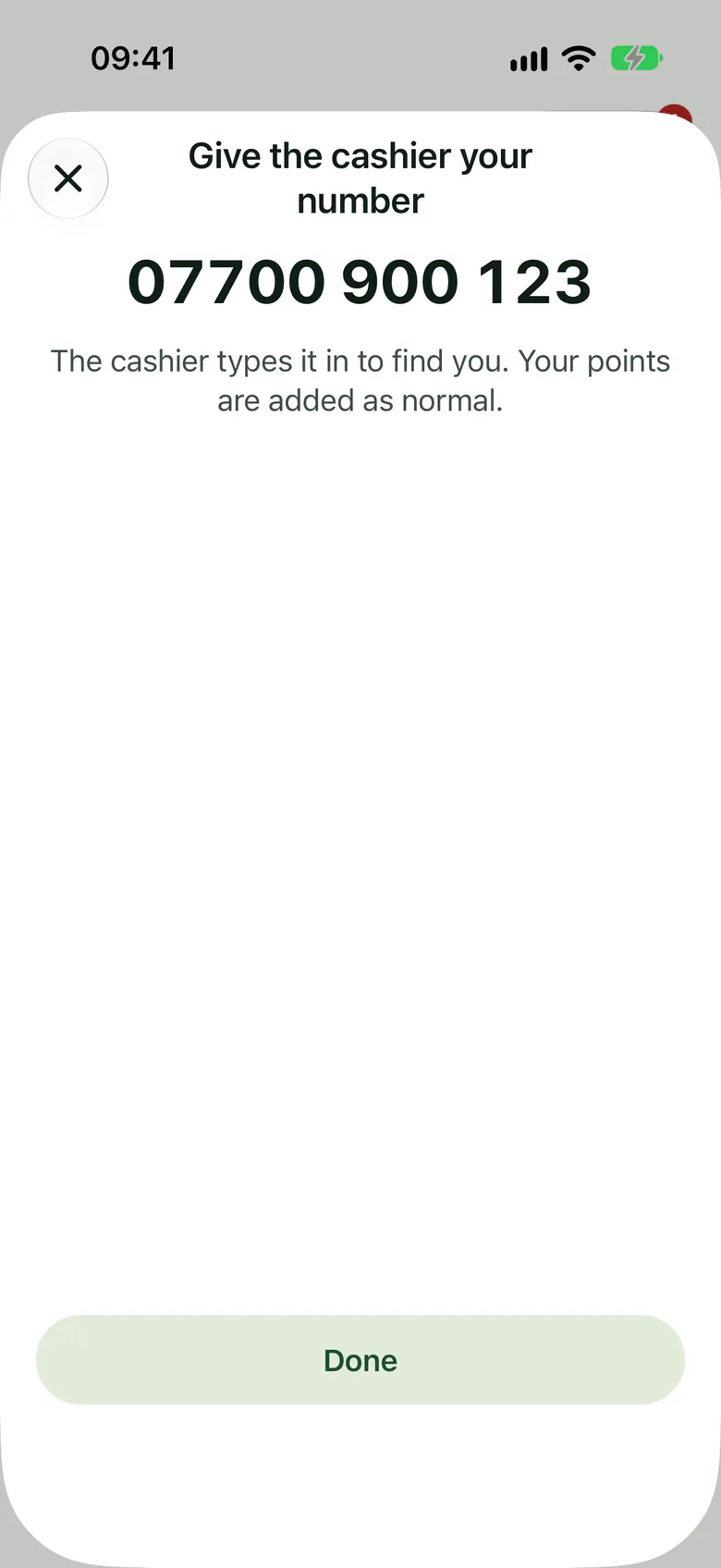
Give the cashier your number itsPass works on up to 3 phones and browsers. On a fourth: You're using itsPass on 3 phones, with See my phones to sign one out.
Messages, behind the bell
The bell at the top of My code opens Messages, with the number of new ones on the bell. Each message opens its own page with a button for what it's about (See the receipt, See my reward, See the offer, See my tab).
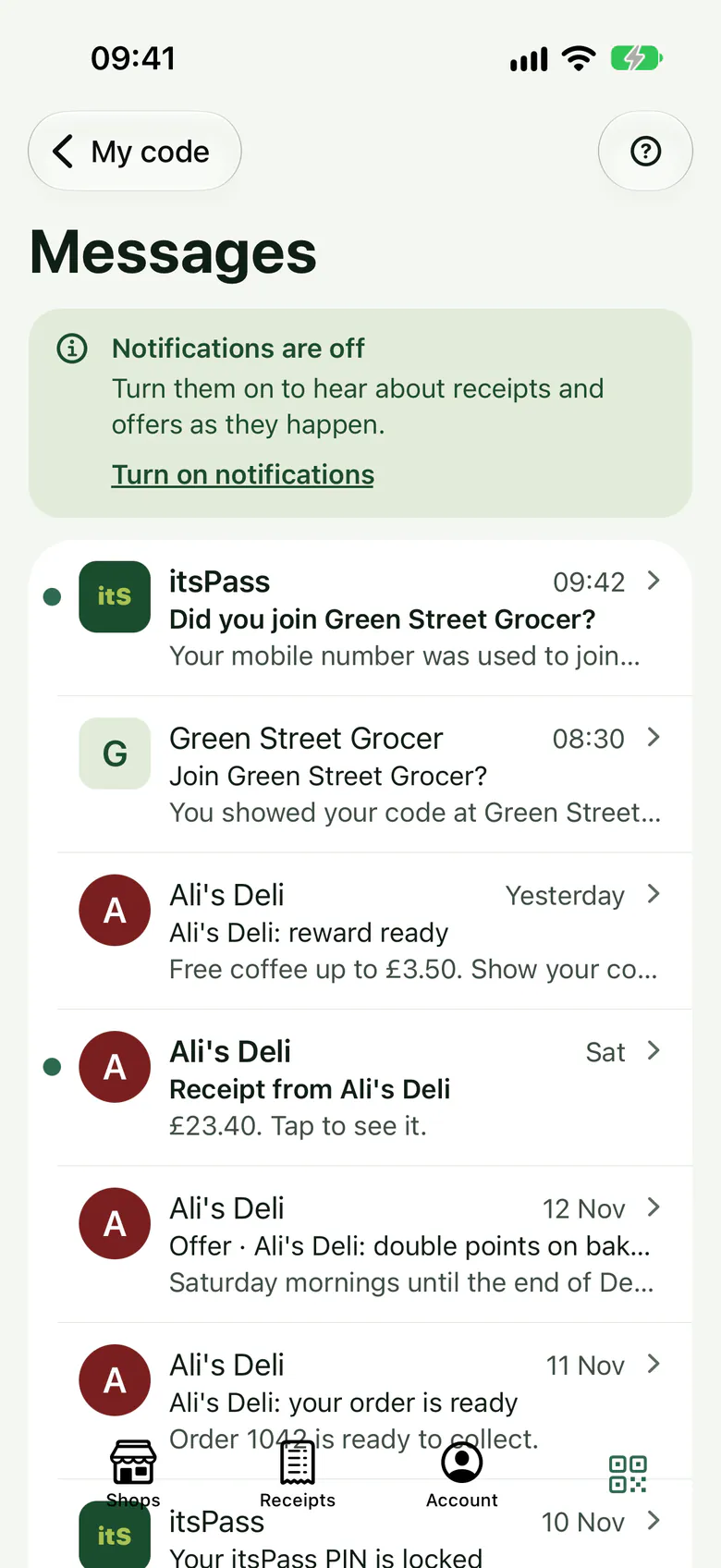
- Receipts, points added, rewards ready, tab statements and changes to a shop's rules come from every shop they joined.
- Offers come only from shops they said yes to, by the way they chose. Every offer has Stop offers from this shop; receipts and service messages still come.
- Choose what shops send me opens their choices for each shop.
- Did you join {shop}?: when staff join a shopper at the till by mobile number, the shopper is asked to confirm with Yes, it was me or No, it wasn't me. No undoes the join and nothing is shared with the shop.
- Your messages are shown in your words, never translated.
Notifications are optional: everything is in Messages and the code works without them. See Send news and offers to members.
Shops
Shops lists every shop the member joined, with their points or stamps and Reward ready when they have one.
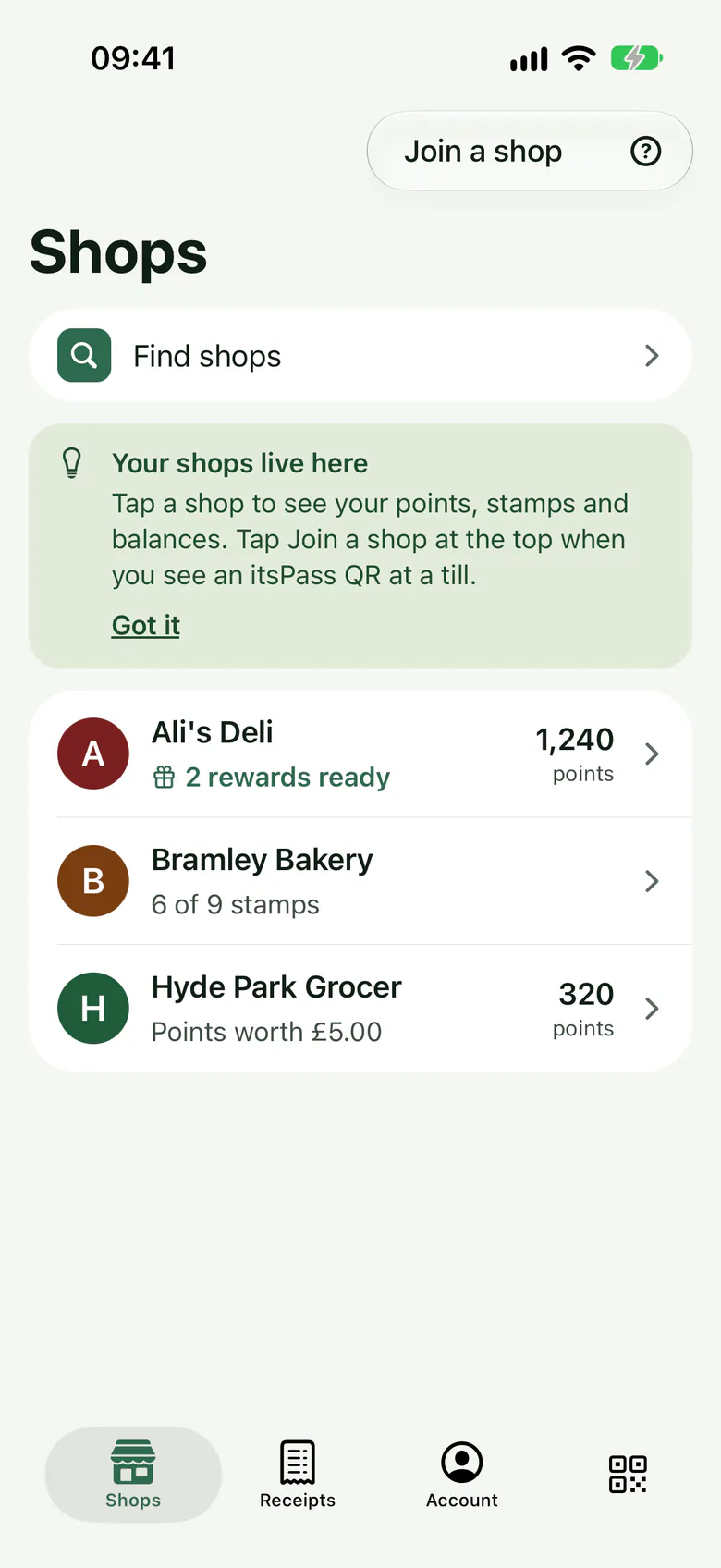
Join a shop (at the top on iPhone, the round button at the bottom on Android) opens the camera for your counter QR, or Type the shop's code for the code printed under it. See Your join code and QR.
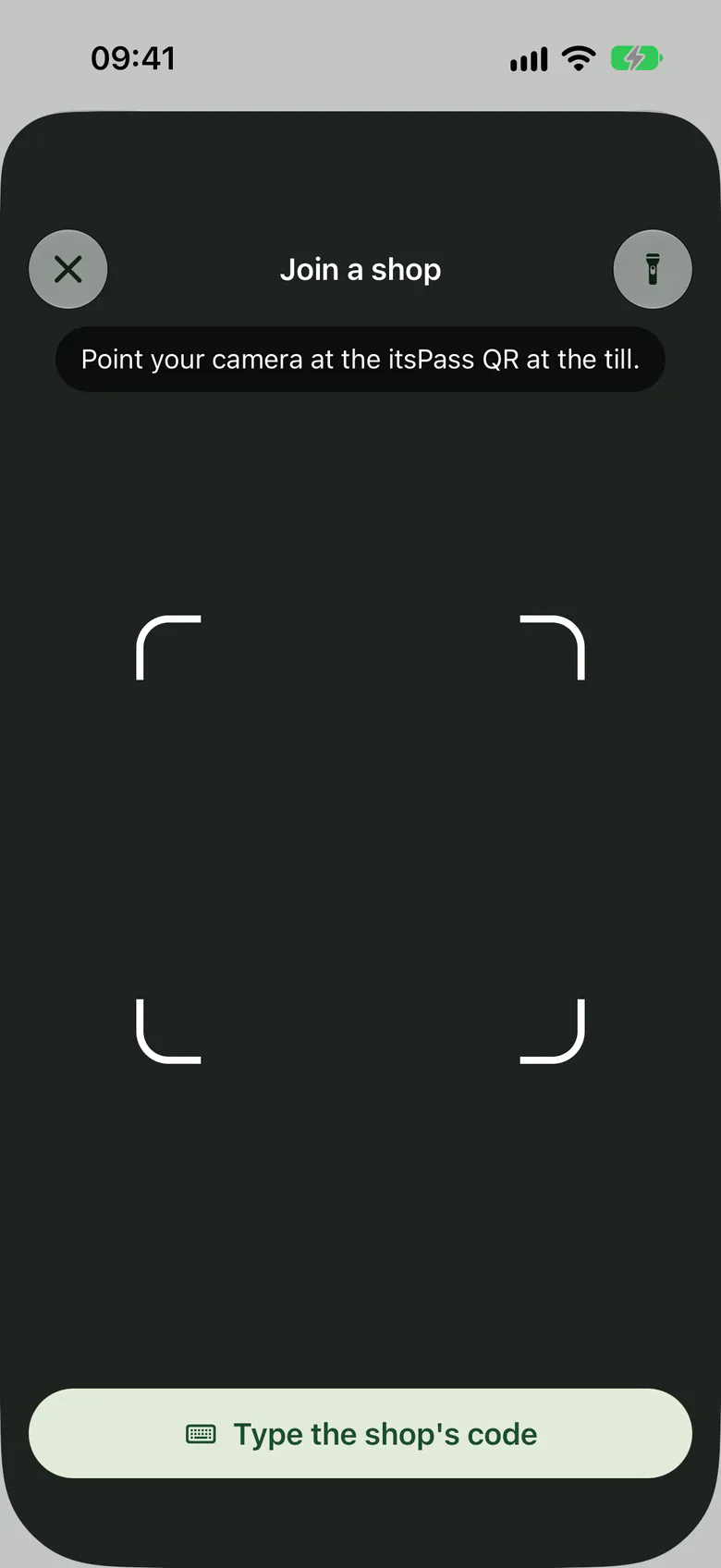
Join a shop Find shops lists itsPOS shops that chose to be listed, by name, town or postcode, or Shops near me. See Your shop description and Find shops.
Tapping a shop opens its page: points, rewards, offers, money they have there, their level and your shop's details. See The shop card: how each setting shows to members.
Pulling the list down updates it. Offline, they see what was saved last time.
Receipts
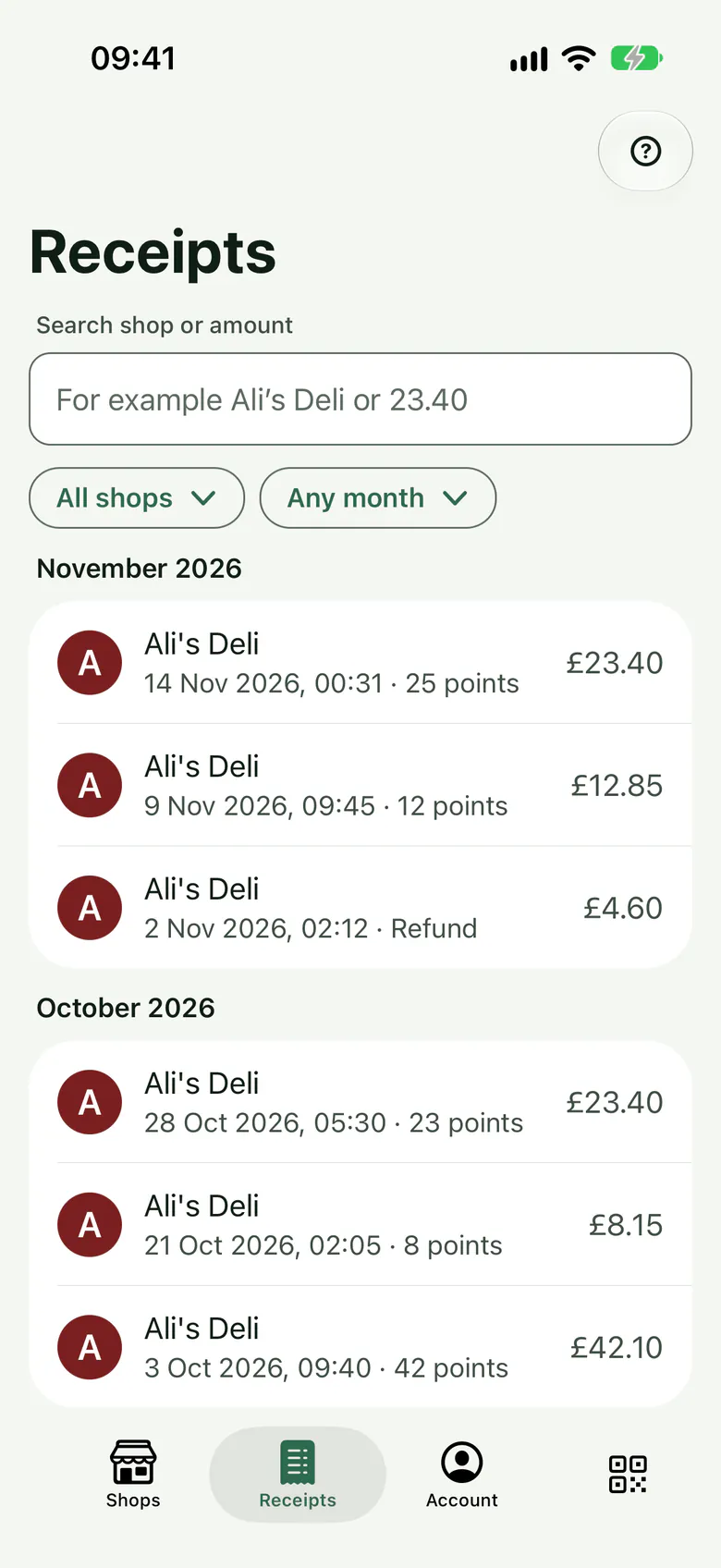
Receipts has every receipt from shops they joined, newest first, with a search box (a shop or an amount, like 23.40) and filters for the shop and the month. Each receipt opens with its lines, savings, how they paid and VAT, plus Return code, Save PDF and Full VAT invoice. See Receipts in itsPass.
Account
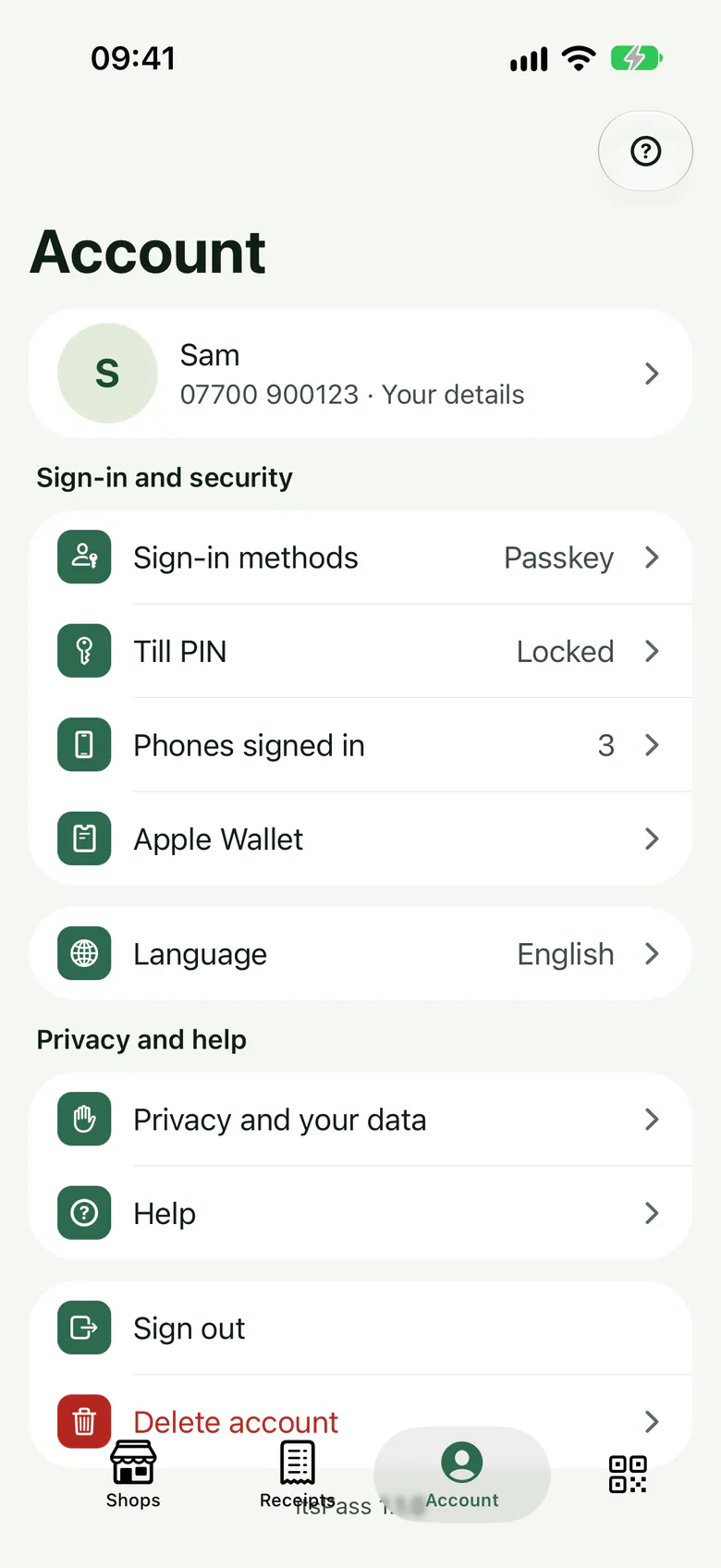
| Row | What the shopper does there |
|---|---|
| Their name and number (Your details) | First name (what your staff see), Mobile number (changing it needs a fresh sign-in and a text code to the new number) |
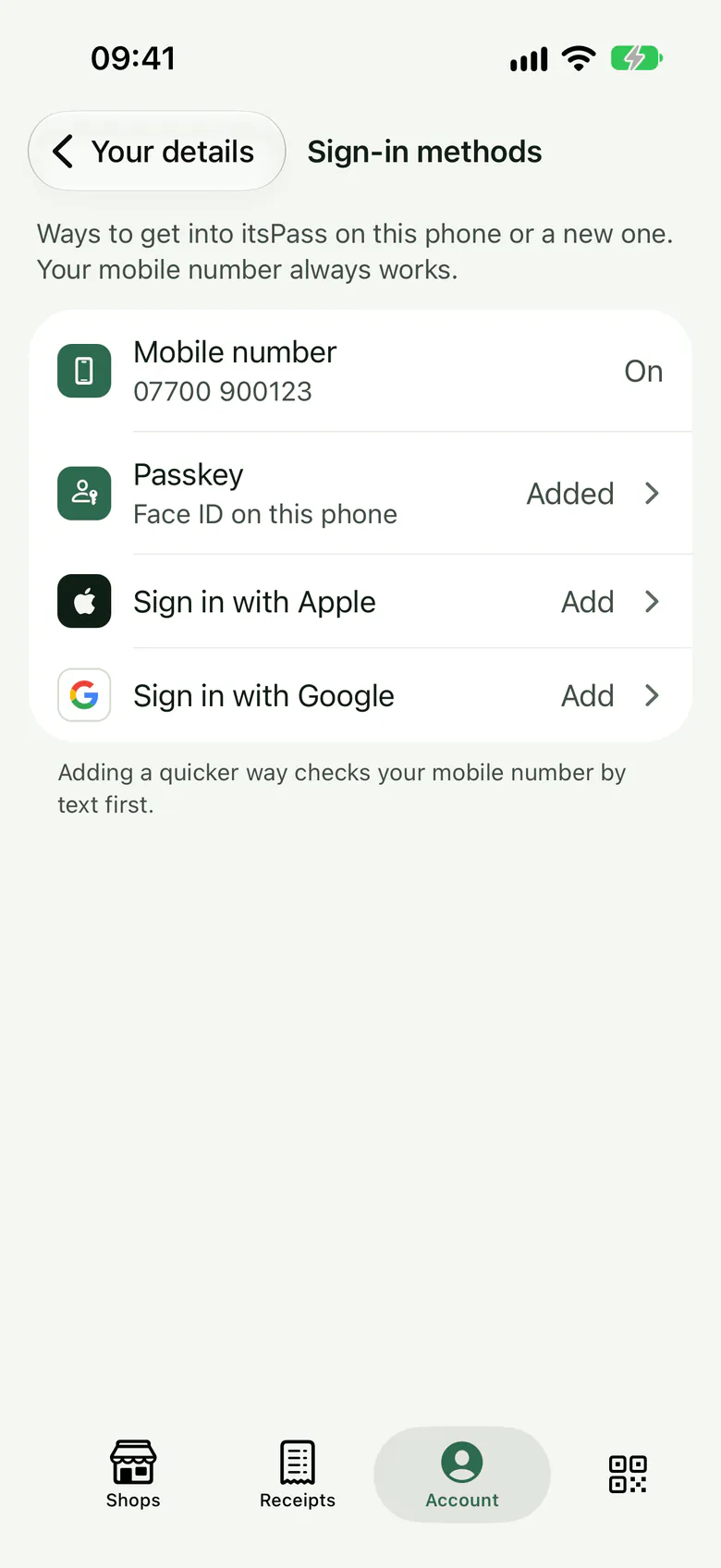
| Sign-in methods | Their mobile number always works; add or remove a passkey, Sign in with Apple and Sign in with Google |
| Till PIN | A 4-number PIN for spending points or balances at a till without their phone. They type it on the till's PIN pad themselves. Never ask for it. |
| Phones signed in | Up to 3 phones and browsers; sign out a lost phone and its code stops working at once |
| Apple Wallet or Google Wallet | Add the itsPass card to the phone's wallet |
| Language | See Languages |
| Privacy and your data | What each shop sees, offers, paper receipts, Download my data. See What members share with you, leaving and deleting |
| Help | Questions and answers, Contact itsPass (support@itspos.io), Contact a shop (your phone and website), the complaint form, See the tour again, Service status |
| Sign out | Removes the code from that phone. A Wallet card keeps earning points. |
| Delete account | Deletes their itsPass. See What members share with you, leaving and deleting |
Languages
itsPass is in English, Welsh, Polish, Romanian, Punjabi, Urdu, Bengali and Arabic. It follows the phone's language, or the shopper chooses in Account › Language. Urdu and Arabic read from right to left: itsPass restarts once (Switch and restart) to turn round.
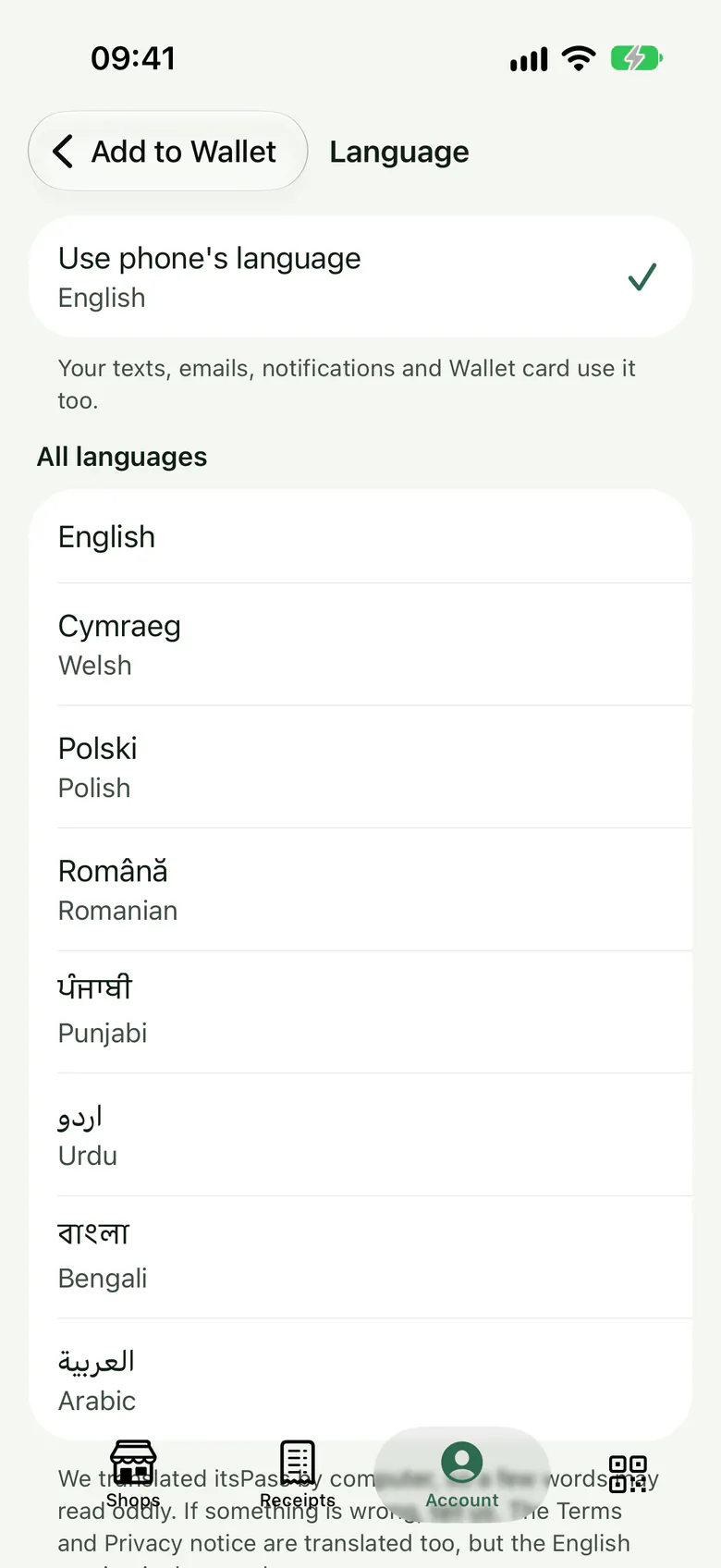
- Their texts, emails, notifications and Wallet card switch to that language too.
- Your shop's own words are never translated: your shop's name and description, offers, messages and receipt lines show exactly as you wrote them. Write them in the language your shoppers read.
- itsPass was translated by computer; shoppers can tap Report a wrong translation in Help.
Joining without the app
A shopper doesn't need the app to join your shop:
iPhone (App Clip): pointing the iPhone camera at your join QR opens a small itsPass card from the bottom of the screen, without installing anything. It shows your shop, the offers choice and Join; itsPass then texts a code to check their mobile ("Step 1 of 2"); then Joined! with Get the itsPass app and Add to Apple Wallet.
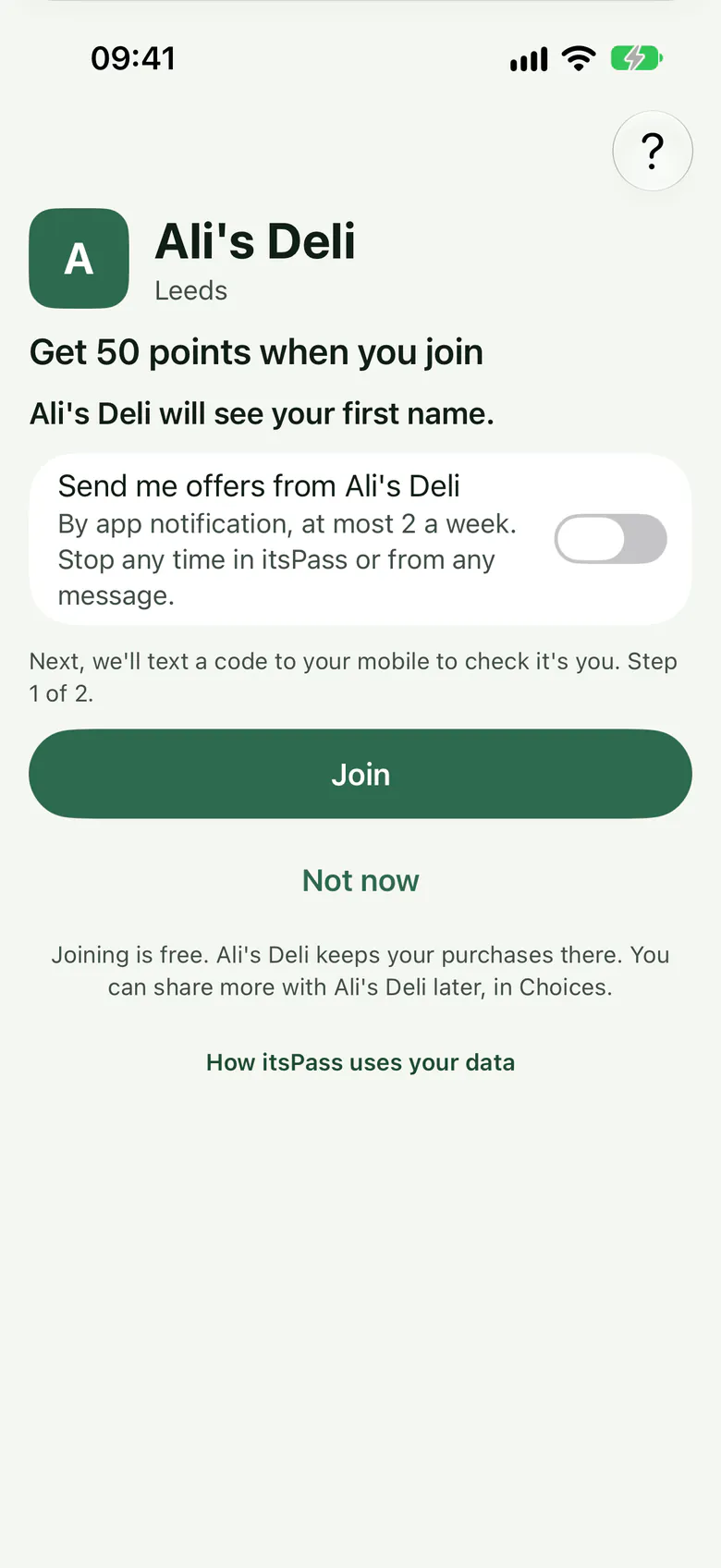
The itsPass App Clip on an iPhone 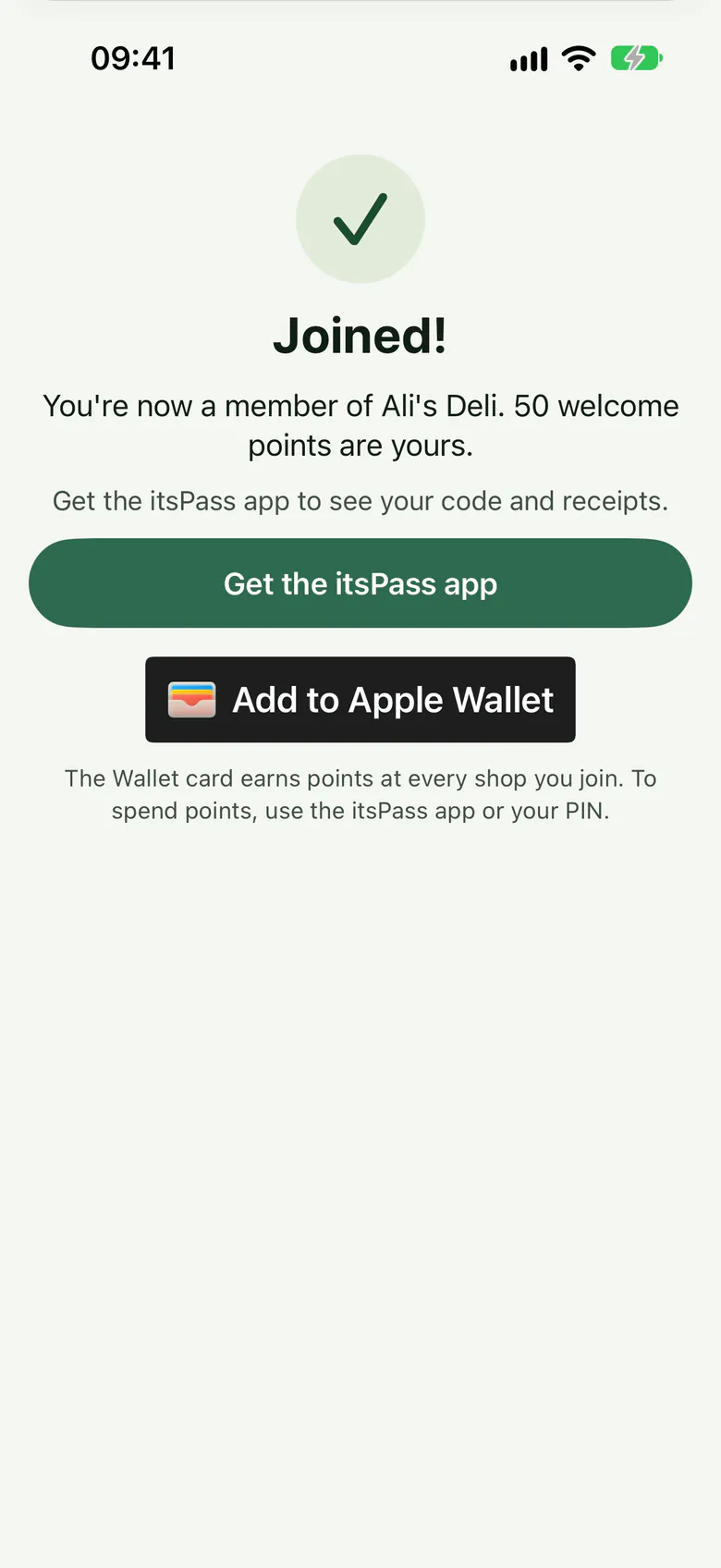
Joined! in the App Clip Android and any other phone: the QR opens your shop's join page on pass.itspos.io in the browser, with the app's store button and Join here on the web.
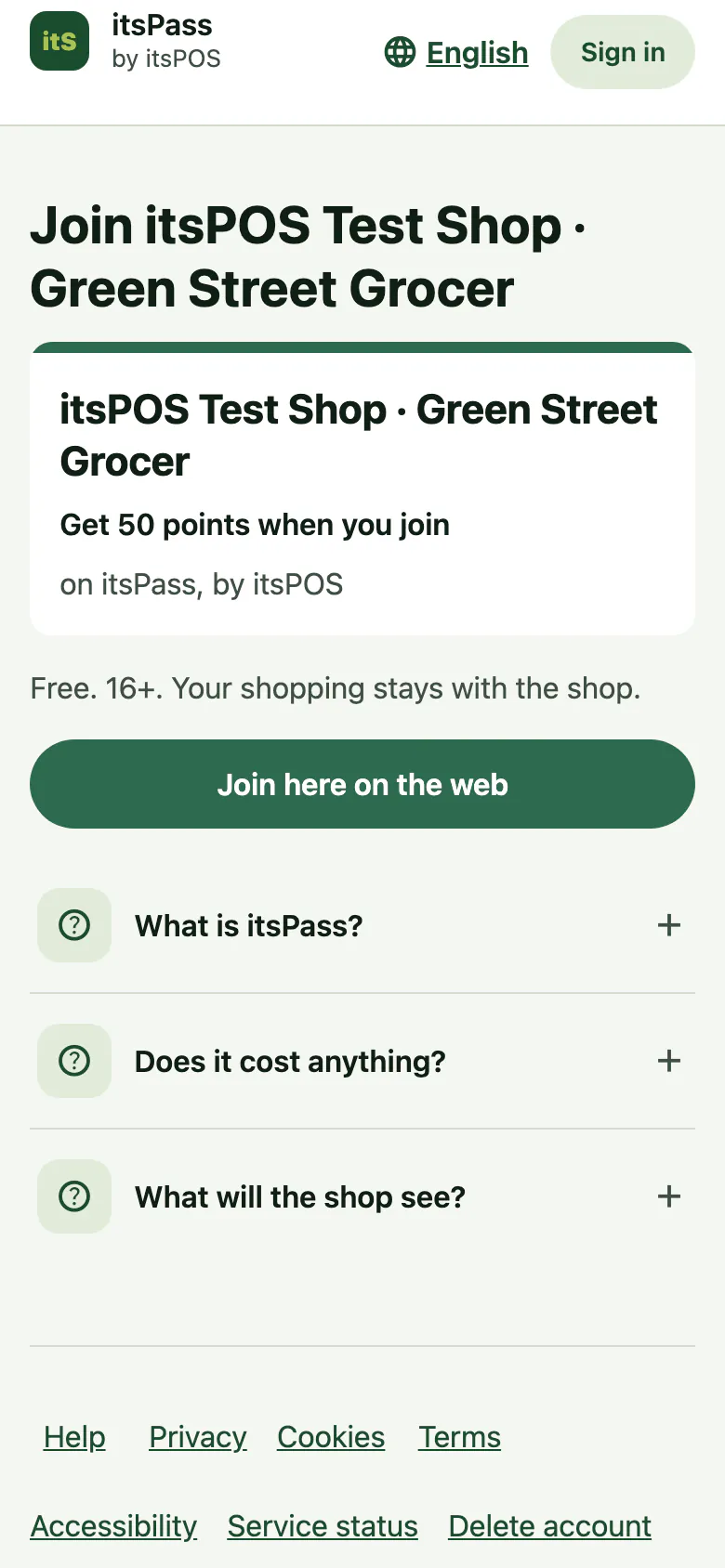
A shop's join page on pass.itspos.io At your till: staff join them by mobile number, and itsPass texts them a link to finish (Finish your itsPass). See Join itsPass at the till.
pass.itspos.io, the website
The website is the same itsPass in a browser, for shoppers without the app or on a computer. Before signing in it shows what itsPass is, Sign in or join, the store buttons for the app, Help, Service status and the language choice; Find shops is at pass.itspos.io/find.
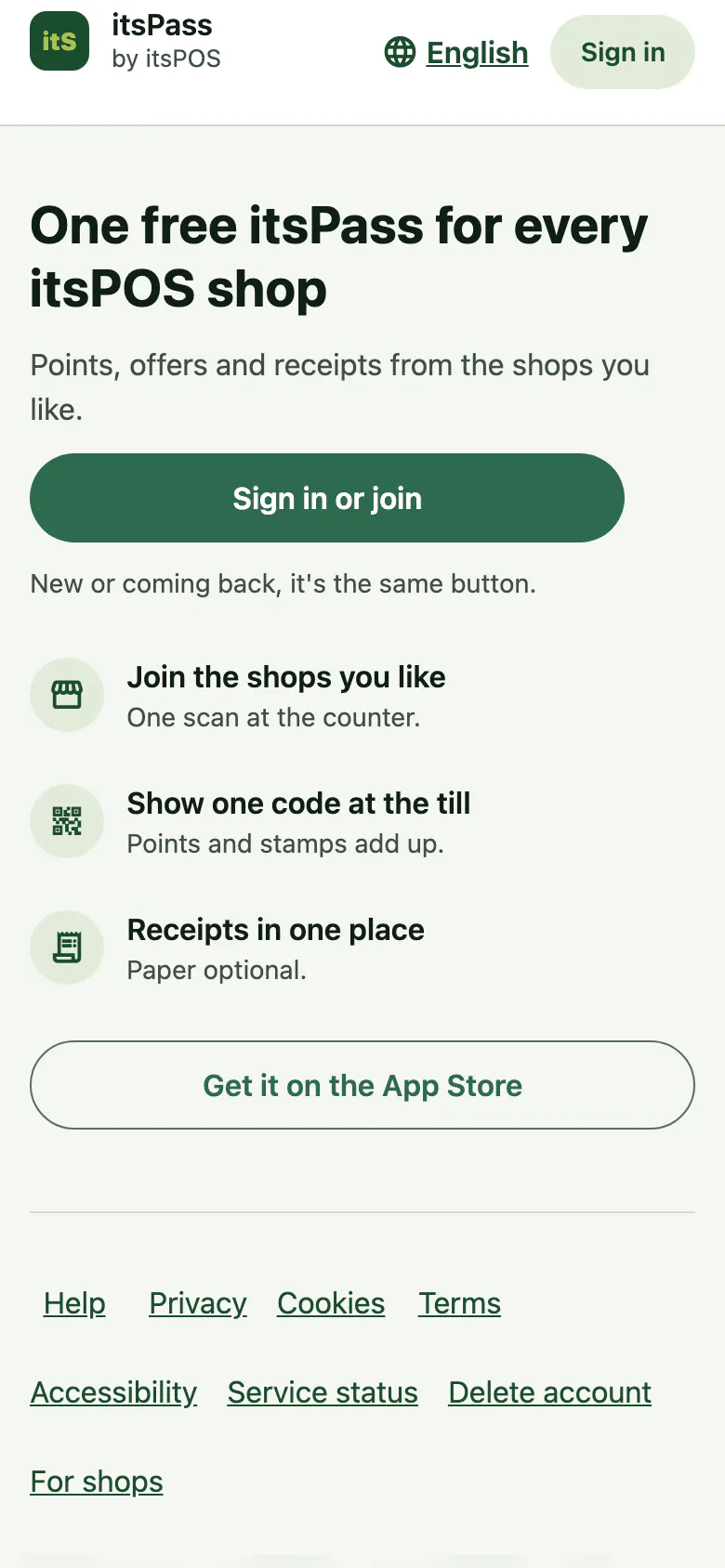
After signing in it has the same four tabs and Messages as the app.
My code shows the same code as the app, and your till scans it as usual. For safety the website shows it only after a fresh sign-in (Sign in again to show your code here), and that browser then counts as one of their 3 phones and browsers. It needs the internet: the website doesn't keep the code for offline use.
Service status says whether itsPass is working.
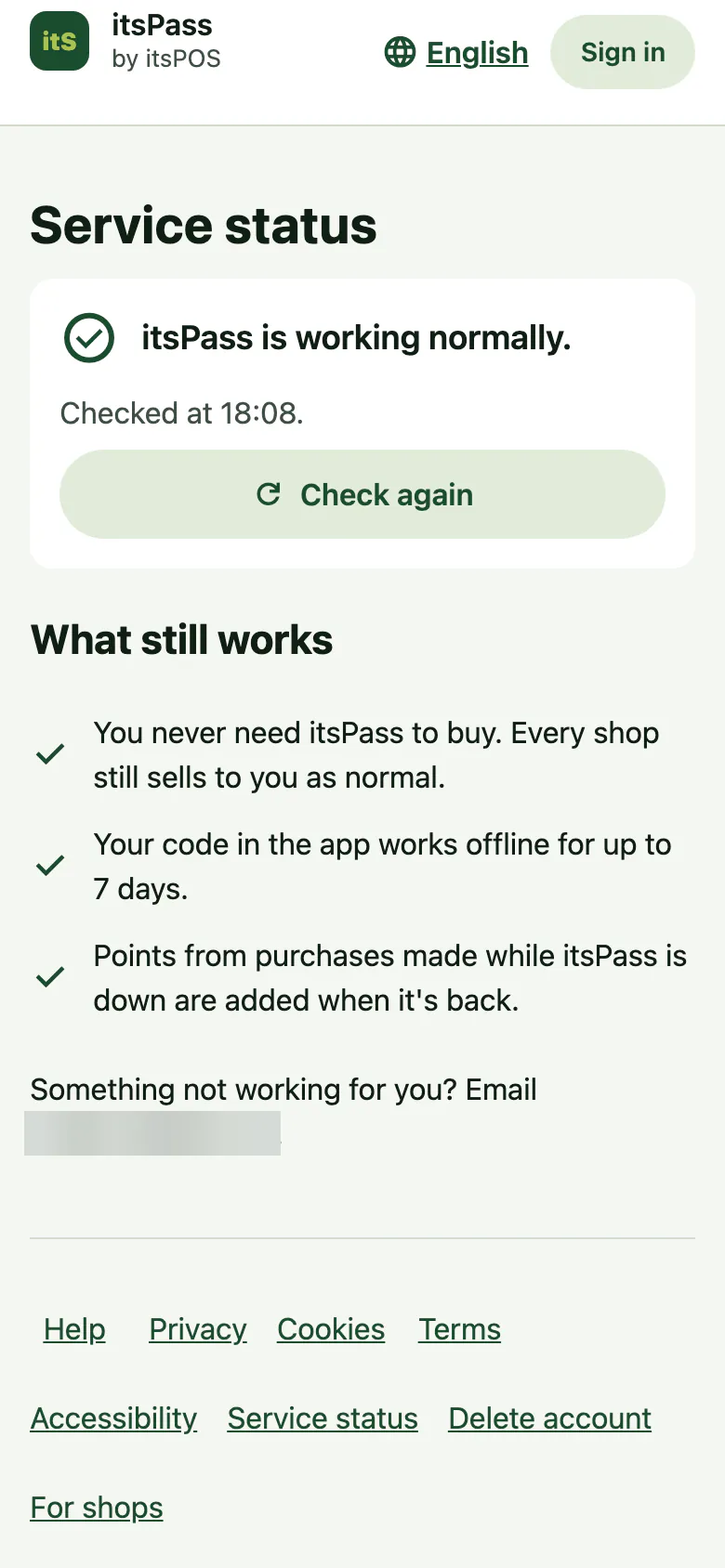
Service status on pass.itspos.io When it isn't, members can still buy from you as normal, their code in the app works offline, and points from those sales are added when itsPass is back.
Where it shows up
- What you set in the back office shows on your shop's page in itsPass within a minute or so: see The shop card: how each setting shows to members.
- Your till scans My code, the Wallet card and finds members by mobile number: see Add a customer or itsPass member to a sale.
- Shoppers' questions at the till: Answering shoppers' questions about itsPass at the till.
Still stuck?
The itsPOS support team is here 08:00 to 20:00 every day except Christmas Day.
- Call or WhatsApp: +44 7488 880320
- Email: support@itspos.io
- In the back office: Help › Contact support, or go to app.itspos.io/help/contact after you sign in
- On our website: itspos.io/contact
Tell us your shop's name and what you were trying to do. A screenshot of the screen helps.