

Customers and itsPass
Store credit
Store credit is money a customer can spend in your shop: a refund they chose to keep as credit, a goodwill gesture, or a price match. The till refunds to store credit when the customer agrees, and customers spend it at Pay. Customers › Store credit lists every entry, and lets you give credit or take it off by hand. This guide gives Mia Hughes £8 because you matched another shop's price on Nescafé.
For: Owners, Admins and Shop managers2 min read
Before you start
- Owners, Admins and Shop managers can give store credit.
- "Every entry has a reason; giving more than £50.00 needs someone else's approval." The limit is your shop's (Settings › Selling rules).
Give store credit
Go to Customers › Store credit and press Give store credit.
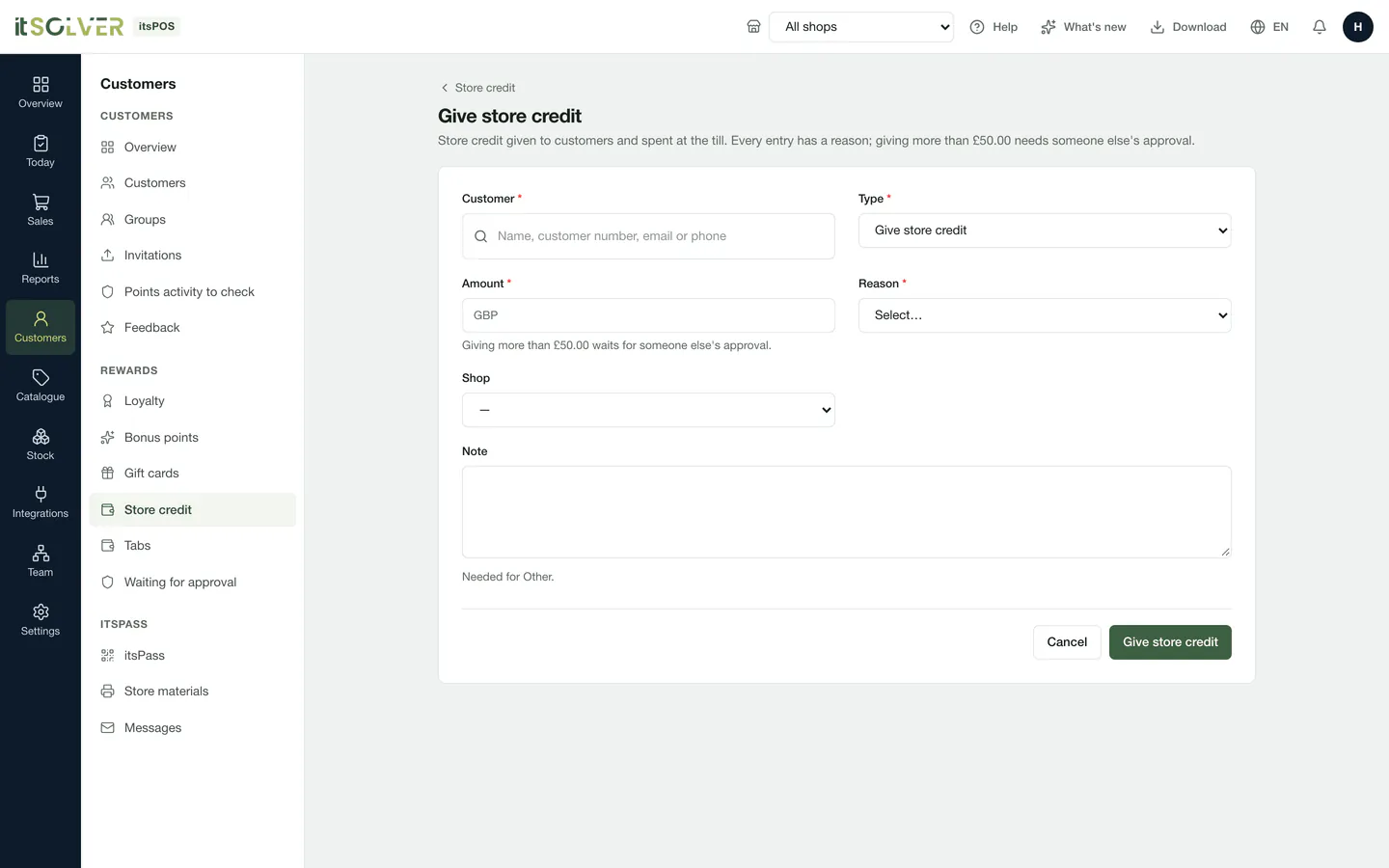
Give store credit Customer: search by name, customer number, email or phone (Mia Hughes).
Type: Give store credit.
Amount: £8.00.
Reason: Refund, Goodwill, Price match, Correction, Carried over or Other (add a note).
Shop (Green Street Grocer) and a Note ("Matched the Co-op's price on Nescafe 300g"); the note is needed for Other.
Press Give store credit: "Saved SCE-2026-00007."
Over the limit it waits: "Store credit £60.00 is waiting for approval (WAP-2026-00002). Customers › Waiting for approval." Nothing is given until someone else approves it.
Take off credit spent outside the till
Choose Type › Take off (spent outside the till), the amount and a reason, for example Correction.
The list
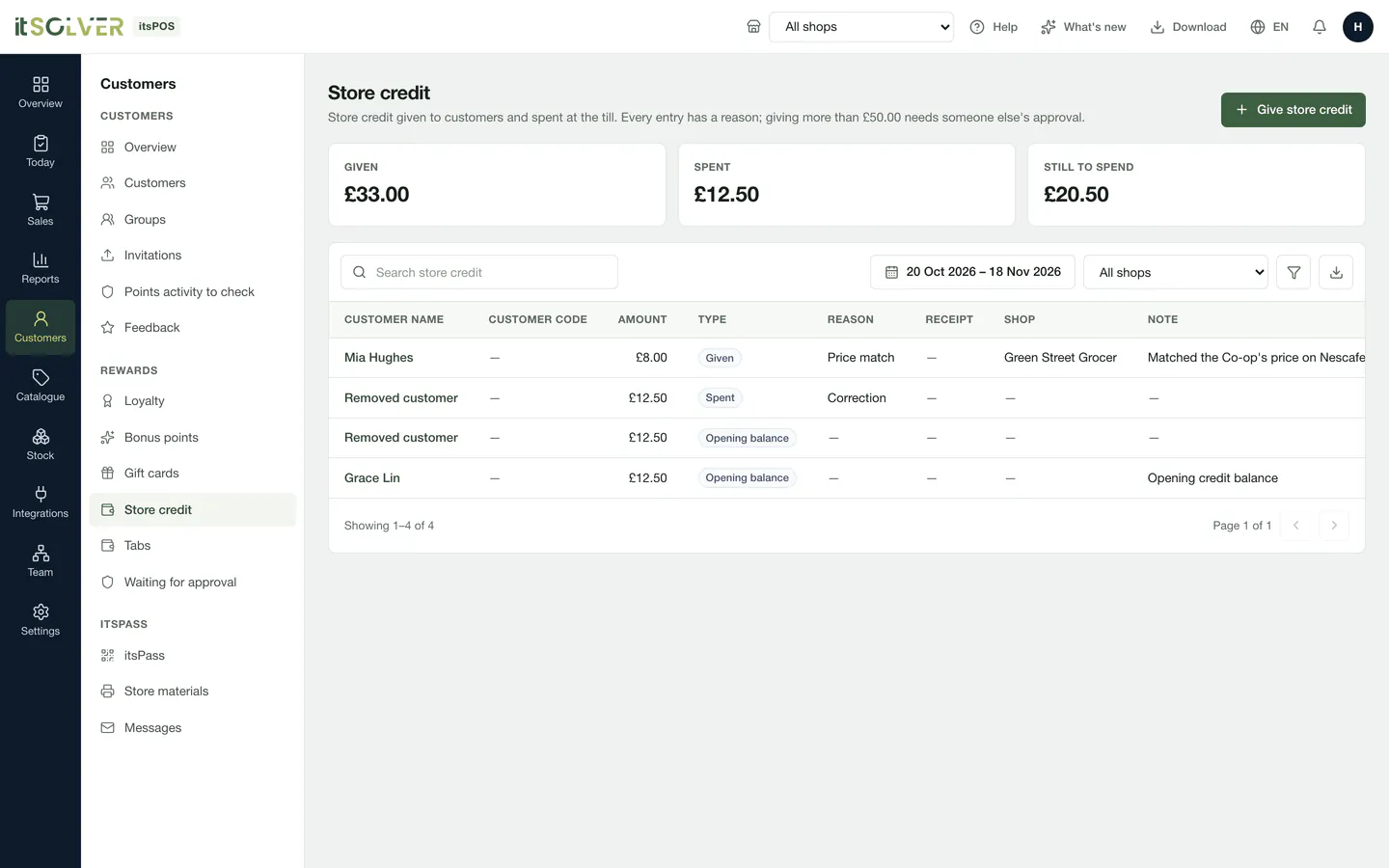
Given, Spent and Still to spend for the dates and shop you choose, then each entry: Customer name, Amount, Type, Reason, Receipt, Shop and Note. Filter by Type (Given or Spent). The customer's page shows their credit in Wallet.
What happens next
- The till sees the new balance: the cashier takes it at Pay with Store credit (see Gift cards, store credit and points at the till). Members show their itsPass code or give their PIN to spend it.
- Customers › Overview shows the store credit still to spend.
Still stuck?
The itsPOS support team is here 08:00 to 20:00 every day except Christmas Day.
- Call or WhatsApp: +44 7488 880320
- Email: support@itspos.io
- In the back office: Help › Contact support, or go to app.itspos.io/help/contact after you sign in
- On our website: itspos.io/contact
Tell us your shop's name and what you were trying to do. A screenshot of the screen helps.