

Customers and itsPass
Shop cards in Apple Wallet and Google Wallet
A member can keep one itsPass card in their phone's wallet (Apple Wallet on iPhone, Google Wallet on Android) and show it at your till instead of opening the app. Your shop has nothing to set up: your till scans the card like any barcode.
For: everyone4 min read
What the card is
- One card for every shop. It carries the member's itsPass code, so it works at every itsPOS shop they joined, including shops they join later ("Your Wallet card now earns at Ali's Deli too.").
- Kept up to date by itsPOS. The front shows the points at the shop they visited last, or their stamps and the nearest reward. It updates by itself when the phone is online.
- In their language: the card's words follow the language they chose in itsPass. Your shop's name shows as you wrote it.
- What never shows on the card: their mobile number, their purchases, or the money they have with you. Their first name shows, so staff can greet them.
- On the back: "Can't scan? Give the cashier your mobile number.", why the code changes, and a link to itsPass help.
Adding the card
Add to Apple Wallet or Add to Google Wallet is under My code, on Joined! after joining a shop, and in Account › Apple Wallet (or Google Wallet) while the card isn't in this phone's wallet yet.
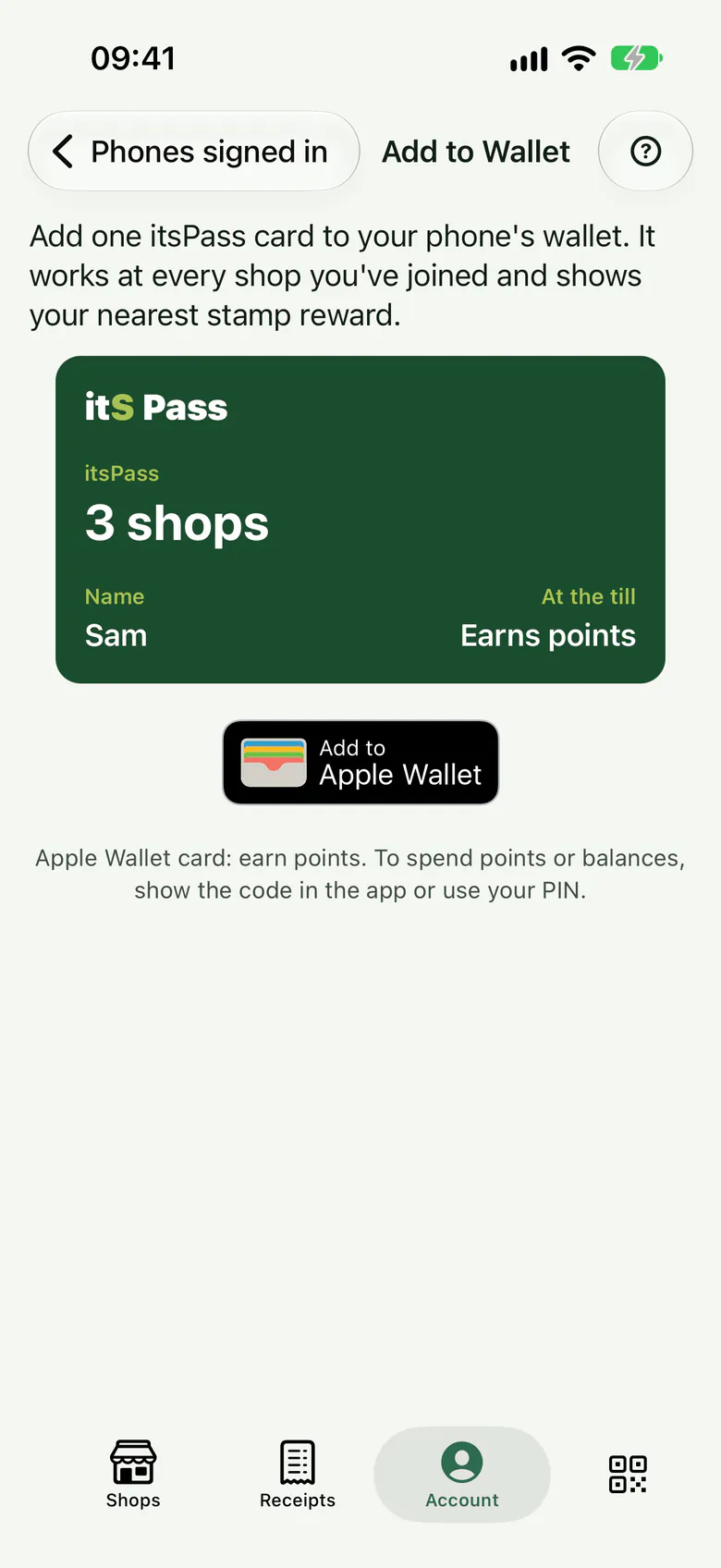
- The member taps Add to Apple Wallet (or Add to Google Wallet).
- The phone's own sheet opens over itsPass: Apple's Add or Google's Save.
- Back in itsPass: "Your itsPass card is in Apple Wallet." The button becomes View in Apple Wallet (or Open in Google Wallet).
On Android, the same button is Add to Google Wallet, and Google's own Save sheet opens:
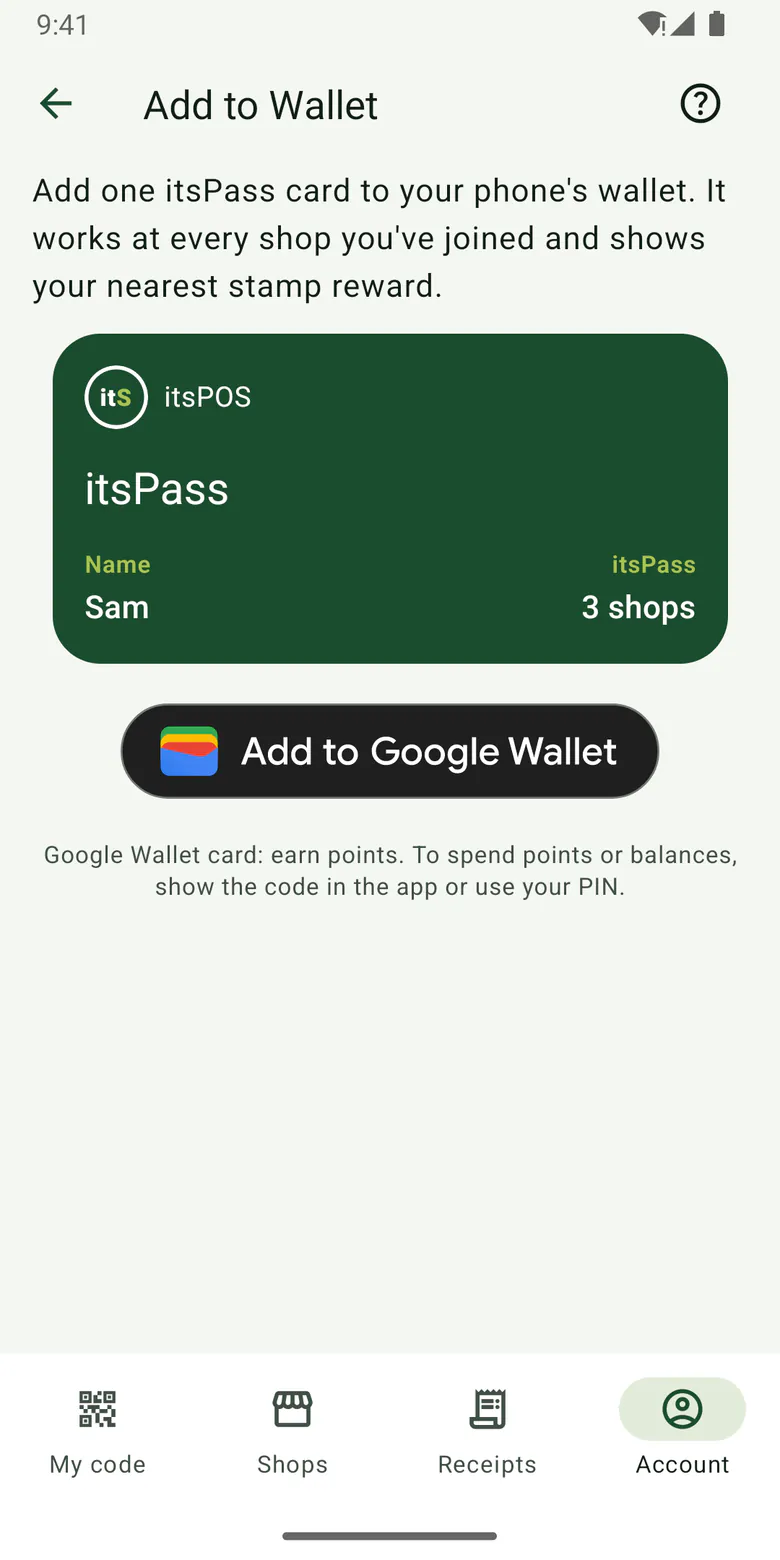
Someone who joins with the iPhone App Clip can add the card straight from Joined!, without the app.
At your till
- Scanning the card earns points and stamps, just like My code.
- Spending needs more: "Apple Wallet card: earn points. To spend points or balances, show the code in the app or use your PIN." The till says so. Ask them to show My code in the app, or find them by mobile number and let them type their itsPass PIN on the till's PIN pad.
- See Add a customer or itsPass member to a sale.
Notices and the Lock Screen
- Reward ready: when a member's reward is ready or a stamp is added, the card shows a notice on their Lock Screen (Apple Wallet: when they allow the card's notifications; Google Wallet: when Pass notifications are on).
- Near your shop: the phone can suggest the card on the Lock Screen when they're at one of their shops (up to 10 of the shops they joined). itsPass itself never asks for their location; the phone does this from your shop's address.
When the card won't scan
| What happens | What to do |
|---|---|
| The till doesn't read the card | Ask them to show My code in the itsPass app, which always works, or find them by mobile number |
| An old iPhone card | Apple Wallet's code changes once a month and an old code works for 72 hours after. Open the card in Wallet, tap ⋯, Pass Details, and pull down to update it. |
| An Android card | Google Wallet's code changes every 30 seconds and follows the phone's clock: in the phone's Settings, turn on Set time automatically |
| "Wallet cards are turned off on this iPhone" or "Google Wallet isn't available on this phone" | Screen Time, a work profile or a phone without Google Play stops wallet cards. My code in itsPass works the same at the till. |
| "Your itsPass card is saved to a different Google Account" | They switch account in Google's sheet, or open Google Wallet with that account |
Signing out, deleting and removing
- Signing out of itsPass doesn't stop the card: "Your Wallet card keeps earning points. To stop it, remove it from Wallet."
- Deleting itsPass stops the card at once: "This card no longer works because its itsPass account was deleted."
- Removing it: in their wallet, choose the itsPass card and remove it. Their itsPass account stays as it is.
Still stuck?
The itsPOS support team is here 08:00 to 20:00 every day except Christmas Day.
- Call or WhatsApp: +44 7488 880320
- Email: support@itspos.io
- In the back office: Help › Contact support, or go to app.itspos.io/help/contact after you sign in
- On our website: itspos.io/contact
Tell us your shop's name and what you were trying to do. A screenshot of the screen helps.