

Customers and itsPass
Customer groups, their prices and perks
A group gives some customers their own prices: VIP regulars, your staff, a local school. Give the group a price list, and its customers get those prices on the till when they're added to a sale, and online when they sign in. This guide makes a VIP group on the Members price list (standard prices less 5%) and puts Mia Hughes and Priya Shah in it.
For: Owners, Admins and Shop managers3 min read
Before you start
- Owners, Admins and Shop managers can add and change groups.
- Make the price list first in Catalogue › Price lists if you need a new one.
- Every business has a group new customers join (Individual in our test shop): "This is the group new customers join. You can rename it."
Add a group
Go to Customers › Groups and press Add group.
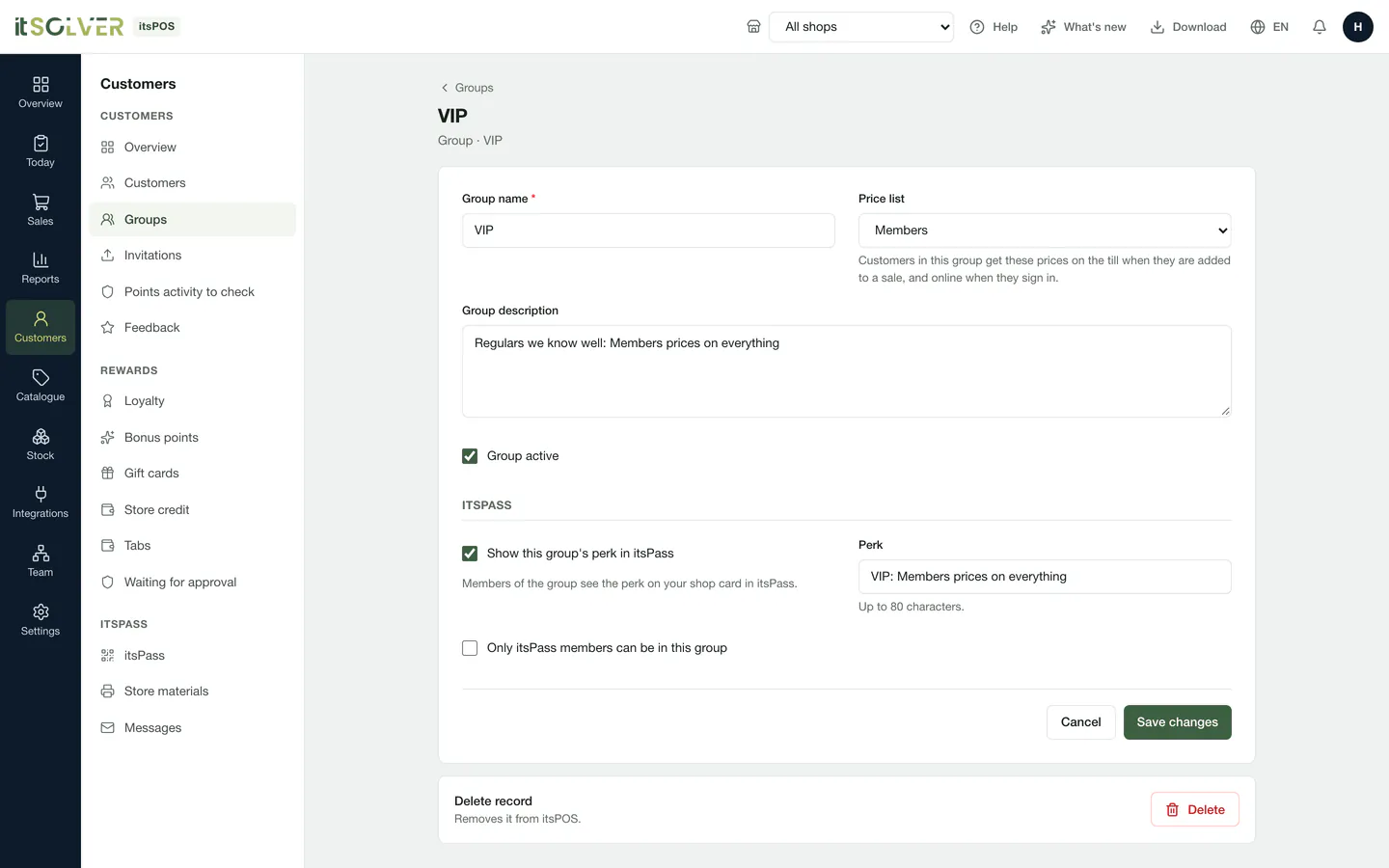
Type the Group name: VIP.
Price list: choose Members. "Customers in this group get these prices on the till when they are added to a sale, and online when they sign in." Leave it on None for a group that's only for filtering or messages.
Group description (optional): who it's for.
To tell members about it in itsPass, tick Show this group's perk in itsPass and type the Perk (up to 80 characters), for example "VIP: Members prices on everything". The perk is words only: the price comes from the price list or a promotion.
Tick Only itsPass members can be in this group if invited customers and trade accounts shouldn't be in it.
Press Add group: "Saved VIP."
Put customers in the group
- Several at once: on Customers › Customers, tick them, choose VIP under Tick customers, then: and press Add to group ("2 customers added to VIP.").
- One customer: on their page, choose the group under Group and press Change group ("Moved to VIP.").
- New customers: Customers › itsPass › New members join group decides the group new itsPass members join.

What happens next
- On the till: when the cashier adds an itsPass member of the group to a sale, the basket switches to the group's prices, Members prices for VIP (see Trade prices and customer prices). The till doesn't list invited customers, so at the till a group's prices are for its members and trade accounts.
- Online: signed-in members of the group see the group's prices in your online store.
- Bonus points and messages: they can be for one group (see Bonus points offers).
- A tier with a % off makes its own group, such as "Gold members": "Members move in and out with their tier." Leave those to the tier.
If something goes wrong
- The till doesn't show the group's prices: check the customer is on the sale and the group has a price list. Changes reach tills within a minute.
- A group you no longer need: open it and untick Group active, or press Delete. The group new customers join can't be switched off.
In itsPass
Members in a group pay its prices when your till scans their code, and in your online store when they're signed in. With Show this group's perk in itsPass ticked, members of the group see Your group on your shop's page: the group's name and the perk line you typed, under their level (from the next itsPass app update; see the note at the top). Untick it and the line goes. See The shop card.
Still stuck?
The itsPOS support team is here 08:00 to 20:00 every day except Christmas Day.
- Call or WhatsApp: +44 7488 880320
- Email: support@itspos.io
- In the back office: Help › Contact support, or go to app.itspos.io/help/contact after you sign in
- On our website: itspos.io/contact
Tell us your shop's name and what you were trying to do. A screenshot of the screen helps.