

Customers and itsPass
Your shop description and Find shops
Each shop has a short description that members see on your shop in itsPass, and a choice to show the shop in Find shops, the list of itsPOS shops shoppers can search and join. Both are on the shop's card in Customers › itsPass.
For: Owners, Admins and Shop managers4 min read
Before you start
Owners, Admins and Shop managers change these; Shop managers only for their own shops.
Write the description
Go to Customers › itsPass and find the shop's card, for example "Green Street Grocer · 2 members".
Write What shoppers see about this shop, up to 280 characters. The count under the box says how many are left. Say what makes the shop worth a visit, for example "Fresh fruit and veg every morning, British cheeses from the deli counter and everyday groceries. Scan your itsPass at the till for points and members' prices."
Press Save shop profile: "Shop profile saved."
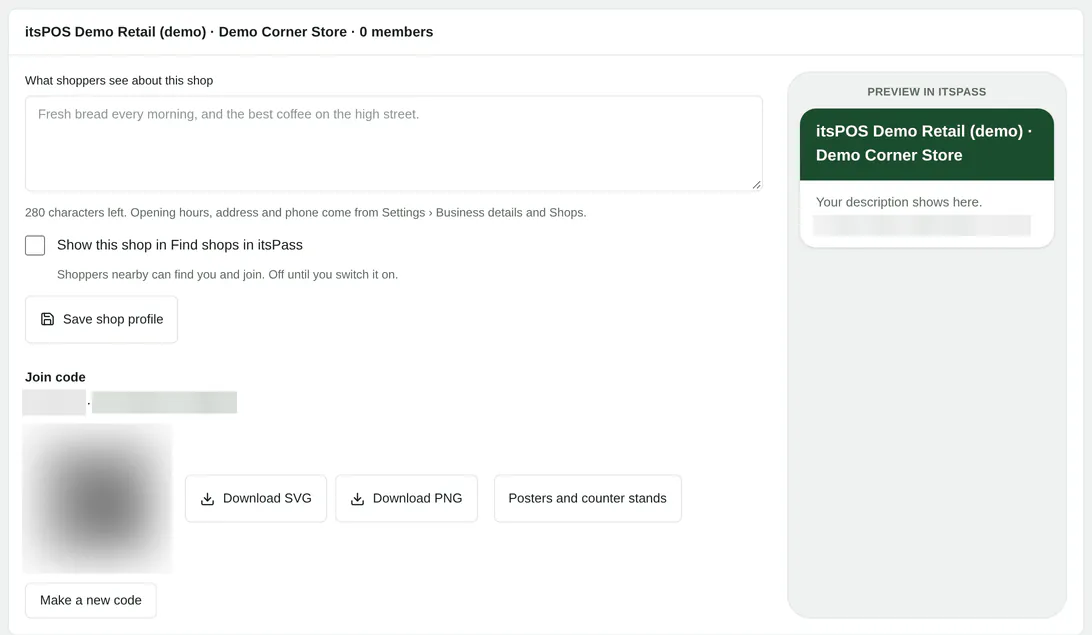
Green Street Grocer's card on Customers › itsPass Check Preview in itsPass on the right: the shop's name in its colour, the welcome line, your description and the address.
The checklist step "Describe this shop for itsPass" ticks for that shop.
Good to know:
- Opening hours, address and phone come from Settings › Business details and Settings › Shops: "Opening hours, address and phone come from Settings › Business details and Shops."
- itsPass never translates your shop's words. Shoppers who use itsPass in another language still see your description as you wrote it, so write it in the language your shoppers read.
- Leave out prices and dates: they go out of date. Put offers in your offers flyer instead.
Show the shop in Find shops
- On the shop's card tick Show this shop in Find shops in itsPass: "Shoppers nearby can find you and join. Off until you switch it on."
- Press Save shop profile.
The shop then shows in Find shops, found by its name and by where it is (worked out from the shop's postcode in Settings › Shops). Untick it and press Save shop profile to take it out again; members who already joined keep your shop.
A shop that isn't taking new members isn't offered for joining. itsPOS's own test and demo shops are never listed, so our test shop, Green Street Grocer, doesn't show even with the box ticked.
On a trial
While your business is on a trial, its shops aren't listed in Find shops yet. The shop's card says under the box: "Your shop appears in itsPass Find shops once your plan starts. Customers can still join at your till."
- You can tick the box and save during the trial. Once your plan starts, the shop shows in Find shops by itself within a few minutes.
- Customers still join you during the trial: at the till, with your join QR and your posters.
- If the trial ends without a plan, the shop stays out of Find shops.
A paused or cancelled account's shops leave Find shops too. Members keep their points and rewards; if the account starts again, the shops you chose to show come back by themselves.
What happens next
- Your description shows on your shop's page in itsPass and on the page people open from your join QR.
- With Find shops on, people near the shop can find it and join without a QR (once your plan has started, if you're on a trial).
What shoppers see
In itsPass, Find shops is under Shops (and at pass.itspos.io/find, no sign-in needed). Shoppers search by name, town or postcode, such as LS1, or tap Shops near me: itsPass asks the phone roughly where they are, rounds it to about a kilometre for that search only and never keeps it. Without location, they search by town or postcode.
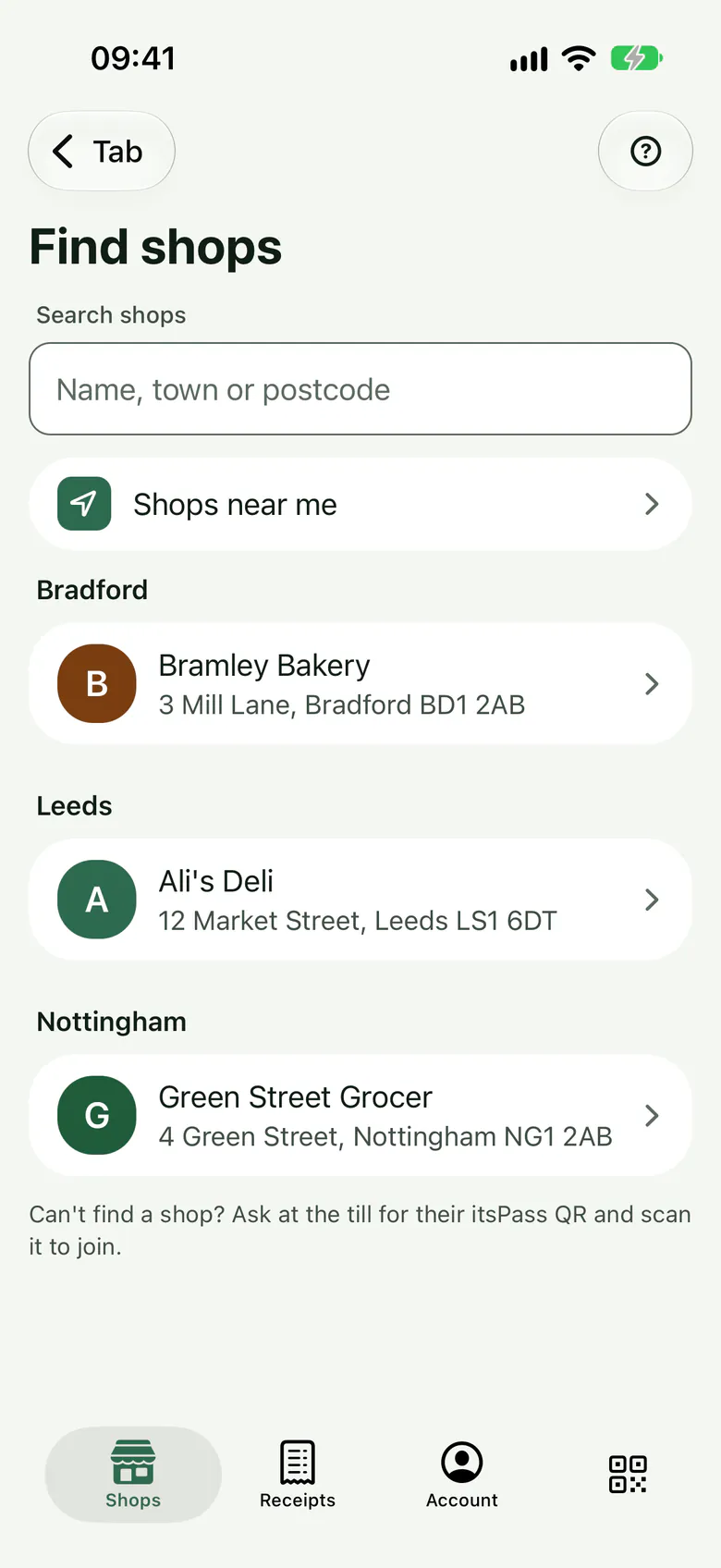
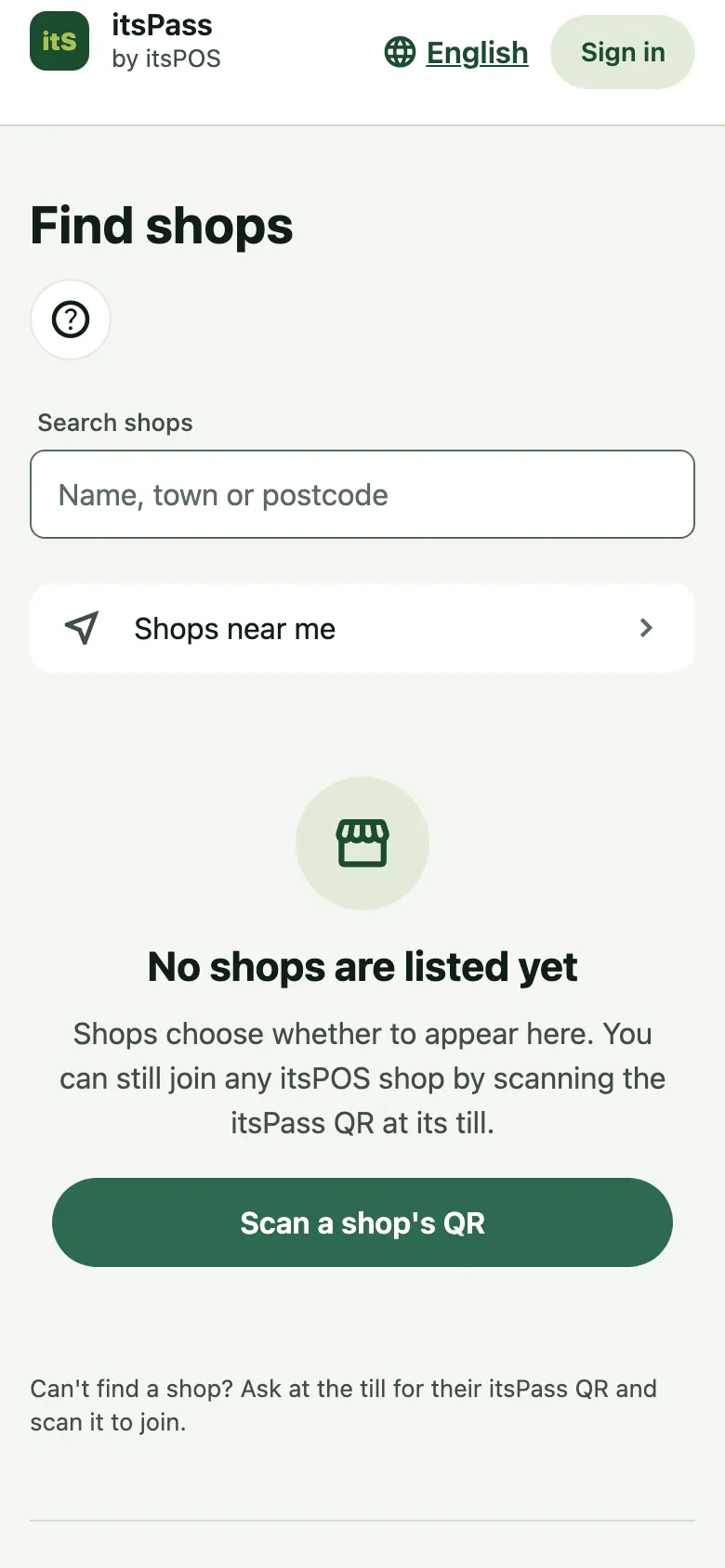
Tapping a listed shop shows your description, address, opening hours and Join with your shop's name. Shops that aren't listed (and every shop on a trial) can still be joined with their QR: "Can't find a shop? Ask at the till for their itsPass QR and scan it to join." When no shop matches: No shops are listed yet or "No shops match" with what was typed.
Still stuck?
The itsPOS support team is here 08:00 to 20:00 every day except Christmas Day.
- Call or WhatsApp: +44 7488 880320
- Email: support@itspos.io
- In the back office: Help › Contact support, or go to app.itspos.io/help/contact after you sign in
- On our website: itspos.io/contact
Tell us your shop's name and what you were trying to do. A screenshot of the screen helps.