

Customers and itsPass
Gift cards: issue, give, top up and PIN
Most gift cards are sold at the till (see Gift cards, store credit and points at the till). Customers › Gift cards lists every card, and lets you issue one in the back office: a card paid by bank transfer for a wedding list, or a free card for a raffle prize. Every card says how it was paid for and has a PIN.
For: Owners, Admins and Shop managersOn some plans3 min read
Before you start
- Owners, Admins and Shop managers can issue, top up and change cards. Only Owners and Admins can give free cards.
- A free card over your shop's limit (£50.00 in our test shop) waits for someone else to approve it (see Waiting for approval).
- Gift cards aren't a sale: VAT is charged when the card is spent.
Issue a gift card
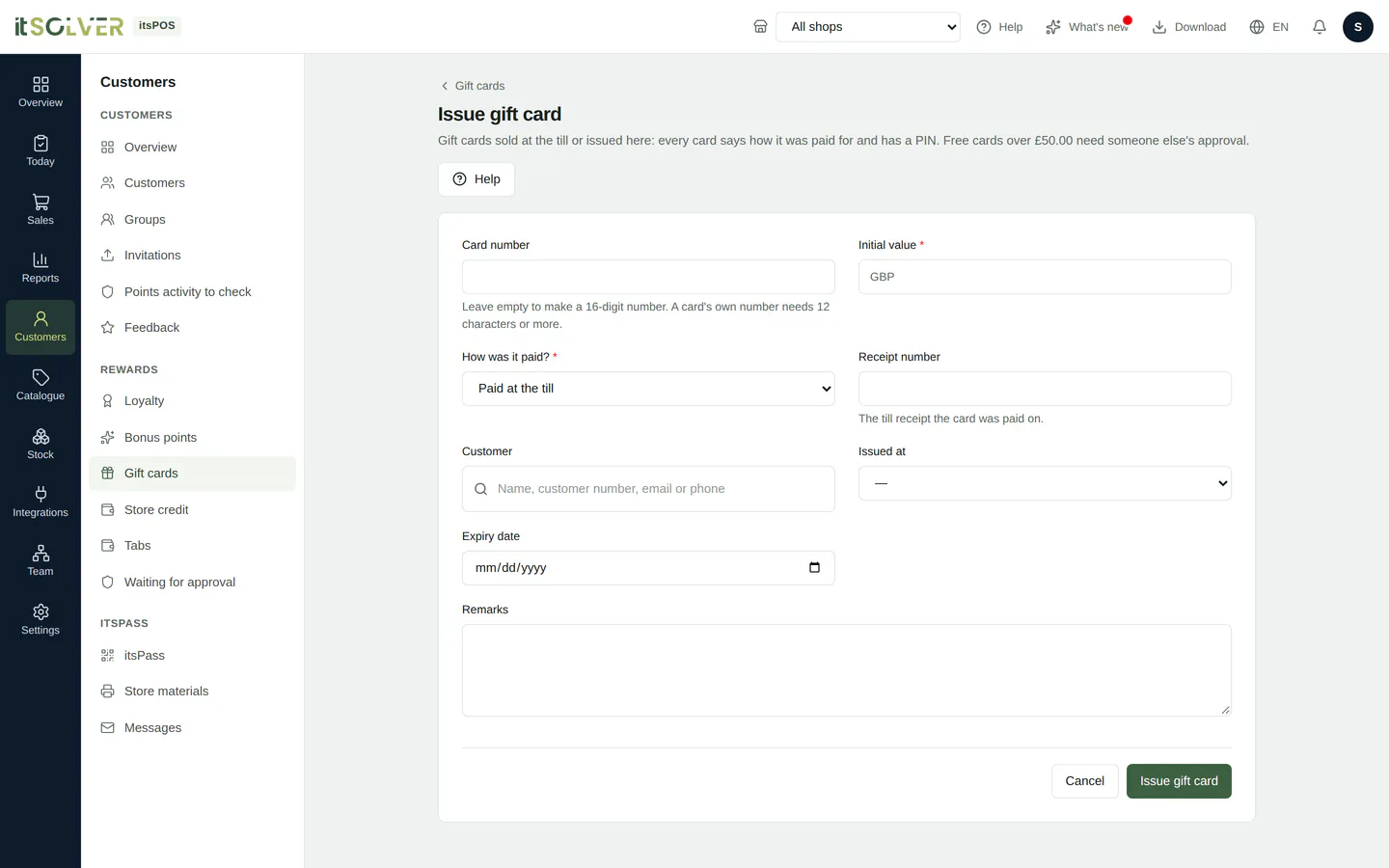
- Go to Customers › Gift cards and press Issue gift card.
- Card number: type the number printed on a physical card (12 characters or more), or leave it empty and itsPOS makes a 16-digit number. Ours: 6006491800004821.
- Initial value: £25.00.
- How was it paid?: Paid at the till (then the Receipt number it was paid on), Paid by bank transfer, or Given free (needs a reason) (then Why is it free?).
- Customer (optional): search by name, customer number, email or phone (Mia Hughes). Issued at: the shop (Green Street Grocer). Expiry date and Remarks if you need them.
- Press Issue gift card. The page shows the card's PIN once: "PIN …: write it on the card or give it to the customer now. It isn't shown again."
A free £60 card waited instead: "Free gift card £60.00 is waiting for approval (WAP-2026-00001). Customers › Waiting for approval."
A card's page
- Balance, Initial value, Status (Active, Redeemed, Expired, Disabled), PIN (Set or None) and how it was paid.
- Top up: type the Top-up amount, choose How was it paid? and press Top up: "Gift card topped up." A free top-up over your limit waits for approval.
- Give a new PIN (or Give the card a PIN): "The PIN is needed to use the card in itsPass. Lost it? Give the card a new one." The new PIN shows once: "New PIN …. Give it to the card holder now: it isn't shown again."
- Transactions: each issue, top-up and spend with the balance after.
- To stop a card being used, untick Active and press Save changes. Delete removes a card issued by mistake ("Delete this record? This cannot be undone."); a card that has been topped up or spent is switched off instead.
The list
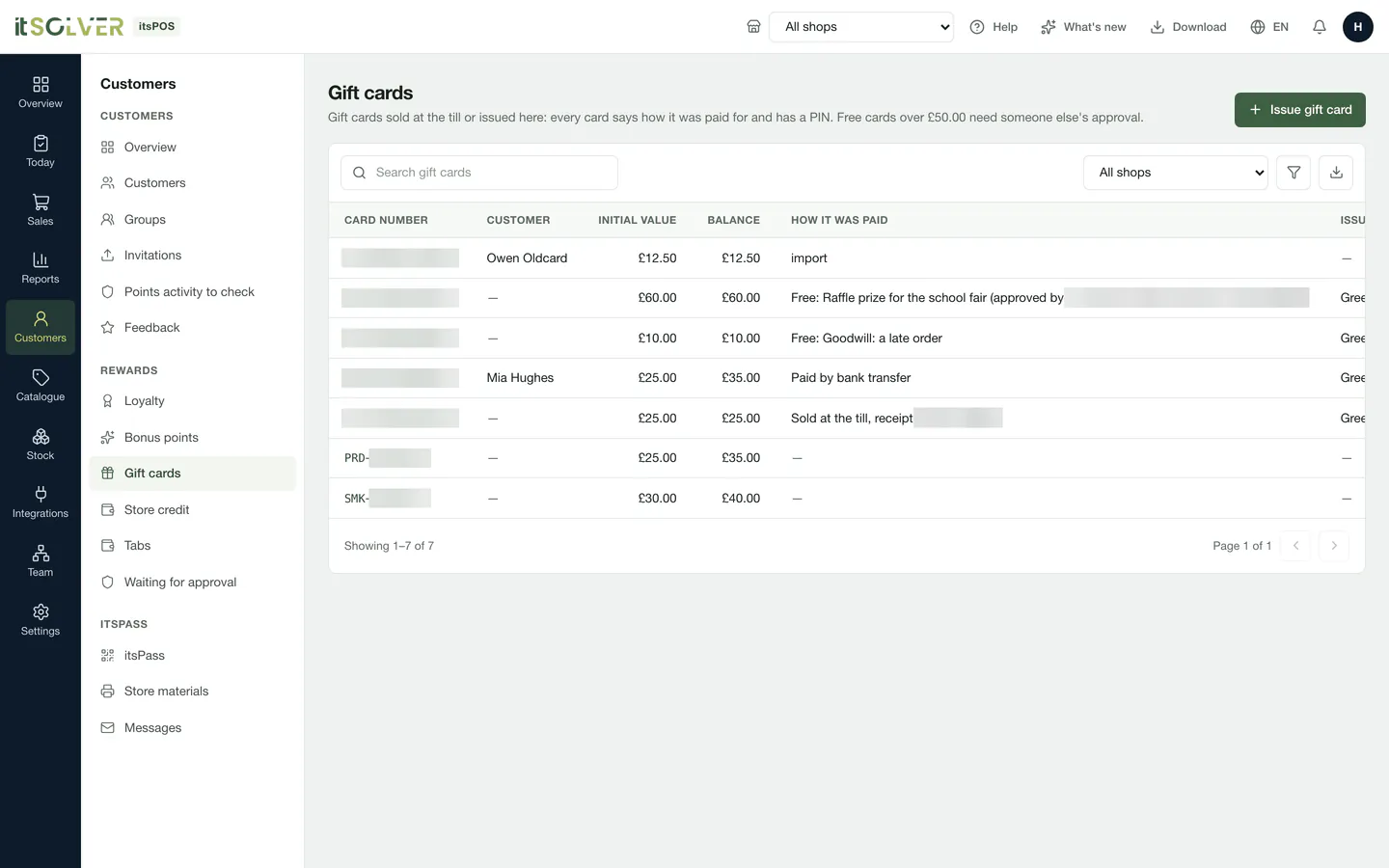
Search by card number or scan the card. Filter by Status and shop. Customers › Overview shows the total on active cards, and Reports › Customer reports has the gift card balances.
In itsPass
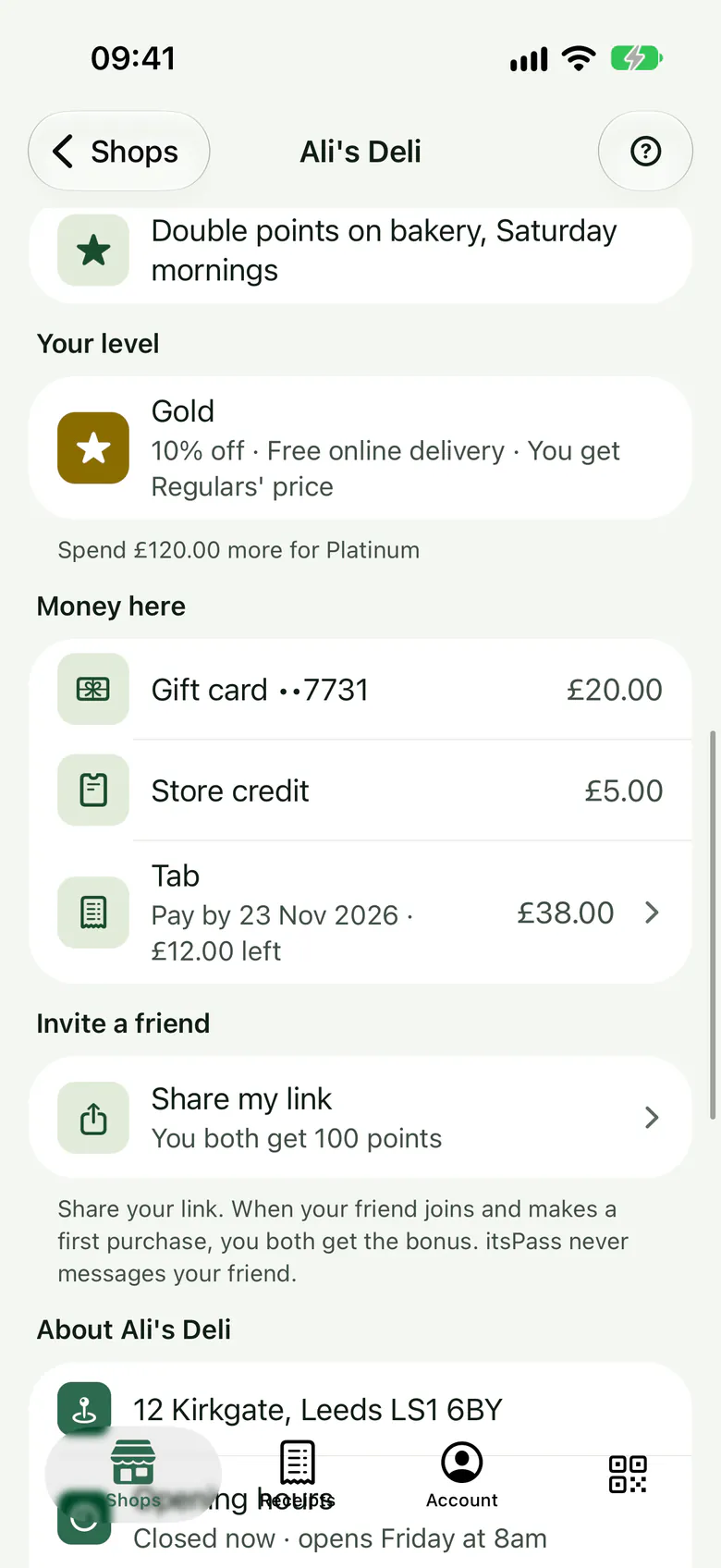
A member's gift cards from your shop show under Money here on your shop's page: "Gift card ••7731" with the balance and use-by date, next to their store credit. They spend them at your till with My code or their PIN. If they delete itsPass, a gift card still works with its number and PIN.
Still stuck?
The itsPOS support team is here 08:00 to 20:00 every day except Christmas Day.
- Call or WhatsApp: +44 7488 880320
- Email: support@itspos.io
- In the back office: Help › Contact support, or go to app.itspos.io/help/contact after you sign in
- On our website: itspos.io/contact
Tell us your shop's name and what you were trying to do. A screenshot of the screen helps.