

Customers and itsPass
Member tabs: buy now, pay later
A tab lets a regular buy now and pay later, like the book behind the counter: "Members who can buy now and pay later at your shop. No interest and no fees, ever." You choose who gets a tab and their limit; they pay once a month after their statement. Tabs are for itsPass members; businesses you supply on account are trade customers (Sales › Trade customers).
For: Owners, Admins and Shop managersOn some plans5 min read
Our test member Tess has a £50 tab: she bought £26.70 of shopping on it, paid £8.00 in cash and £0.50 was written off, so she owes £18.20.
Before you start
- Owners, Admins and Shop managers can offer tabs, change limits, stop tabs and record payments. Only Owners and Admins can write off.
- The shop needs a Put on tab payment button in Settings › Payments for the till to take tab payments.
Switch tabs on
Go to Customers › Tabs and press Settings.
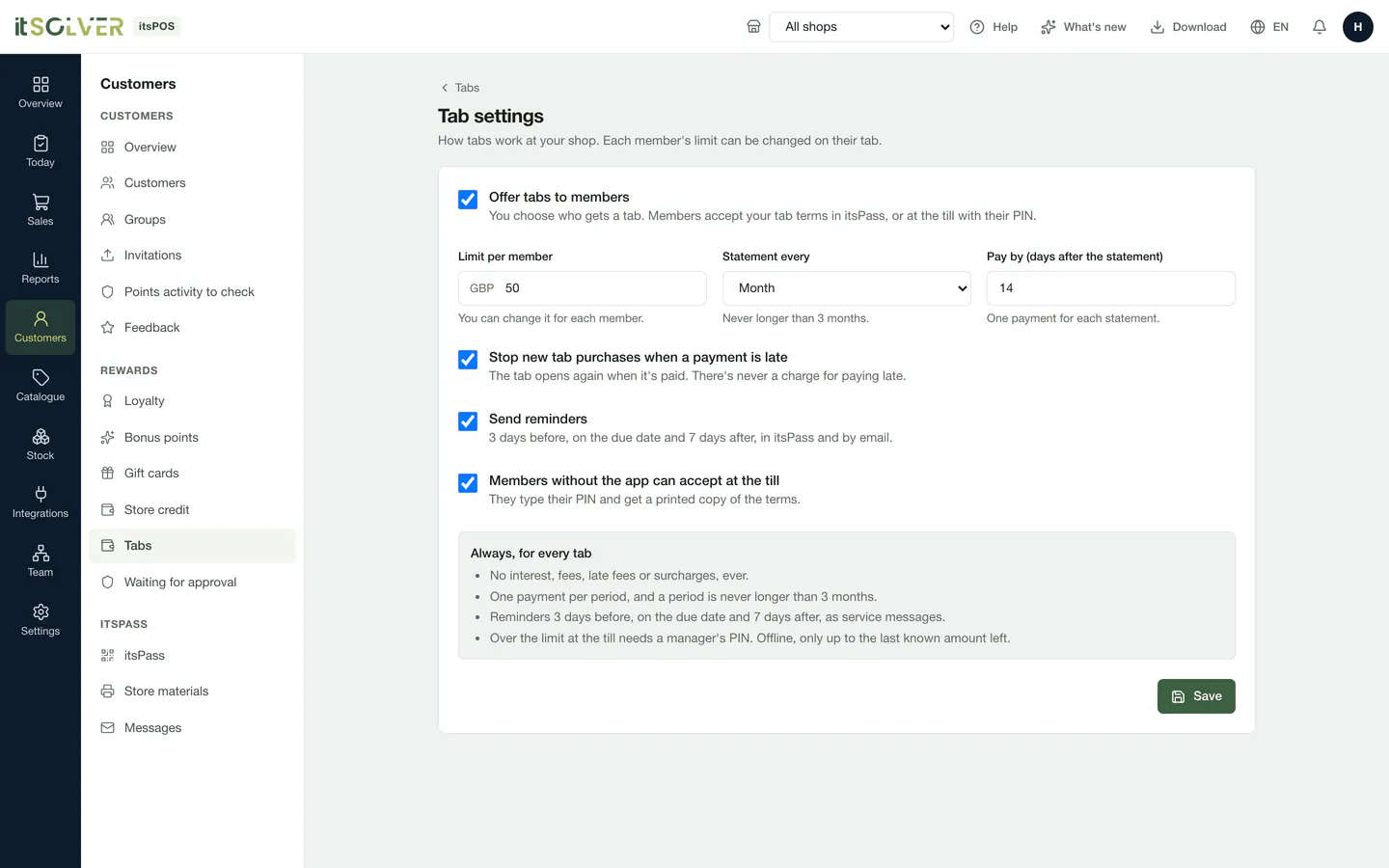
Tab settings Tick Offer tabs to members.
Limit per member: £50 to start ("You can change it for each member").
Statement every: Week, 2 weeks, Month, 2 months or 3 months ("Never longer than 3 months"). Pay by (days after the statement): 14.
Stop new tab purchases when a payment is late: "The tab opens again when it's paid. There's never a charge for paying late."
Send reminders: "3 days before, on the due date and 7 days after, in itsPass and by email."
Members without the app can accept at the till: "They type their PIN and get a printed copy of the terms."
Press Save: "Tab settings saved."
Always, for every tab: no interest, fees, late fees or surcharges, ever; one payment per period; over the limit at the till needs a manager's PIN.
Offer a member a tab
- On Customers › Tabs, under Offer a member a tab, type their Member number (for example CUS-000026) and the Limit, and press Offer tab. Or on the member's page, type the Limit under Tab and press Open a tab: "Tab offered. The member accepts the terms in itsPass, or at the till with their PIN."
- The member accepts your tab terms in itsPass, or at the till with their PIN (Tess accepted at the till). Until then the tab is Waiting to accept; Withdraw the offer takes it back. "Nothing can go on the tab until the member accepts your tab terms."
Look after a tab
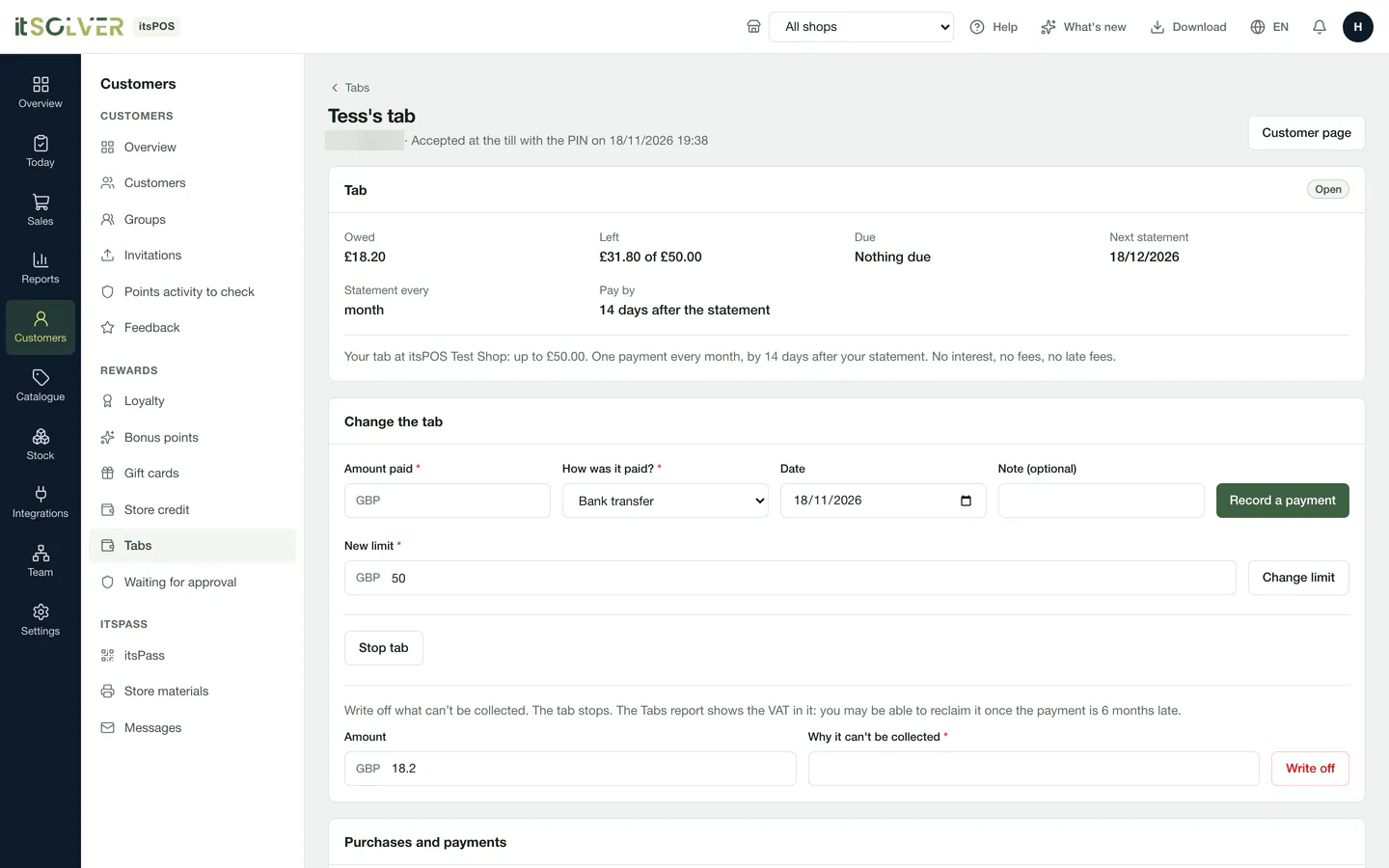
Open the tab from the list. It shows Owed, Left, Due, Next statement, Statement every and Pay by, then Purchases and payments and Statements.
- Record a payment: Amount paid, How was it paid? (Bank transfer, Cash, Card, Other), Date and a note, then Record a payment. Payments at the till go on by themselves.
- Change limit: type the New limit and press Change limit.
- Stop tab: "Stop new purchases on this tab? What is owed stays due." Let them buy again opens it again.
- Close tab: when nothing is owed.
- Write off (Owners and Admins): what can't be collected, with Why it can't be collected. "Write this off? It can't be undone." The tab stops; Let them buy again opens it. "The Tabs report shows the VAT in it: you may be able to reclaim it once the payment is 6 months late."
The list
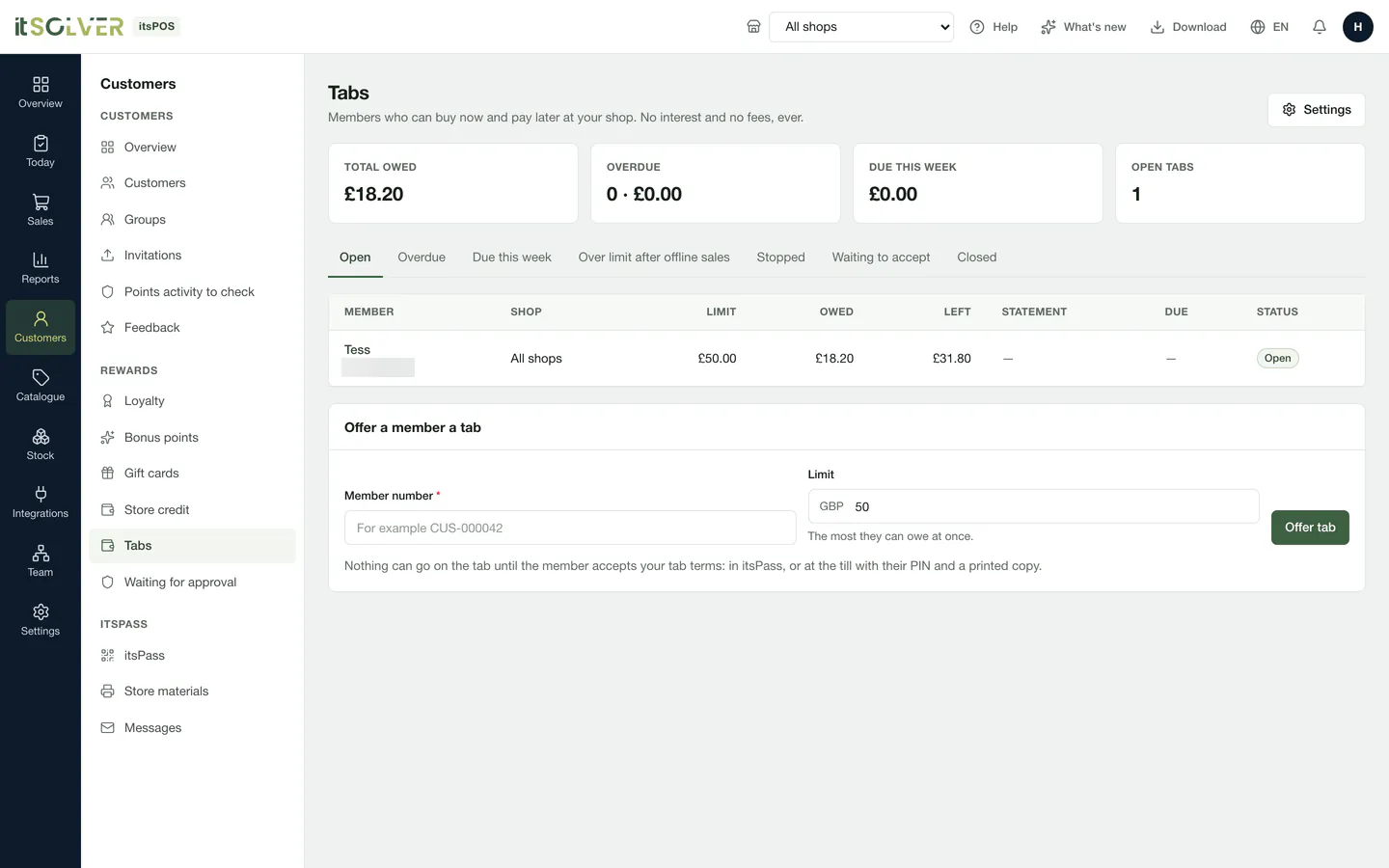
Total owed, Overdue, Due this week and Open tabs, then tabs by Open, Overdue, Due this week, Over limit after offline sales, Stopped, Waiting to accept and Closed.
On the till
The cashier adds the member and taps Put on tab at Pay, or Pay off tab on the member panel when they pay (see Tabs and on-account sales).
In itsPass
- Offered: the member sees Tab offered: up to £50.00 on your shop's page. Tapping it shows the terms with Accept the tab or No thanks.
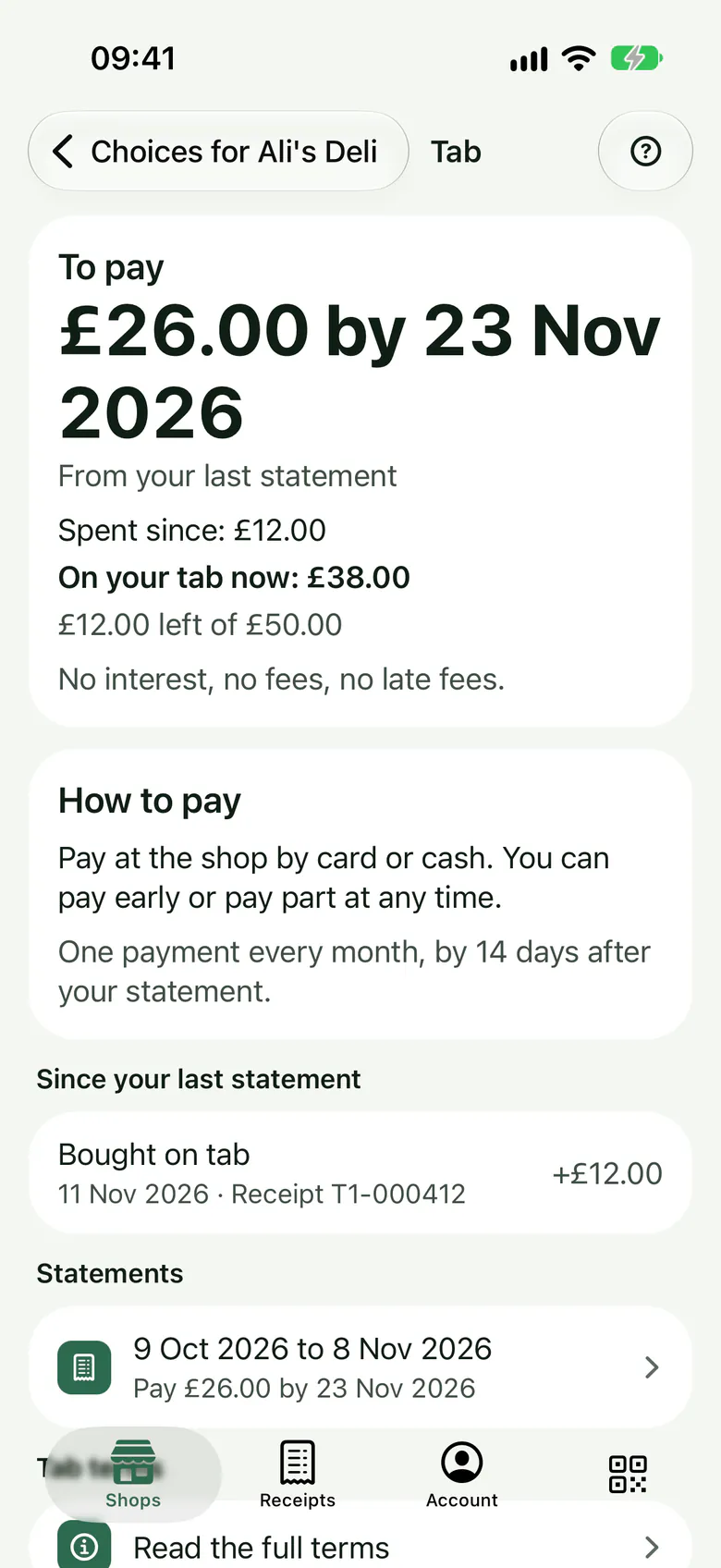
- Open: the Tab row shows what they owe, what's left and the date to pay by. The tab's page shows To pay with the date, what they've spent since the statement, the statements and How to pay: "Pay at the shop by card or cash. You can pay early or pay part at any time." No interest, no fees, no late fees.
- Overdue: "Pay at the shop. There's no charge for paying late, but you can't add to your tab until it's paid."
- Leaving or deleting: refused while they owe: Pay off your tab first. See What members share with you, leaving and deleting.
What happens next
- A statement is made each period (Tess's first is on 18/12/2026) and the member sees it in itsPass; card-only members get a printed statement at the shop.
- Late payments stop new purchases if you chose that, and reminders go out; there's never a charge.
Still stuck?
The itsPOS support team is here 08:00 to 20:00 every day except Christmas Day.
- Call or WhatsApp: +44 7488 880320
- Email: support@itspos.io
- In the back office: Help › Contact support, or go to app.itspos.io/help/contact after you sign in
- On our website: itspos.io/contact
Tell us your shop's name and what you were trying to do. A screenshot of the screen helps.