

Customers and itsPass
Answering shoppers' questions about itsPass at the till
Short, honest answers your staff can give when a shopper asks about itsPass at the till.
For: Shop managers, Supervisors and Cashiers5 min read
The situation
You ask "Do you have itsPass?" and the shopper has a question. These are the questions shops hear most, with short answers your staff can give. The same answers are on the staff script card (Customers › Store materials › Staff script card), printed for behind the till.
Common questions and what to say
- "What is it?" "itsPass is a free app for your points and receipts here. It's free, takes 20 seconds, and you'll get 50 points on this." (Say your own welcome points.) Point to the QR on the counter: it opens the app or the website.
- "Does it cost anything?" "No, it's free, for anyone aged 16 or over."
- "What do you see about me?" "itsPass is run by itsPOS. We see your first name, and anything else only if you choose to share it. Your shopping stays with us. You choose offers in the app, and you can stop them any time."
- "I don't have a smartphone." "We can join you by text now. You'll get a code." Join them by their mobile number on the till. See Join itsPass at the till.
- "I don't have a mobile at all." "We'll make you a card with a member number and a PIN." Print them a member slip on the till.
- "Can I use it next time without my phone?" Yes: find them by their mobile number on the till. To spend points they type their itsPass PIN on the till themselves. See Add a customer or itsPass member to a sale.
- "My Wallet card won't scan" or "My code won't show." Ask for their mobile number and find them that way.
- "I forgot my PIN." With the app, they set a new one in itsPass. Without the app, a manager can help them set a new one at the till, if your shop switched that on. See Set a new PIN.
- "I get too many offers." Every offer has "Stop offers from this shop", and they choose offers for each shop in itsPass. Your shop sends at most 2 a week, never between 9pm and 8am.
- "How do I leave or delete it?" "In the app under Account, or at pass.itspos.io/delete. With a slip card, email support@itspos.io." They can leave just your shop, or delete itsPass altogether.
Never tick offers for them, type their PIN for them, or ask them to say their PIN out loud.
What you'll see afterwards
- A shopper who joined shows on the till's itsPass panel with "New member", and in Customers › Customers on the Members tab with how they joined, for example "Till, member slip".
- If someone says a till join wasn't them, itsPOS undoes it and Customers › itsPass lists it under "Till joins the shopper said weren't them".
Guides used
What shoppers see
Short answers for questions about the itsPass app (1.1 and later):
| They ask | Say |
|---|---|
| "My code won't show" | "Tap At the till? Show my number under the message, and show me." Find them by mobile; points are added as normal. |
| "It won't scan" | "Hold it a little further away and keep it still. Or just tell me your mobile number." |
| "I didn't get the text" | "Tap Didn't get it?: you can send a new code or check your filtered texts." |
| "Can I sign in quicker?" | "Yes: after signing in, itsPass offers Face ID or your fingerprint, Apple or Google. Or add one in Account › Sign-in methods." |
| "It's not in my language" | "Account › Language: Welsh, Polish, Romanian, Punjabi, Urdu, Bengali and Arabic are there." Your shop's own words stay as you wrote them. |
| "Where are my messages?" | "Behind the bell at the top of My code." |
| "I joined here by phone. Do I need to join again?" | "No: sign in with the same mobile number and we're already in your shops." |
| "How do I stop your offers?" | "Tap Stop offers from this shop on any offer, or Choices at the bottom of our page in itsPass." |
| "I'm on a new phone and it wants a PIN" | "That's your itsPass PIN, the one you type on our PIN pad." If they've forgotten it, a manager can set a new one at the till when your business allows it (see Add a customer or itsPass member to a sale); or they email support@itspos.io. |
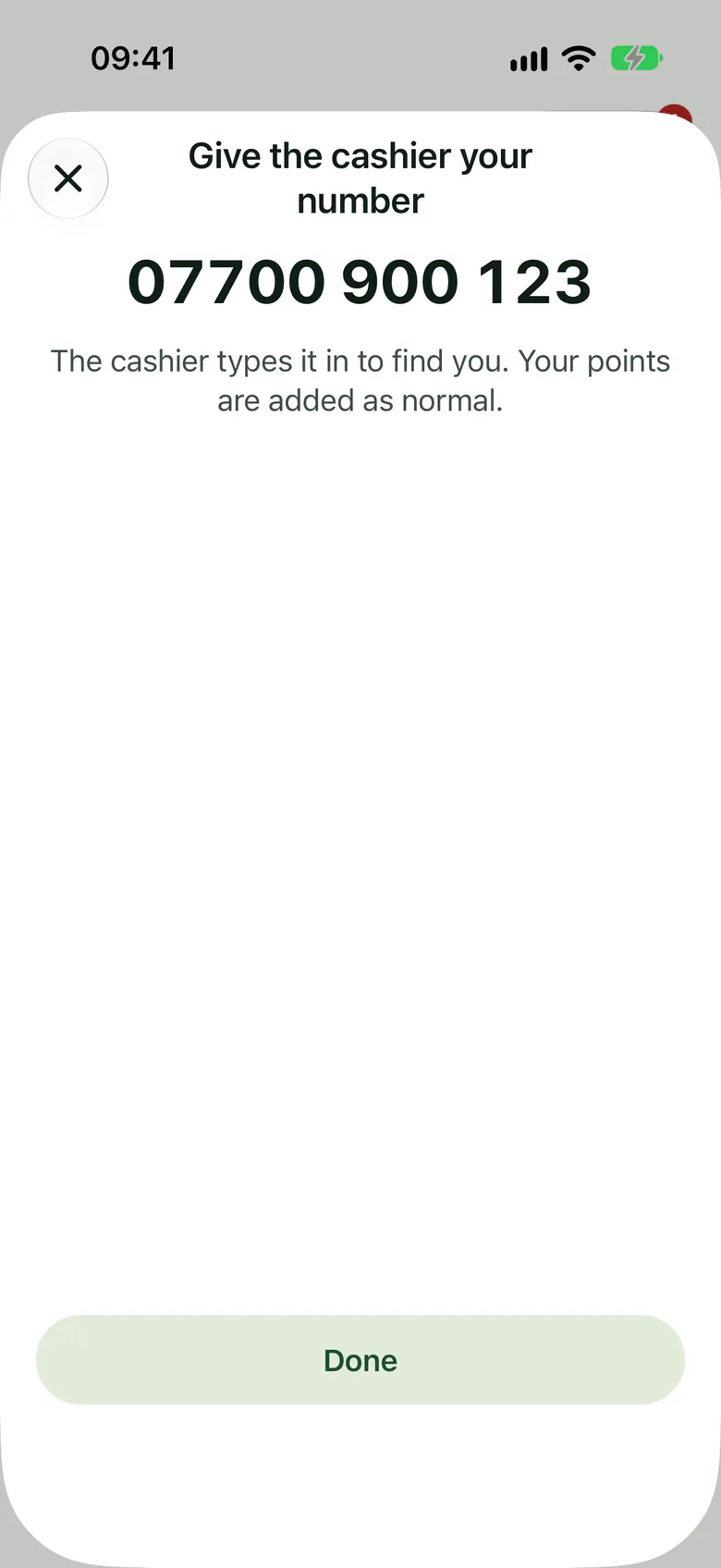
The screen-by-screen tour: What your shoppers see in itsPass.
Still stuck?
The itsPOS support team is here 08:00 to 20:00 every day except Christmas Day.
- Call or WhatsApp: +44 7488 880320
- Email: support@itspos.io
- In the back office: Help › Contact support, or go to app.itspos.io/help/contact after you sign in
- On our website: itspos.io/contact
Tell us your shop's name and what you were trying to do. A screenshot of the screen helps.