

Customers and itsPass
A stamp card like a paper coffee card
A stamp card works like the paper card in a café: "Collect 10 stamps, get a free coffee". itsPOS keeps the card for each itsPass member, so nobody loses it. Our test shop gives a stamp for each Hot Drinks item, and 10 stamps make a free coffee up to £3.50.
For: Owners, Admins and Shop managers4 min read
Before you start
- Owners, Admins and Shop managers can set it up, on Customers › Loyalty.
- Members collect points, stamps or both. With both, a sale earns points and stamps.
Set up the stamp card
Go to Customers › Loyalty and scroll to the Stamp card.
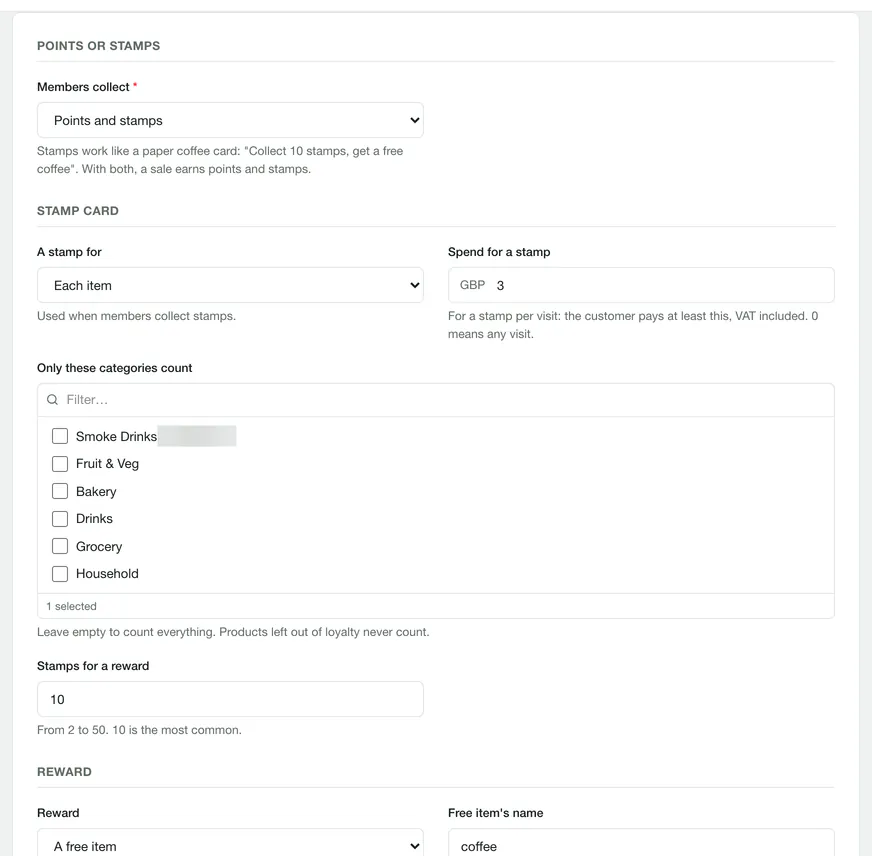
The stamp card Members collect: Stamps, or Points and stamps to keep your points too.
A stamp for: Each item (each coffee) or Each visit. For each visit, Spend for a stamp is the least they must pay, VAT included (0 means any visit).
Only these categories count: tick the categories, for example Hot Drinks. Leave it empty to count everything. Products left out of loyalty never count.
Stamps for a reward: from 2 to 50 ("10 is the most common").
Reward: A free item or Money off. For a free item, type the Free item's name (coffee), choose Free item from these categories (Hot Drinks) or Or these products, and the Reward value, the most it takes off (£3.50). Members read "Free coffee up to £3.50".
Stamps expire after (months): 12 to start; 0 means never.
Stamps on online orders: "Signed-in members collect stamps on orders from your online store." Off to start.
Press Save stamp card: "Stamp card saved."
"How members see it: In the itsPass app, on the till's member panel and on the receipt." The preview on the card shows a member's progress, for example "7 more for Free coffee up to £3.50".
What happens next
- Each sale gives stamps the same way the till shows them; Core counts them when the sale arrives. Tess bought Nescafé and three Tetley: 4 stamps, "6 more".
- When a member has 10 stamps, a reward is ready. The cashier taps Use reward on the member panel at the till, and the free item comes off the dearest item it fits, up to £3.50.
- A refund takes back the stamps the returned items earned.
- Stamp card report shows stamps given, taken back, expired, rewards earned and used, and free rewards at cost price, for the last 30 days or 12 months.
In itsPass
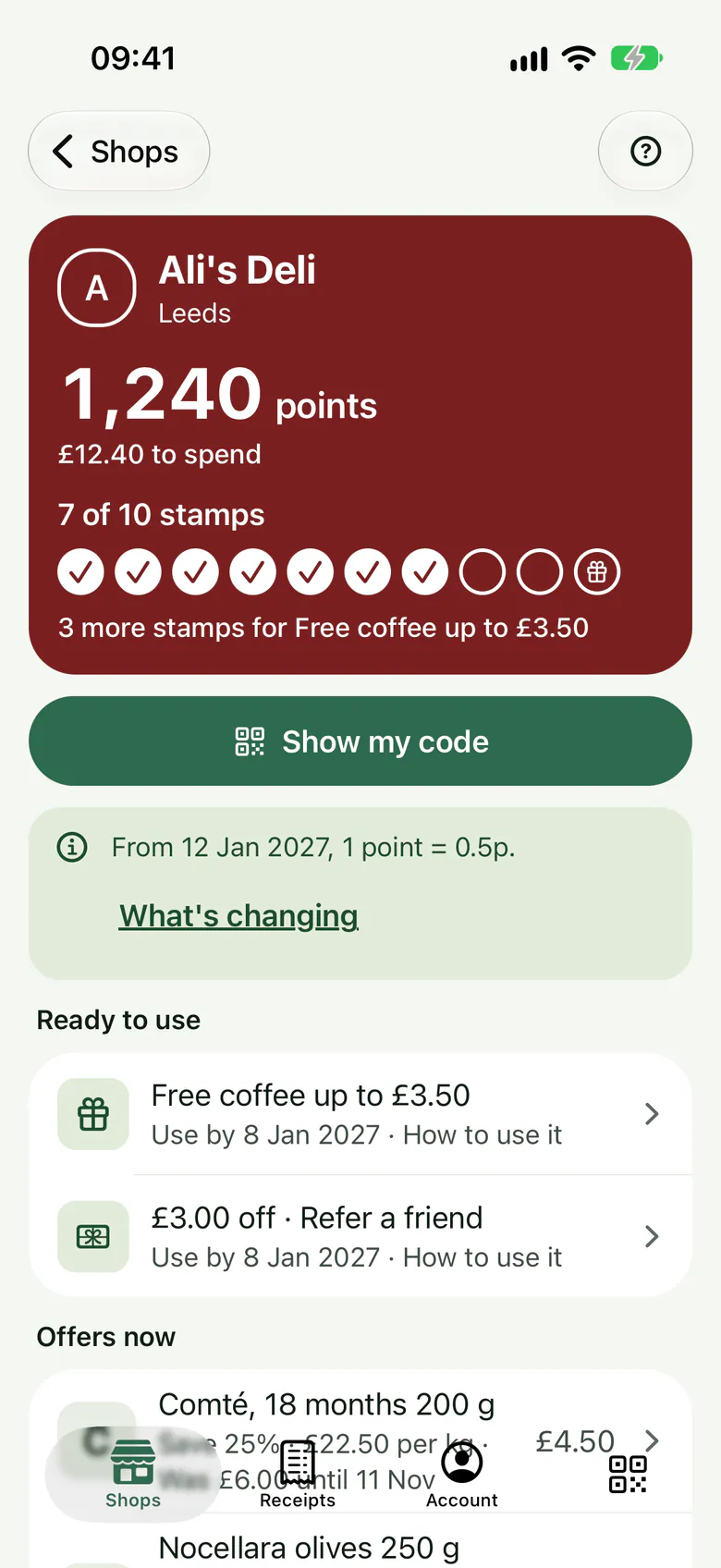
- Your shop's page shows the card, for example "7 of 10 stamps", and what's left: "3 more stamps for Free coffee up to £3.50".
- A full card puts the reward under Ready to use with its use-by date. Tapping it shows how to use it at the till.
- The member's Wallet card shows Reward ready on their Lock Screen when a reward is ready, if they allow the card's notifications. See Shop cards in Apple Wallet and Google Wallet.
On the till
The member panel shows their stamps, for example "4 of 10", and Use reward when one is ready (see Add a customer or itsPass member to a sale).
On their customer page
Open the member from Customers › Customers. The Wallet card shows Stamps ("4 of 10") and Rewards ready, with their rewards and latest stamps under Stamp card (see A customer's page).
If something goes wrong
- No stamps on a sale: the products aren't in a category that counts, or the customer wasn't on the sale. Add points by hand on their page if a scan was missed; stamps can't be added by hand.
- Changing to fewer stamps for a reward, or a smaller reward, is worse for members: it starts at least 30 days later (see Changing your programme fairly).
Still stuck?
The itsPOS support team is here 08:00 to 20:00 every day except Christmas Day.
- Call or WhatsApp: +44 7488 880320
- Email: support@itspos.io
- In the back office: Help › Contact support, or go to app.itspos.io/help/contact after you sign in
- On our website: itspos.io/contact
Tell us your shop's name and what you were trying to do. A screenshot of the screen helps.